By The 240fps team · · 5 min read
The best screen recorder for Mac depends on the job
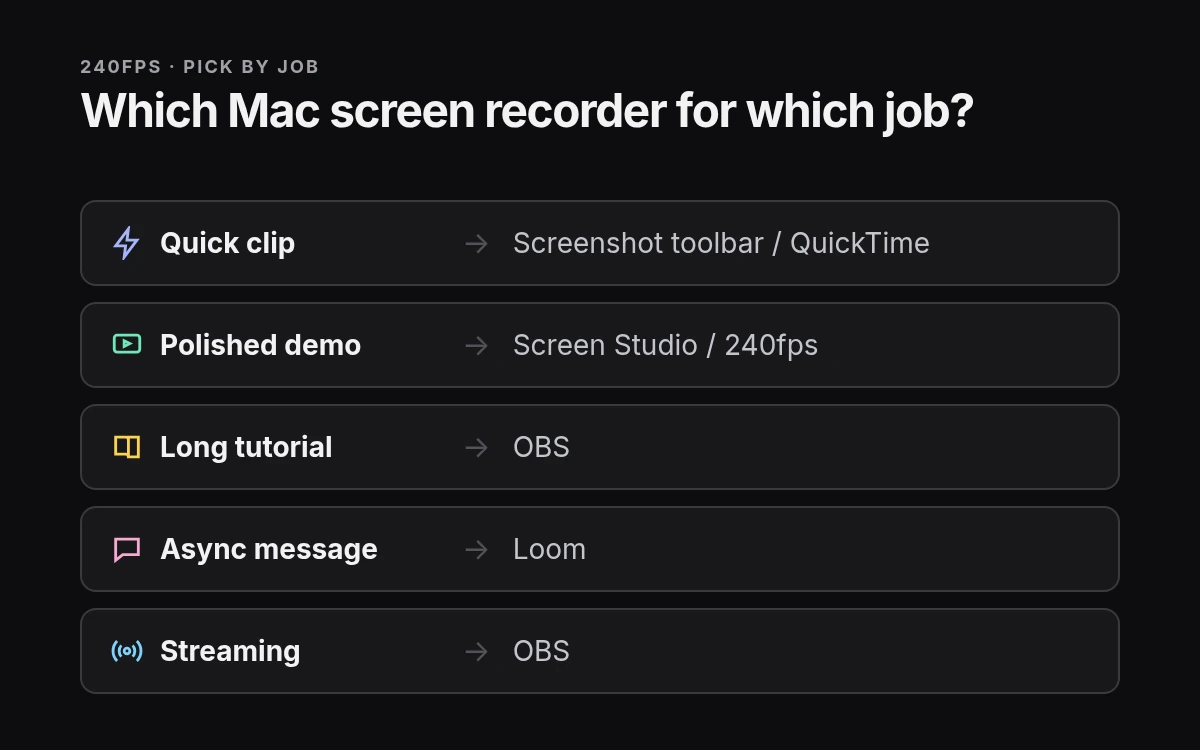
For a quick free clip, the Mac's own Screenshot toolbar (Shift-Command-5) or QuickTime is enough. For free, flexible recording and streaming, use OBS. For polished product demos with automatic zooms, look at Screen Studio or 240fps for Mac. For screenshots plus short recordings, CleanShot X. For async video messages, Loom.
240fps is our product. We've included it alongside the tools we'd recommend anyway.
"Best" is the wrong question. A ten-second bug clip, a launch demo and a two-hour coding stream need different tools. Pick the wrong one and you either fight a pro app for a quick clip or spend an afternoon zooming a demo by hand.
So this list is sorted by job. Each tool gets what it's best for, what to watch out for, and the platforms it runs on.
How we picked: by job, not by score
We started from five jobs people actually record on a Mac: a quick clip, a polished product demo, a long tutorial, an async video message and a live stream. For each tool, we only describe features stated on its own website, checked on 30 October 2026. We haven't benchmarked anything, so there are no ratings, scores or speed tests here.
We also don't print rival prices. Pricing changes often, so we link each tool's own site instead. For head-to-heads, see 240fps comparisons.
Built-in: the Screenshot toolbar and QuickTime Player
Best for: quick, free clips with nothing to install.
Press Shift-Command-5 and the Screenshot toolbar lets you record the whole screen or a selected part. Apple explains it in how to take a screenshot or screen recording on Mac. QuickTime Player does the same job from its File menu; see record your screen in QuickTime Player.
Watch out for: there's no editing beyond a basic trim, and no automatic zooms or captions. What you record is what you get.
Platform: macOS.
Step-by-step guides: how to screen record on a Mac and QuickTime screen recording.
OBS Studio: free, flexible and built for streaming
Best for: long tutorials and live streams where you want full control.
OBS Studio describes itself as "free and open source software for video recording and live streaming". You build scenes from sources such as a screen, a window or a camera, and switch between them while you record or stream.
Watch out for: more setup than anything else here. Expect to spend time on scenes, audio sources and output settings before your first good take.
Platform: see OBS's site for supported systems.
Screen Studio: polished demos on macOS
Best for: product demos that need to look finished without manual editing.
Screen Studio calls itself a "screen recorder for macOS" with "automatic zoom on mouse actions, smooth mouse movement". Record normally and the zooms are added for you.
Watch out for: it's macOS only, and it's built around demos rather than long streams.
Platform: macOS. For how it lines up with ours, read 240fps vs Screen Studio.
CleanShot X: screenshots first, short recordings too
Best for: people who take lots of screenshots and record the odd short clip.
CleanShot X is a screenshot and screen recording app for Mac with a "built-in annotation tool, Cloud uploading, scrolling capture". It suits marking up a bug, sharing a link and moving on.
Watch out for: it's a capture tool first. For a demo with zooms and scenes, you'll want something built for that.
Platform: macOS.
Loom: async video messages
Best for: recording a quick walkthrough and sending a link instead of booking a meeting.
Loom invites you to "Start Recording For Free" on its pricing page, where the current plans are listed. Recordings live as shareable links, so the person on the other end just clicks and watches.
Watch out for: it's built for messages to people, not for polished marketing video. Check its pricing page for plan limits.
Platform: see Loom's site for current apps and how recording works.
240fps for Mac: demos with zooms, plus an editor for the rest
Best for: product demos and app walkthroughs, especially if you also make mockups or App Store screenshots.
240fps for Mac is a Mac screen recorder with automatic zooms, a smoothed cursor, camera, captions and scenes, plus the whole 240fps editor. It records the screen, a window or an area, with your microphone, computer sound and camera.
Watch out for: it needs macOS 15 Sequoia or later on Apple silicon (M1 or later), so older Intel Macs are out. Designing is free; recording unlocks with a paid plan.
Price: $7 a month or $39 once. Either option also unlocks the web editor for mockups and App Store screenshots. Details on 240fps pricing. Comparing similar tools? See 240fps vs SmoothCapture.
Platform: macOS (Apple silicon).
Quick comparison: which Mac screen recorder for which job
| Tool | Best for | Free option? | Platform |
|---|---|---|---|
| Screenshot toolbar / QuickTime | Quick clips | Yes, built in | macOS |
| OBS Studio | Long tutorials, live streams | Yes, free and open source | See OBS site |
| Screen Studio | Polished demos | See its site | macOS |
| CleanShot X | Screenshots and short clips | See its site | macOS |
| Loom | Async video messages | Yes, free plan | See its site |
| 240fps for Mac | Demos and app walkthroughs | Designing free; recording is paid | macOS 15+, Apple silicon |
Pick by the job in front of you. If you're recording a demo this week, try the one that does zooms for you and see if the first take is usable.
240fps isn't affiliated with Apple. Mac, macOS and QuickTime are trademarks of Apple Inc.
Mac screen recorder questions
What is the best free screen recorder for Mac?
It depends on the job. For quick clips, the Mac's built-in Screenshot toolbar (Shift-Command-5) and QuickTime Player are free and need nothing installed. For long tutorials or live streaming with full control, OBS Studio is free and open source, though it takes more setup before your first good recording.
Does Mac have a built-in screen recorder?
Yes. Press Shift-Command-5 to open the Screenshot toolbar, then choose to record the whole screen or a selected part. QuickTime Player can also record your screen from its File menu. Apple's support pages explain both, and neither adds automatic zooms, captions or editing beyond a basic trim.
Which Mac screen recorder records system audio?
240fps for Mac records computer sound and your microphone, along with the screen and camera. For other tools, check each one's own documentation, because audio options and setup steps differ between apps. On macOS 15 Sequoia or later with Apple silicon, 240fps handles both sources in one recording.
What's the best screen recorder for product demos?
For product demos, a recorder that adds zooms for you saves the most editing time. Screen Studio offers automatic zoom on mouse actions on macOS. 240fps for Mac adds automatic zooms, a smoothed cursor, captions and scenes, plus an editor for mockups and App Store screenshots. Try one on a real demo.
Is 240fps for Mac free?
Designing in 240fps is free. Recording with 240fps for Mac unlocks with a paid plan: $7 a month or $39 once. Either option also unlocks the web editor for mockups and App Store screenshots. The app needs macOS 15 Sequoia or later on an Apple silicon Mac (M1 or later).