By The 240fps team · · 7 min read
How to screen record on a Mac
Press Shift-Command-5 to open the Screenshot toolbar. Choose Record Entire Screen, Record Selected Window (macOS Tahoe 26 or later) or Record Selected Portion, then click Record. Stop with the Stop button in the menu bar, or press Command-Control-Esc. By default the file saves to the desktop. Screen recordings are .mov files.
Every Mac can record its own screen without installing anything. One shortcut opens the recording tools, and QuickTime Player's File menu leads to the same tools on current macOS.
This guide covers the built-in way step by step, the options to set before you press Record, sound, where the file ends up, and how to trim it. It ends with when a dedicated recorder is worth it. The steps come from Apple Support and Apple's user guides, read on 20 October 2026. Wherever Apple ties a control to a macOS version, so do we.
The quickest way: Shift-Command-5
Apple's own how-to, How to record the screen on Mac (article 102618, published 14 September 2026), starts with a single shortcut:
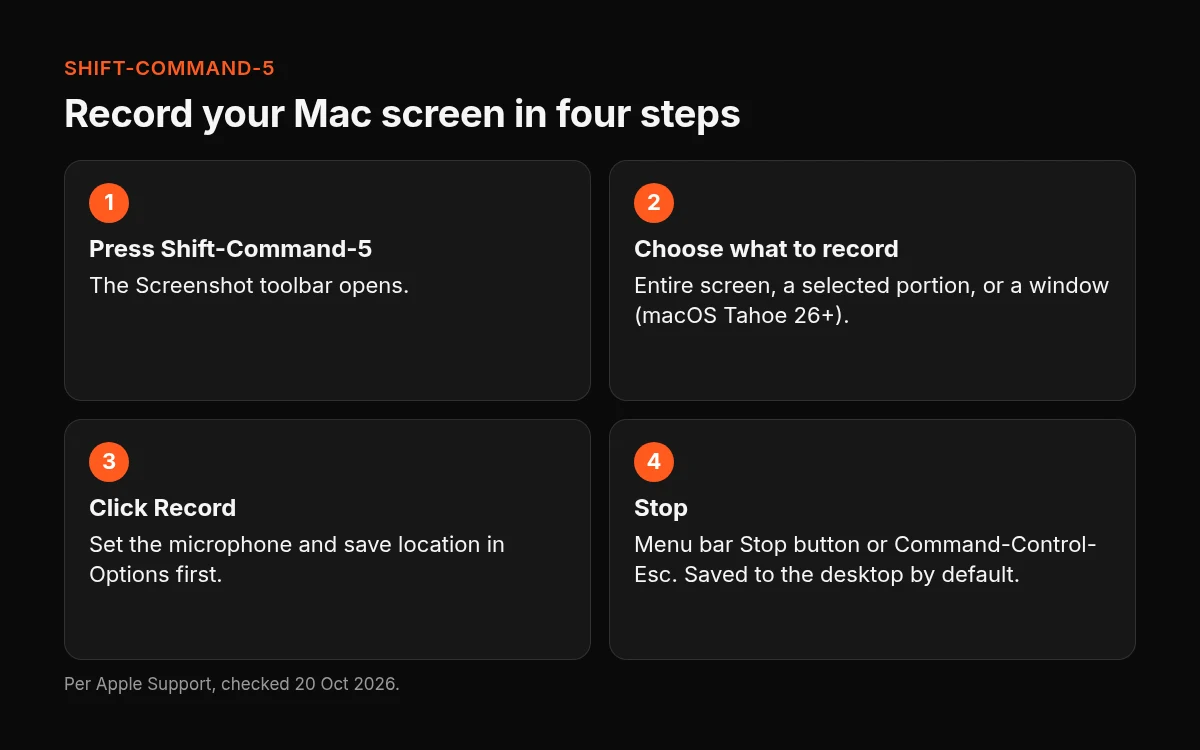
- Press Shift-Command-5. The Screenshot toolbar opens.
- Choose what to record. Click Record Entire Screen, Record Selected Window (macOS Tahoe 26 or later) or Record Selected Portion. For a portion, drag the borders until they frame what you want.
- Check Options. Choose a microphone if you want your voice, and see where the file will be saved.
- Click Record. If you chose a window, click that window to start. Press Esc instead if you want to cancel before recording begins.
- Stop recording. Click the Stop button in the menu bar, or press Command-Control-Esc.
When you stop, a thumbnail of the recording appears. Click it to trim or share the clip straight away, or leave it and the file saves to the desktop.
What's in Options
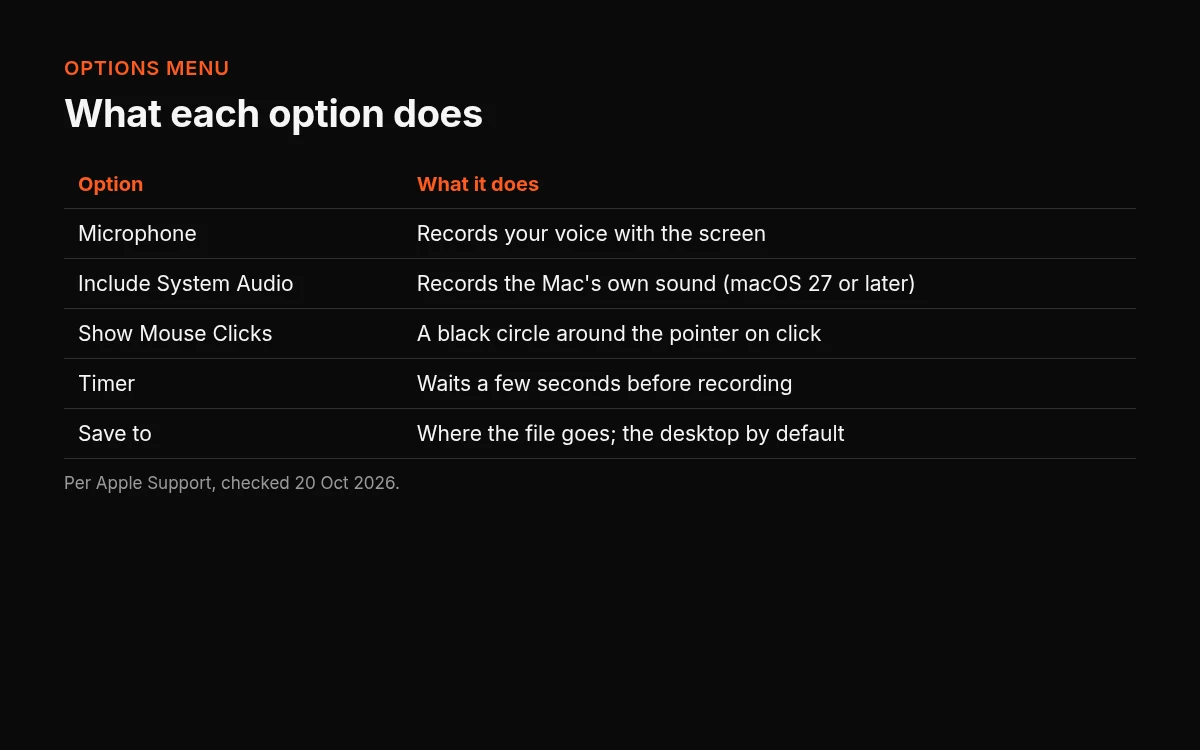
The Options menu in the toolbar is where a recording is set up. Article 102618 lists:
- A microphone, so your voice is recorded with the screen.
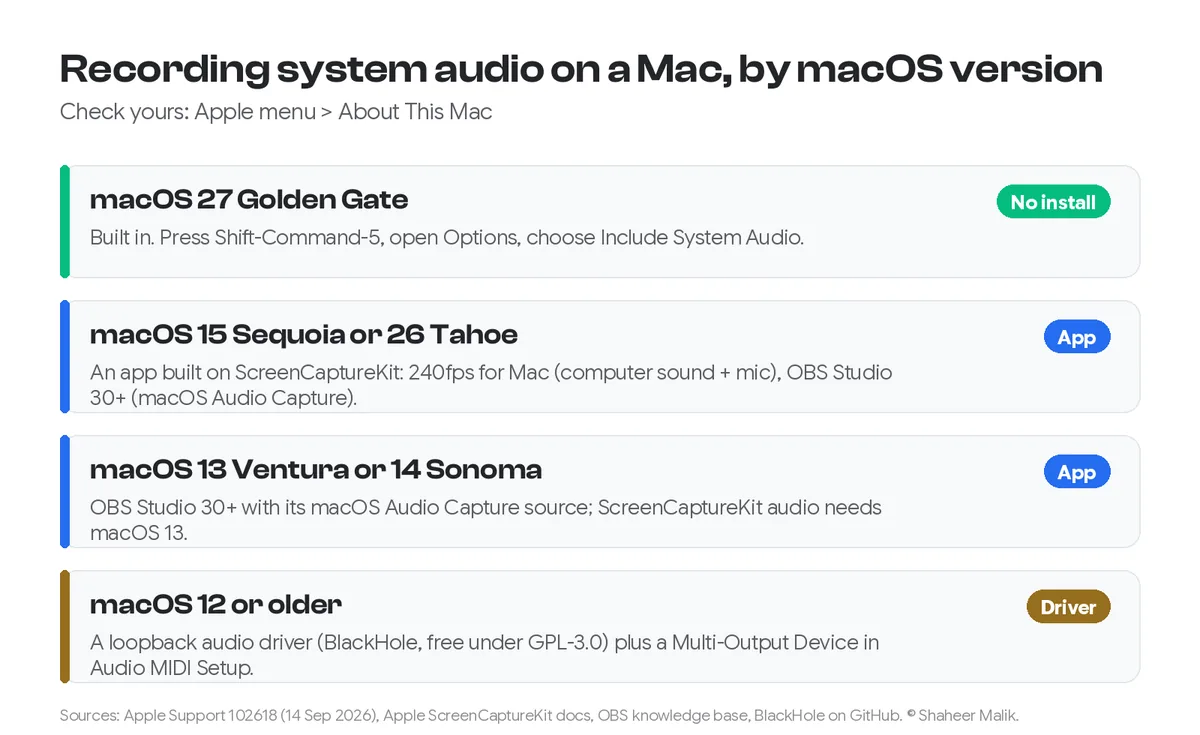
- Include System Audio, which records the Mac's own sound. Apple documents it for macOS 27 Golden Gate or later only.
- Show Mouse Clicks, which draws a black circle around the pointer when you click.
- A timer, so recording starts after a short delay.
- Save to, which is the desktop unless you change it.
- A capture format on supported Macs with macOS Tahoe 26 or later: SDR (H.264) or HDR (HEVC).
The Mac User Guide adds Show Floating Thumbnail and Remember Last Selection.
Record with QuickTime Player
QuickTime Player gets you to the same place. On the current QuickTime Player User Guide, File > New Screen Recording opens the Screenshot toolbar, so the steps above apply. Article 102618 also gives a shortcut for it: Control-Command-N.
Some Macs show QuickTime's older Screen Recording window instead, and Apple still documents it. Click the arrow next to Record to choose a microphone; there's a volume slider, and Apple suggests headphones if you hear feedback. The window also offers Show Mouse Clicks. Then click Record, and either click the screen to record all of it or drag to select an area.
QuickTime has more to it than the record button, including trimming, splitting and exporting. Our QuickTime screen recording guide covers those, and where QuickTime falls short.
Record part of the screen or one window
You don't have to record everything on the display.
- Part of the screen: choose Record Selected Portion, then drag the borders to cover the area you want.
- One window: choose Record Selected Window, then click the window. Apple's how-to says this needs macOS Tahoe 26 or later. The Mac User Guide lists recording a window without a version note, because it's written for the current macOS. On an older Mac, record a portion drawn around the window instead.
Record with audio
Your voice is a built-in option: open Options and choose a microphone so a checkmark appears next to it. Choosing None turns it off. Apple doesn't say whether a microphone is on by default, so check Options before a take that matters.
The Mac's own sound, such as an app's alerts or a video playing, is the Include System Audio command. Apple's how-to limits it to macOS 27 Golden Gate or later. On any other version, see how to record your Mac screen with system audio.
Where screen recordings are saved, and how to change it
By default, a screen recording goes to the desktop (article 102618). To change that, open Options in the toolbar and pick a different place under Save to (Mac User Guide).
Recordings are .mov files; screenshots are .png. Each file is named "Screen Recording" or "Screenshot", followed by the date and time it was taken.
Trim and share a recording
There are two quick ways to tidy a clip:
- From the thumbnail. Right after you stop, click the floating thumbnail to trim the recording or share it (Mac User Guide).
- In QuickTime Player. Open the recording and choose Edit > Trim. Drag the yellow handles around the part you want to keep, then click Trim. To send it somewhere, choose File > Share.
Exporting at a different resolution is a separate command in QuickTime. The QuickTime guide linked above walks through it.
When to use a dedicated recorder
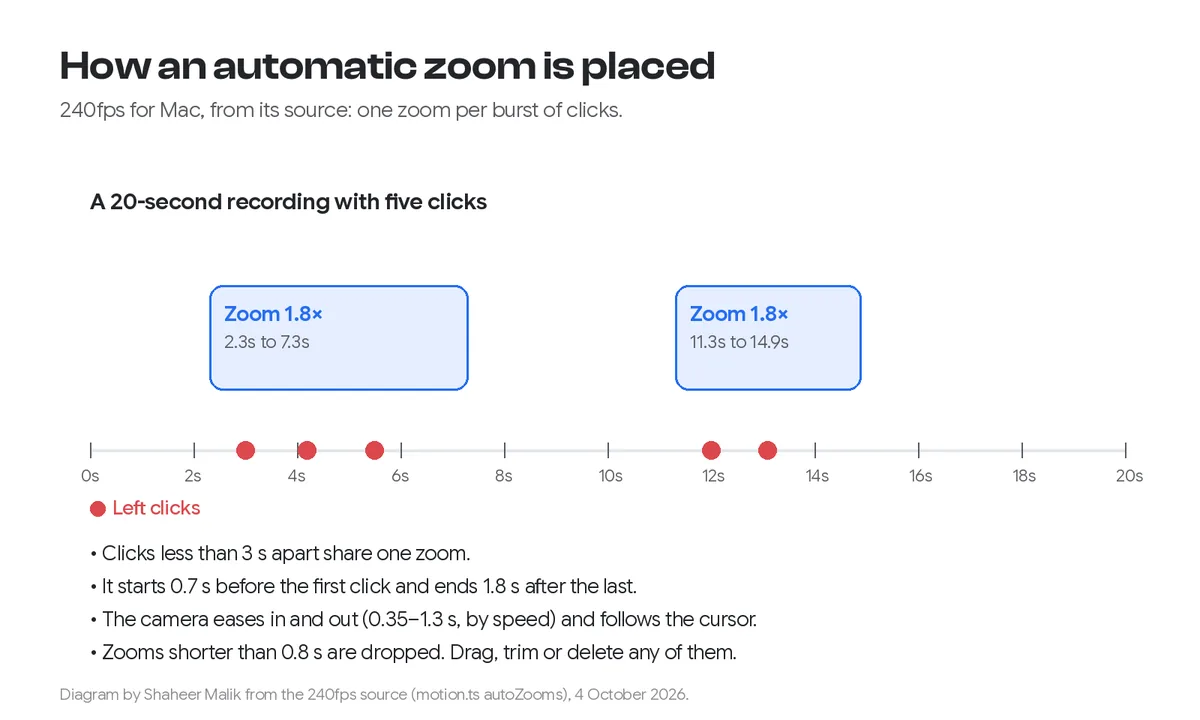
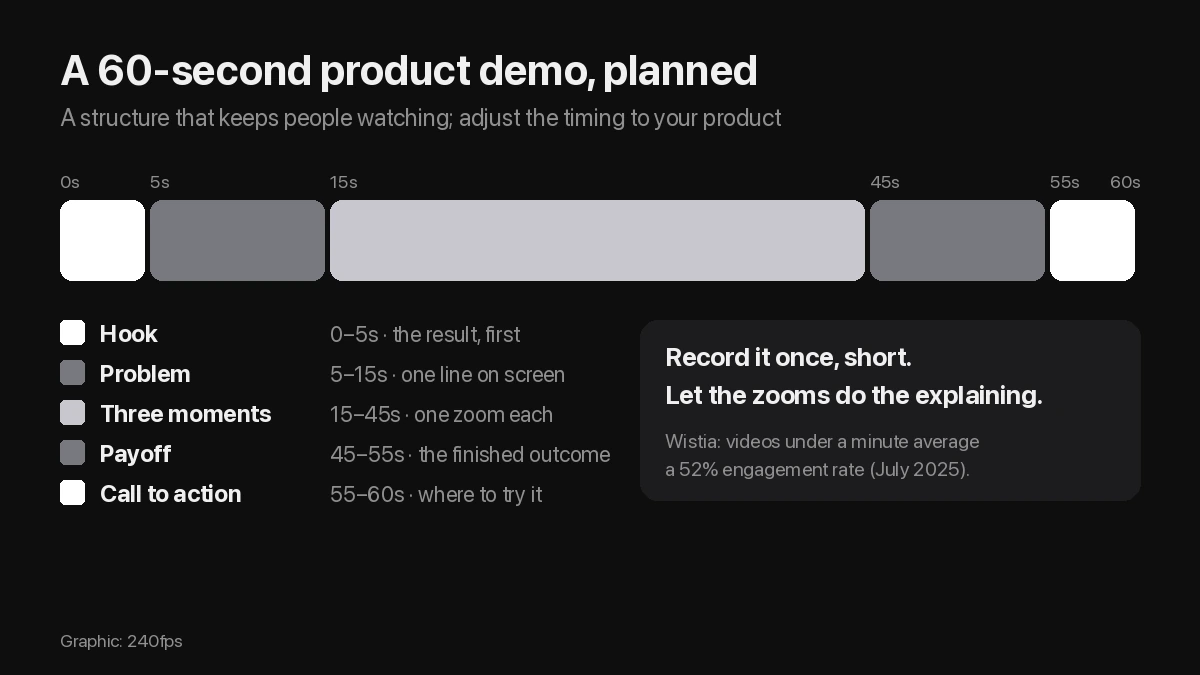
The built-in toolbar records what's on screen. Apple's steps don't include automatic zooms, a cursor you can restyle after recording, or captions written for you. For a quick clip to a colleague, that doesn't matter. For a product demo, a launch video or a tutorial, those are often the parts that take longest to do by hand.
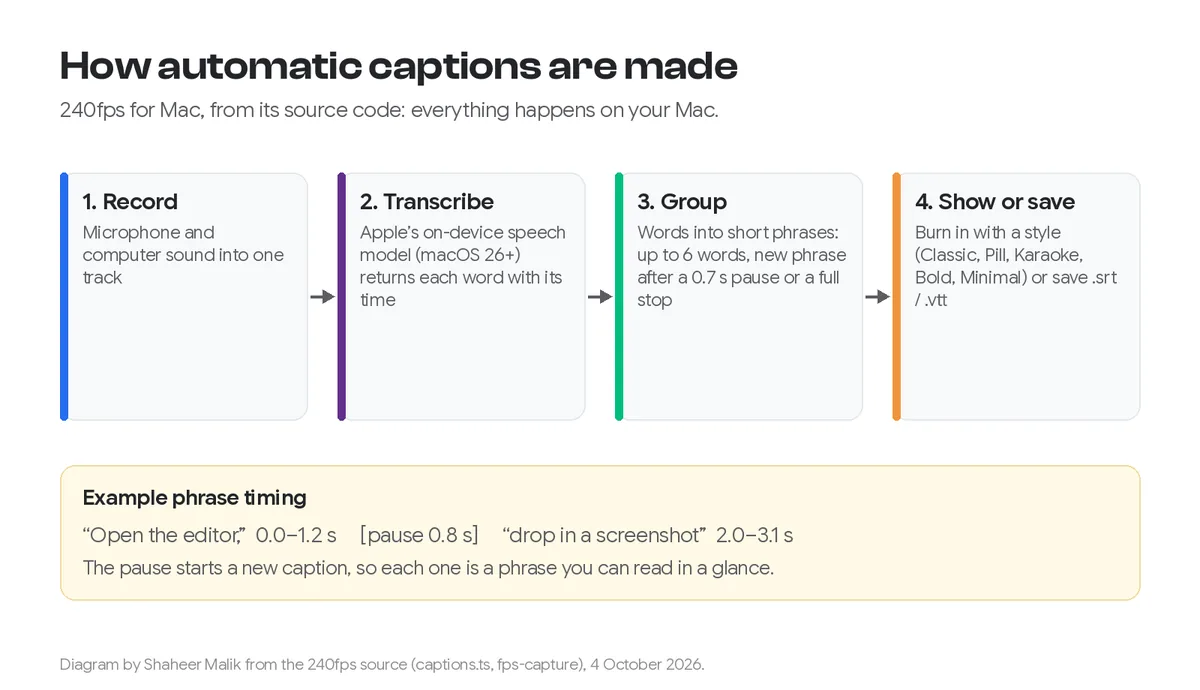
That's the gap a dedicated recorder fills. 240fps for Mac is one. You press Command-Shift-R (a 240fps shortcut, not an Apple one), pick a display, a window or an area, and record with your microphone, the computer's sound and your camera. It zooms in where you clicked and writes the captions. Read more on the screen recorder with automatic zooms, auto-zoom screen recordings and auto captions for screen recordings.
Designing in the browser is free. Full-size exports are $7 a month or $39 once, and either plan unlocks 240fps for Mac; see 240fps pricing. The Mac app needs macOS 15 Sequoia or later on Apple silicon (M1 or later).
Weighing other options? See free screen recorders for Mac and Screen Studio alternatives, or how to make a product demo video on a Mac. Already have a recording? The zoom animation tool adds zooms in the browser.
Fix common problems
- A third-party recorder can't see the screen. Apps get access in System Settings > Privacy & Security > Screen & System Audio Recording. An app can be allowed the screen and audio, or audio only. Apple describes that pane for apps and websites, not as something the built-in toolbar needs.
- No sound in the recording. Check that Options isn't set to None for the microphone. For the Mac's own sound, Include System Audio has to be chosen, on a macOS that has it (macOS 27 Golden Gate or later).
- You can't find a Record button. Press Shift-Command-5. If QuickTime's New Screen Recording opens the Screenshot toolbar, that toolbar is the recorder; QuickTime hands the job to it.
- The recording never started. Esc cancels before recording begins, so a stray press ends the session. Open the toolbar and click Record again.
More on the 240fps blog: all our screen recording guides, and everything tagged Mac.
Steps are from Apple Support article 102618 (published 14 September 2026), the Mac User Guide and the QuickTime Player User Guide, all read on 20 October 2026. 240fps details are from 240fps.com/download, /pricing and /tools/screen-recorder on the same day.
FAQs
How do I screen record on a Mac with sound?
For your voice, open Options in the Screenshot toolbar and choose a microphone before you click Record. For the Mac's own sound, choose Include System Audio, which Apple documents for macOS 27 Golden Gate or later. On other versions, see how to record your Mac screen with system audio.
Where do Mac screen recordings go?
To the desktop by default, as a .mov file, unless you've picked another place under Options > Save to.
How do I stop a screen recording on a Mac?
Click the Stop button in the menu bar. Apple's how-to (article 102618) also gives a keyboard shortcut: Command-Control-Esc.
Why can't I screen record on my Mac?
If a third-party app can't record, check that it's switched on in System Settings > Privacy & Security > Screen & System Audio Recording. That pane covers apps and websites; Apple doesn't describe it as a requirement for the built-in Screenshot toolbar, which opens with Shift-Command-5.
What's the best screen recorder for Mac?
It depends on the job. Start with the built-in toolbar (Shift-Command-5), which comes with the Mac. If you need automatic zooms, captions or a polished demo, our roundup of free screen recorders for Mac compares the options and their limits.