By The 240fps team · · 7 min read
How to screen record with QuickTime Player, and where it falls short
Open QuickTime Player and choose File > New Screen Recording. On the current QuickTime Player User Guide, that command opens the Screenshot toolbar: pick the whole screen, a window (macOS Tahoe 26 or later) or a portion, set the microphone under Options, and click Record. Stop from the menu bar, or with Command-Control-Esc. Then choose Edit > Trim. If QuickTime still shows its own Screen Recording window, that window offers a microphone and Show Mouse Clicks, not a system-audio switch. Include System Audio is documented for the Screenshot toolbar on macOS 27 Golden Gate or later.
QuickTime Player comes with the Mac, and it can record the screen. What has changed is what happens when you ask it to. On current macOS, QuickTime's New Screen Recording command opens the same Screenshot toolbar as Shift-Command-5, so tutorials written for QuickTime's older recording window may not match what you see.
This guide covers the current steps, the older window for Macs that still show it, how to add your voice, and how to trim, split and export the result. Then it lists what QuickTime's screen recording doesn't do, using Apple's own pages, read on 20 October 2026.
Record your screen with QuickTime Player
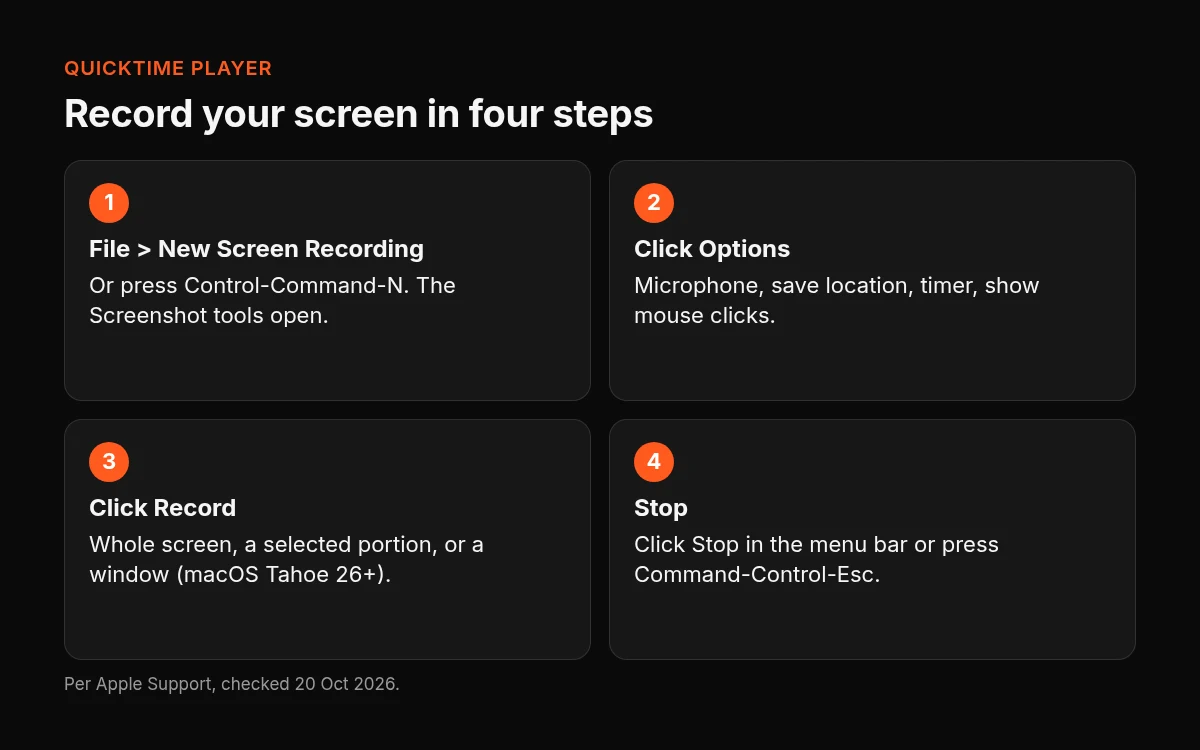
On the current QuickTime Player User Guide, File > New Screen Recording opens the Screenshot toolbar. From there:
- Choose File > New Screen Recording. Open QuickTime Player first. Apple Support article 102618 also gives a shortcut: Control-Command-N.
- Pick what to record. Choose the whole screen, a window (macOS Tahoe 26 or later) or a portion of the screen.
- Set Options. Choose a microphone if you want your voice, check where the file will be saved, and turn on Show Mouse Clicks if you want clicks to show.
- Click Record. Press Esc instead if you want to cancel before recording starts.
- Stop recording. Click the Stop button in the menu bar. Article 102618 also gives Command-Control-Esc.
If QuickTime shows its own Screen Recording window
Apple's how-to (published 14 September 2026) still documents QuickTime's older Screen Recording window for Macs that show it. Its options are a microphone and Show Mouse Clicks. Click Record, then click the screen to record all of it, or drag to select an area. Stop the same way: the Stop button in the menu bar, or Command-Control-Esc.
Add your voice
In the Screenshot toolbar, open Options and choose a microphone so a checkmark appears next to it. Choosing None turns the microphone off, according to the Mac User Guide.
In the older QuickTime window, click the arrow beside Record to choose a microphone. There's a volume slider, and Apple suggests headphones if you hear feedback.
Apple doesn't say whether the microphone is on or off by default, so check before a take that matters.
Trim, split and export
QuickTime's editing is simple, and that's its appeal: three commands cover most clean-up.
- Trim. Choose Edit > Trim, drag the yellow handles around the part you want to keep, and click Trim (Apple's trim steps).
- Split. Choose View > Show Clips, move the playhead to where you want to cut, choose Edit > Split Clip, then click Done (Apple's split steps).
- Export. Choose File > Export As, then 4K (up to 3840 × 2160), 1080p (up to 1920 × 1080), 720p (up to 1280 × 720), 480p (up to 640 × 480) or Audio Only.
For 4K and 1080p you can choose Smaller File Size, which uses HEVC, or Greater Compatibility, which uses H.264. Either way, the file is a QuickTime movie (.mov). Apple says it plainly on its export page: "QuickTime Player doesn't export movies as MP4 videos."
To send a recording to someone, use File > Share, which is a separate command from Export As.
What QuickTime screen recording does not do
Apple's pages describe what QuickTime does. Below, "not described" means the steps don't mention it, which isn't the same as a hard limit. Apple states only one of these as a limit.
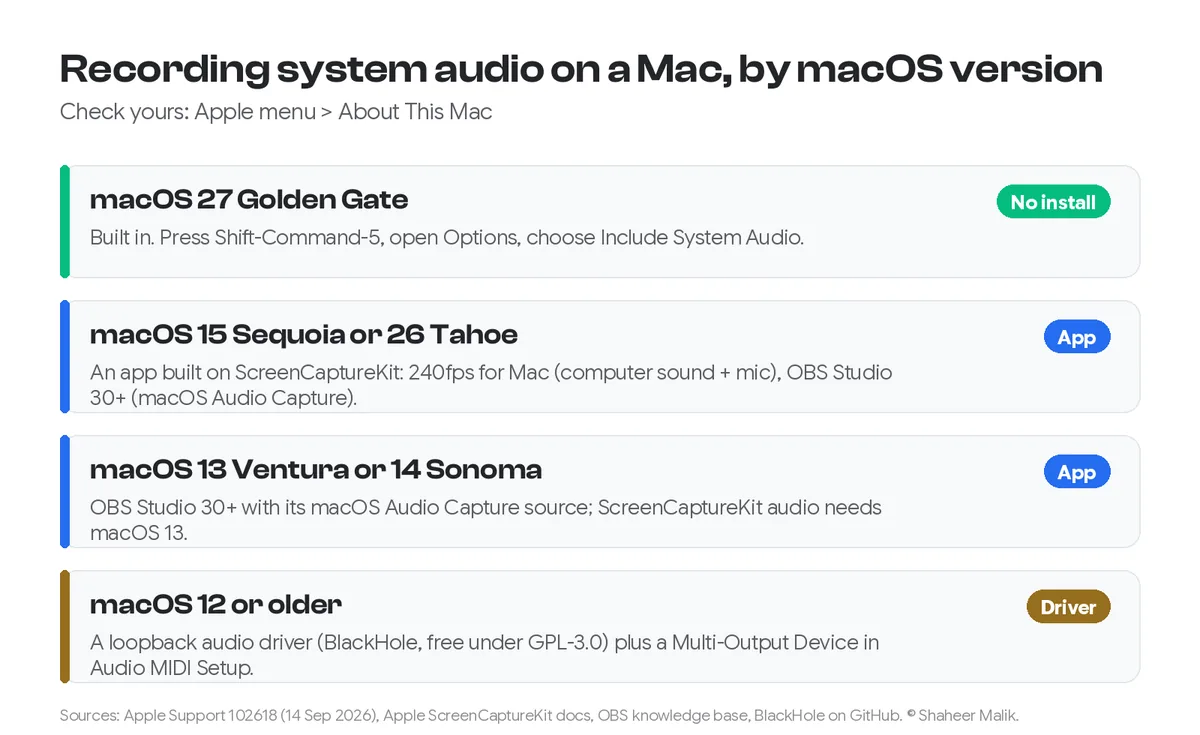
- System audio. The older Screen Recording window has no system-audio switch. On macOS 27 Golden Gate or later, Include System Audio is in the Screenshot toolbar's Options, so it's there when New Screen Recording opens that toolbar. For other versions, see record system audio on a Mac.
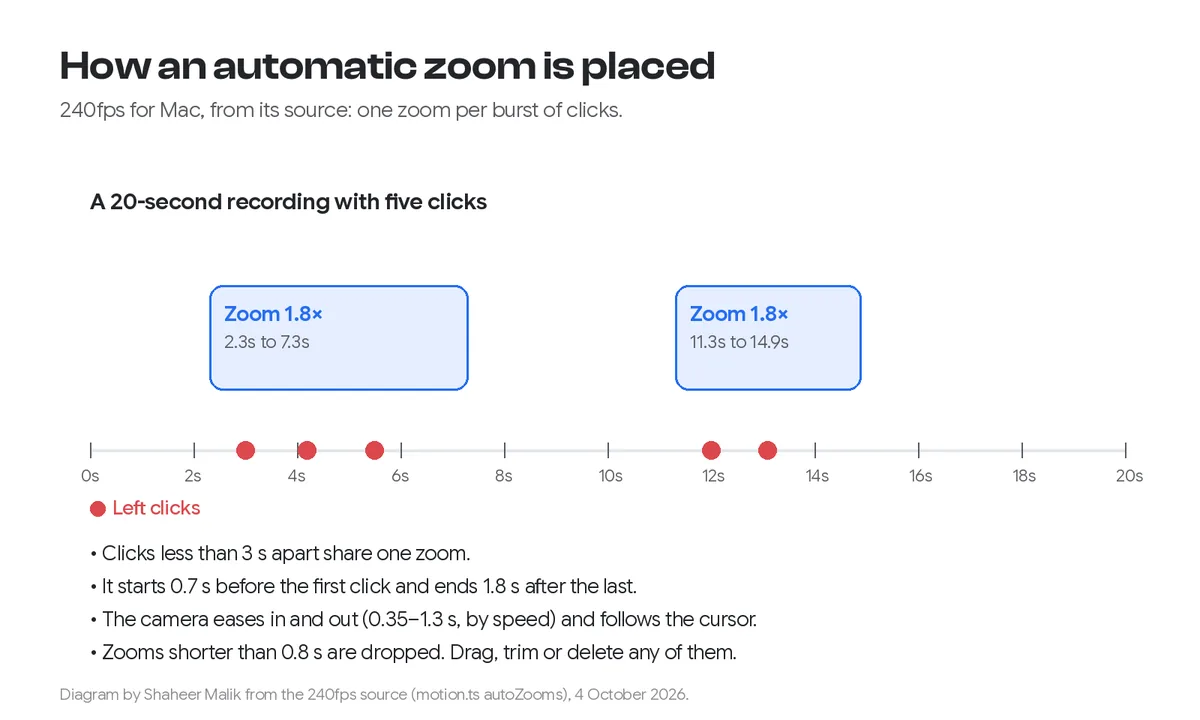
- Automatic zooms. Not in the screen-recording steps. You can still add zooms in another app afterwards.
- Captions. The screen-recording page doesn't generate captions. (The guide does cover showing subtitles or captions as a playback topic, for files that already have them.)
- Your webcam over the screen. Not described. File > New Movie Recording records the Mac's camera, or a connected iPhone, iPad or iPod touch, as its own movie. Apple doesn't say it can be laid over a screen recording.
- MP4 export. This one Apple does state as a limit: exports are .mov, not MP4.
One thing that is not a limit: showing clicks. Show Mouse Clicks is a recording option both in the Screenshot toolbar and in QuickTime's older window.
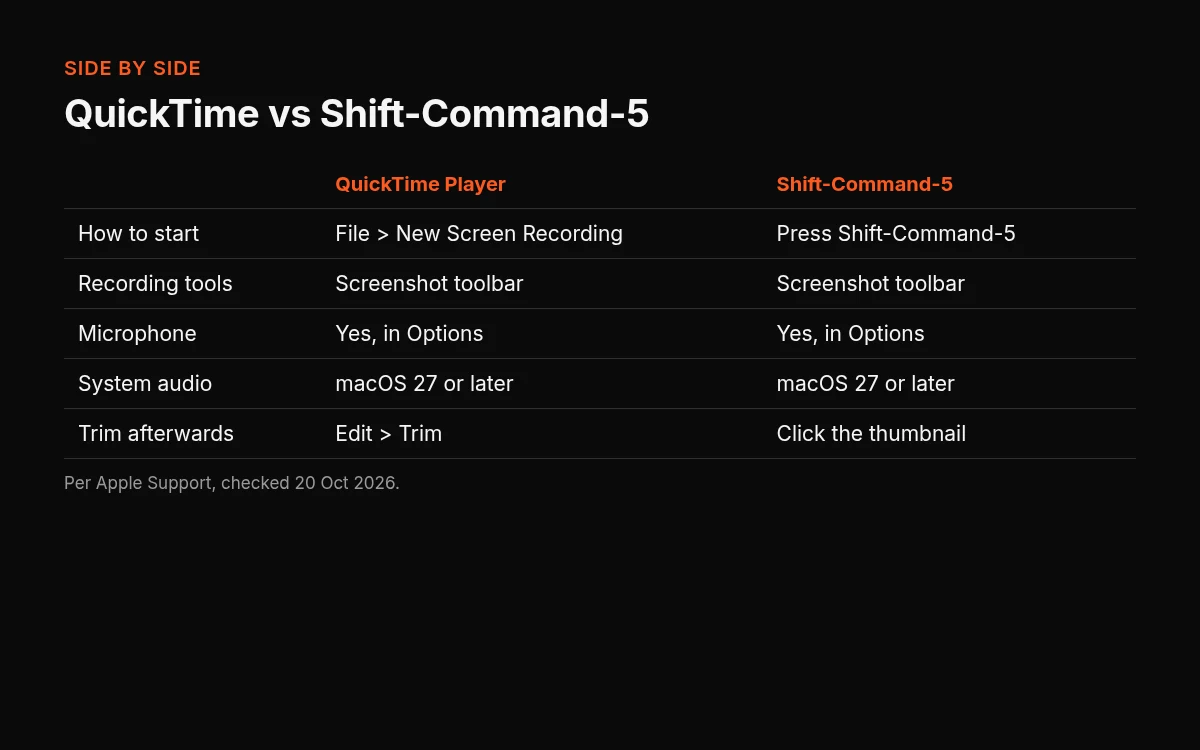
QuickTime vs Shift-Command-5
On current macOS these are usually the same recorder. The difference is the way in.
| QuickTime Player | Shift-Command-5 | |
|---|---|---|
| How to start | File > New Screen Recording, or Control-Command-N | Press Shift-Command-5 |
| What opens (current guides) | The Screenshot toolbar | The Screenshot toolbar |
| Microphone | In Options | In Options |
| System audio | Include System Audio, macOS 27 Golden Gate or later | Include System Audio, macOS 27 Golden Gate or later |
| Trim afterwards | Edit > Trim | Click the floating thumbnail |
For the shortcut route in full, with every option and where files go, see how to screen record on a Mac.
When to switch to a dedicated recorder
QuickTime records the screen and trims it. If you're making a product demo, a tutorial or a launch video, you may want more: zooms that follow your clicks, captions written for you, and your camera in the same recording.
That's what a dedicated recorder is for. 240fps for Mac records a display, a window or an area with your microphone, the computer's sound and your camera. It zooms in where you clicked and transcribes captions on your Mac. More on the screen recorder with automatic zooms, automatic zoom in screen recordings and how to add captions to a screen recording.
Designing in the browser is free. Full-size exports are $7 a month or $39 once, and either plan unlocks 240fps for Mac; see 240fps pricing. The Mac app needs macOS 15 Sequoia or later on Apple silicon. Comparing recorders? See free screen recorders for Mac or 240fps vs Screen Movie.
Troubleshooting
- New Screen Recording opened a toolbar, not a window. That's expected on current macOS. The Screenshot toolbar is QuickTime's recorder now; use it.
- There's no sound from the microphone. Open Options and check the microphone isn't set to None.
- A different recorder can't capture the screen. Third-party apps need access in System Settings > Privacy & Security > Screen & System Audio Recording. Apple describes that pane for apps and websites.
- The Export menu has no options. Apple says the recording may be copyright-protected.
More on the 240fps blog: all our screen recording guides, and everything tagged Mac.
Steps are from Apple's QuickTime Player User Guide, Mac User Guide and Apple Support article 102618 (published 14 September 2026), all read on 20 October 2026. 240fps details are from 240fps.com/download, /pricing and /tools/screen-recorder on the same day.
FAQs
How do I screen record with QuickTime with sound?
Choose a microphone in Options before you click Record; that records your voice. The Mac's own sound is Include System Audio, which Apple documents for macOS 27 Golden Gate or later, when New Screen Recording opens the Screenshot toolbar. On other versions, see how to record system audio on a Mac.
Can QuickTime record system audio?
It depends on the version. QuickTime's older Screen Recording window has no system-audio switch. On macOS 27 Golden Gate or later, New Screen Recording opens the Screenshot toolbar, and its Options include Include System Audio.
Where does QuickTime save screen recordings?
When New Screen Recording opens the Screenshot toolbar, Save to is the desktop by default, and the file is a .mov. You can pick another place in Options. Depending on the save location, an app may open the recording.
Why is QuickTime screen recording not working?
Check three things. Pressing Esc cancels before recording starts. On current macOS the Screenshot toolbar replaces the old Screen Recording window, so the toolbar is the recorder. And if the Export menu has no options, Apple says the recording may be copyright-protected.
Can QuickTime record a webcam and the screen at once?
Apple doesn't describe a combined mode. New Screen Recording doesn't mention a camera, and New Movie Recording is a separate command that records the camera, or a connected iPhone, iPad or iPod touch, on its own.
Is QuickTime screen recording free?
QuickTime Player comes with the Mac, and Apple's screen-recording steps don't mention a purchase.