By Shaheer Malik · · 7 min read
How to Turn a Figma Frame into a Device Mockup (2026)
To turn a Figma frame into a device mockup, either copy the frame's link in Figma (right-click the frame, then Copy link to selection) and paste it into a mockup tool that imports from Figma with your personal access token, or export the frame as a PNG at 2x or 3x and drop the file into the device. The link route keeps the file and the mockup in step; the export route needs no token and works on any Figma plan.
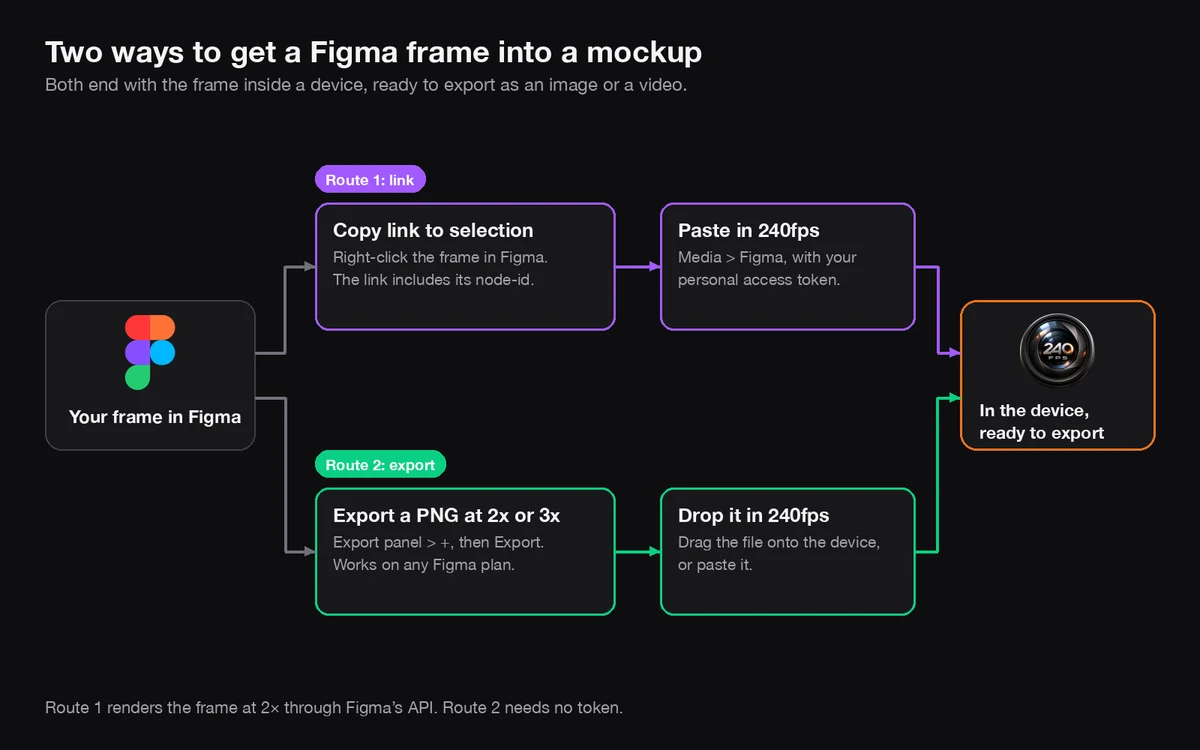
Most app screens start life as a Figma frame. Getting that frame into a phone, tablet or laptop mockup, for a landing page, an App Store screenshot or a launch post, is the step that usually means exporting, downloading, uploading and lining things up by hand.
There are two ways to do it, and this guide covers both: importing the frame by its link, and exporting a PNG. The steps come from Figma's own help centre, read on 3 October 2026.
A disclosure first: I make 240fps, the mockup editor in the screenshots below. Both methods work in other mockup tools too; I note where a step is specific to 240fps.
Which method should you use?
Use the link when you'll update the design and re-import it; use an export when it's a one-off or you'd rather not create a token. Here's how they compare:
| Import by link | Export a PNG | |
|---|---|---|
| What you need | The frame's link and a personal access token | Figma's Export panel |
| Image quality | Rendered at 2x by Figma's API (in 240fps) | Whatever scale you choose, such as 2x or 3x |
| Updating a design | Paste the link again | Export and drop the file again |
| Figma plan | Any plan that lets you create a token | Any plan, according to Figma |
| Privacy trade-off | The token can access all your Figma files | None: you choose the file |
How do I import a Figma frame by its link?
Copy the frame's link in Figma, then paste it into the mockup tool along with a personal access token. In 240fps it takes four steps:
- Copy the frame's link. In Figma, right-click the frame and choose Copy link to selection, as Figma's guide to its MCP server describes. The link ends with
node-id=, which tells the tool which frame you mean. A plain file link won't work, because it doesn't point to one frame. - Create a personal access token, if you don't have one (the steps are below).
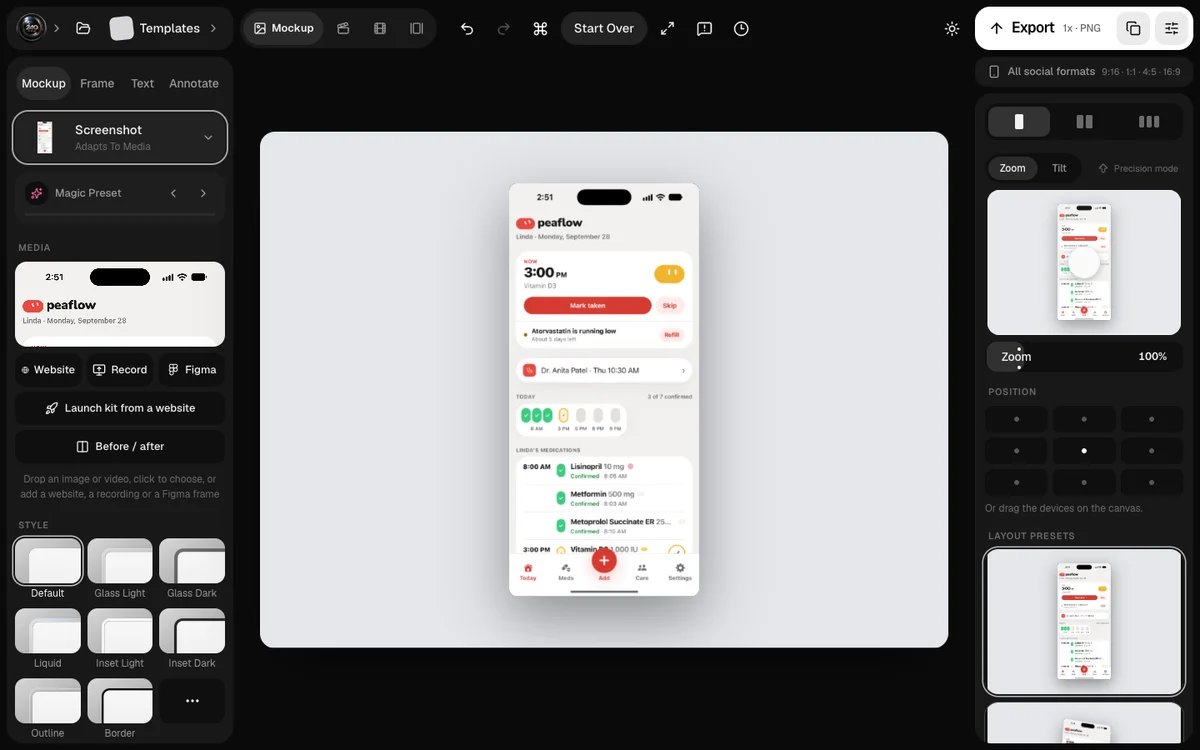
- Paste both into 240fps. In the editor, click Figma under Media, paste the link and the token, and click Import frame.
- Pick the device. The frame is rendered at 2x and placed in the device; switch the device, colour and background from the Mockup panel.
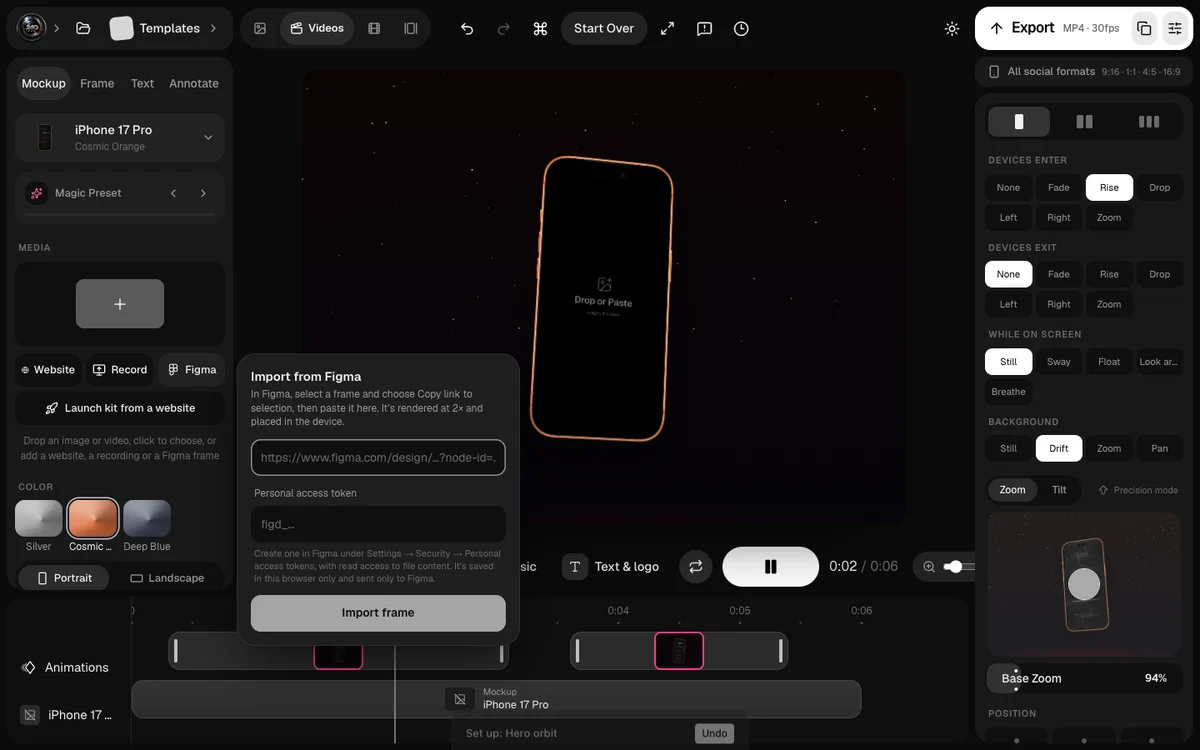
Behind the scenes, the tool asks Figma's REST API to render that frame. Figma's API documentation says renders can be scaled between 0.01x and 4x, and images over 32 megapixels are scaled down, so a normal phone or laptop frame at 2x is well within range.
How do I create a Figma personal access token?
Figma's help article Manage personal access tokens gives the steps:
- From the file browser, click the account menu in the top-left corner and select Settings.
- Select the Security tab.
- Scroll to Personal access tokens and click Generate new token.
- Name it, choose the scopes it needs (for importing frames, read access to file content), and press Return.
- Copy the token straight away.
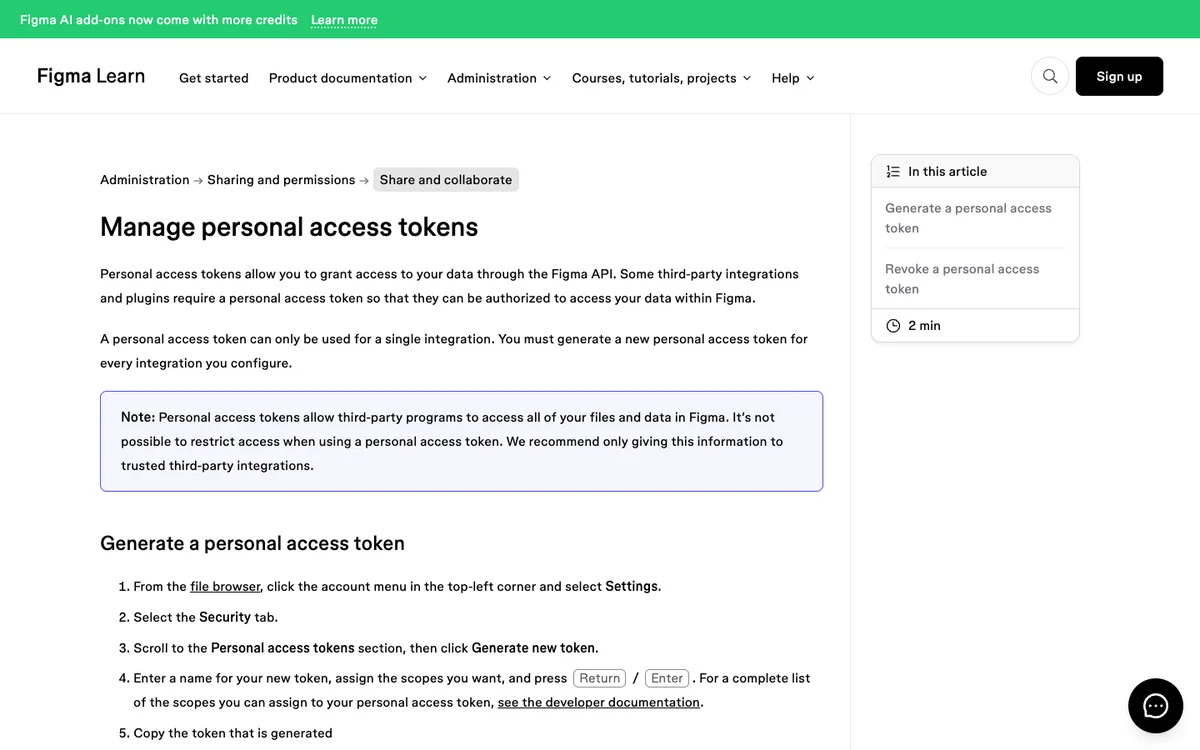
Two warnings from that page are worth repeating. The token is shown only once: if you leave the page before copying it, you'll need to generate a new one. And a personal access token lets a program access all your files and data in Figma; Figma says it isn't possible to restrict it to one file. Only give it to tools you trust, and revoke it from the same Security tab when you're done.
In 240fps, the token is saved in your browser only and sent only to Figma, never to 240fps's servers, as the privacy policy explains.
How do I export a Figma frame for a mockup?
Select the frame, add an export setting, choose PNG and a scale, and export. Figma's article Export static designs from Figma lists the steps:
- Select the frame you want to export.
- Click the plus in the Export section of the right sidebar to add an export setting.
- Choose the format and size, such as PNG at 2x.
- Optionally click Preview to check it.
- Click Export.
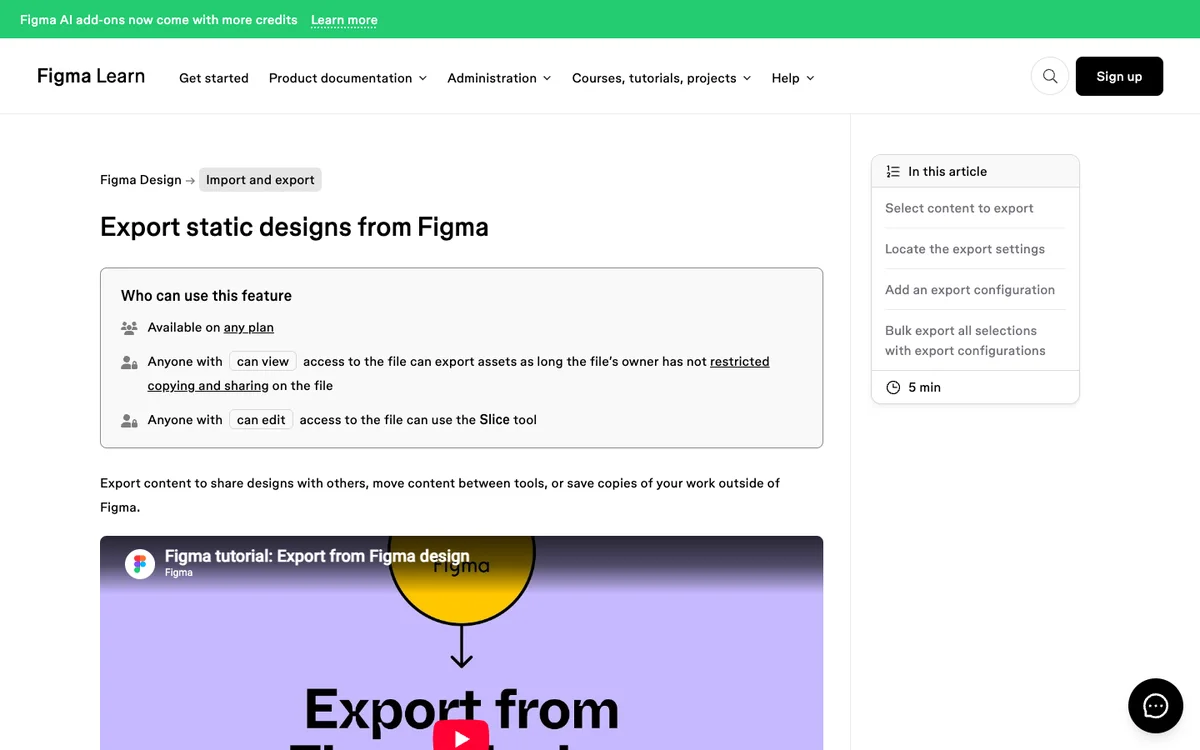
The same page notes that exporting is available on any plan, and that anyone with view access can export unless the file's owner has restricted copying. Then drag the PNG onto the device in your mockup tool, or copy it and paste. In 240fps, the empty device says Drop or Paste.
What size should the Figma frame be?
The same shape as the device's screen. A mockup fits your image into the device's screen, so a frame with a different shape gets cropped or leaves bars. Start the frame from one of Figma's device presets for the phone or laptop you'll show, and design to its edges.
Export at 2x or 3x so text stays sharp when the mockup is scaled up for a hero image or a store screenshot. For App Store sizes in particular, see App Store screenshot sizes.
How do I make the mockup look finished?
Treat the frame like a real screen. The details that give a mockup away are the ones you'd never see on a real phone:
- Use realistic content. Real names, real numbers and a believable status bar, not lorem ipsum.
- Keep text large. A mockup on a landing page is shown at a fraction of its real size; tiny labels turn to noise.
- Pick one device and one background for a whole set, so the images look like a family.
- Leave space around the device for a headline if it's going on a store page or social post.
There's more on this in mockups that look expensive and 15 device mockup mistakes.
Can a Figma frame become a video?
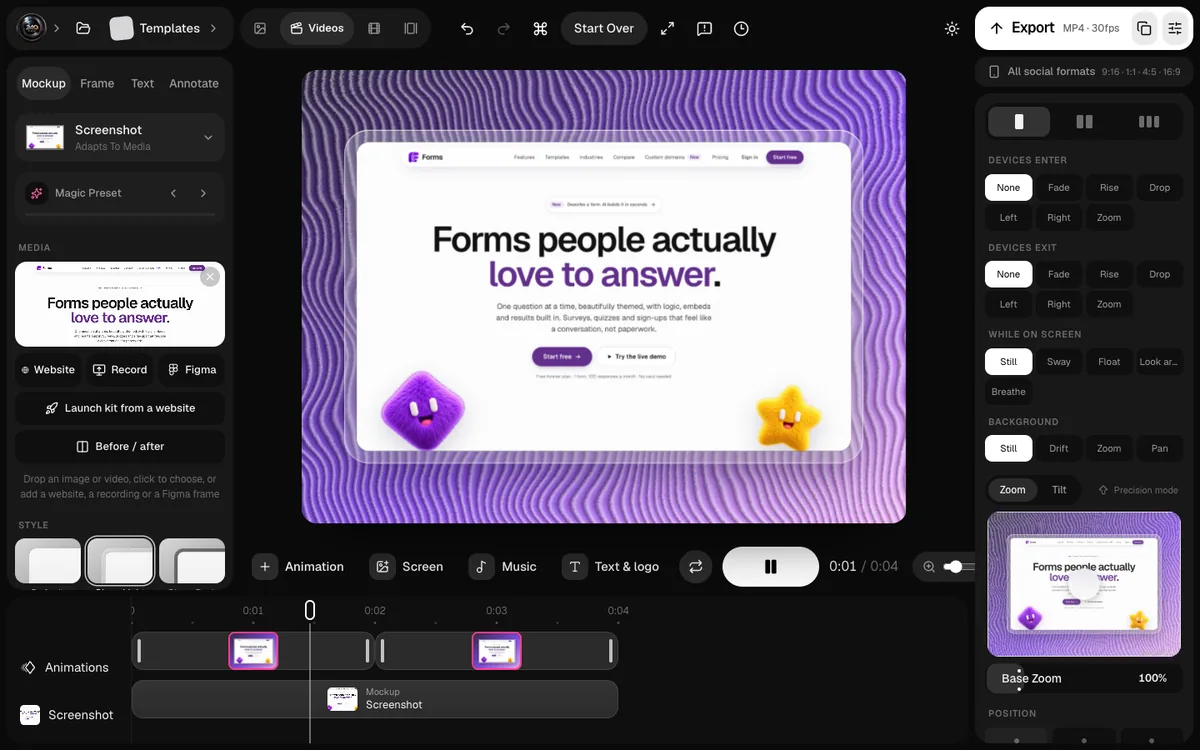
Yes. Once the frame is in the device, the same mockup can be animated: in 240fps, the Videos mode adds camera moves and device animations, and exports MP4 in the shapes social posts need, 9:16, 1:1, 4:5 and 16:9. A still mockup and a short launch clip can come from the same Figma frame.
Designing in 240fps is free in your browser; exporting images and videos comes with 240fps Monthly at $7 a month or Lifetime at $39 once.
FAQs
How do I get a link to one frame in Figma?
Right-click the frame and choose Copy link to selection. The link includes the frame's node-id, which tools use to find that frame.
Where do I find my Figma personal access token?
In Figma, open the account menu from the file browser, choose Settings, then the Security tab, and generate a token under Personal access tokens. Figma shows it only once, so copy it straight away.
Is it safe to give a tool my Figma token?
Only if you trust the tool. Figma says a personal access token can access all your files and data and can't be restricted. You can revoke a token from the Security tab at any time.
What resolution should I export from Figma for a mockup?
PNG at 2x or 3x of a frame that matches the device's screen. That keeps text sharp when the mockup is shown large.
Can I export from Figma on the free plan?
Yes. Figma's help centre says exporting is available on any plan, as long as the file's owner hasn't restricted copying for viewers.
Last updated: 3 October 2026. Figma's steps are from its help centre and API documentation on 3 October 2026.