By Shaheer Malik · · 7 min read
App Store Screenshots on an Indie Budget (2026)
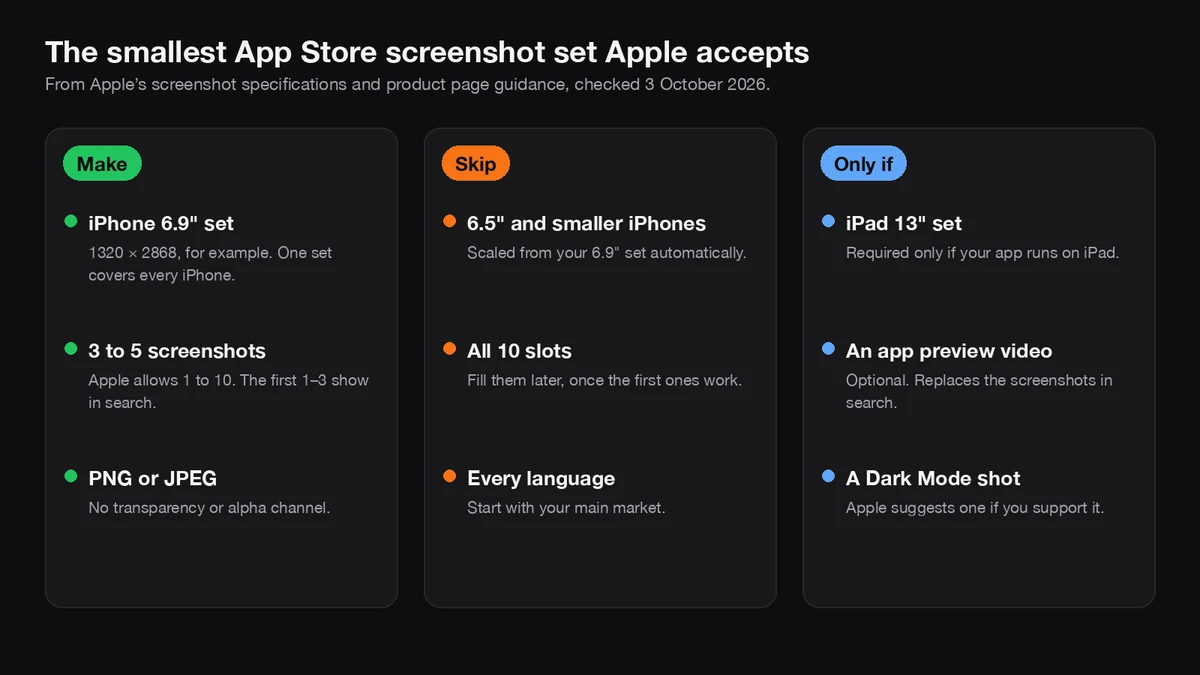
On an indie budget, make one iPhone set at the 6.9-inch size, such as 1320 × 2868 pixels, with 3 to 5 screenshots. Apple scales it for smaller iPhones, and you only need an iPad set if your app runs on iPad. Capture the screens free in Xcode's Device Hub, put a short headline on each in Figma's free Starter plan or a screenshot tool, and spend your effort on the first three, because those are the ones that show in search.
Screenshots are the first thing people judge your app by, and they're often the last thing an indie developer has time or money for. The good news is that Apple asks for far less than it looks like. You don't need ten screenshots in five sizes and twelve languages to launch; you need one good set.
This guide covers what Apple actually requires, what you can safely skip, the free and cheap tools that cover the rest, and a plan to get it done in a day.
A disclosure first: I make 240fps, one of the tools mentioned below, and I'm an indie developer myself. Apple's rules come from its own documentation, read on 3 October 2026, and I name free options wherever they do the job.
What screenshots does Apple actually require?
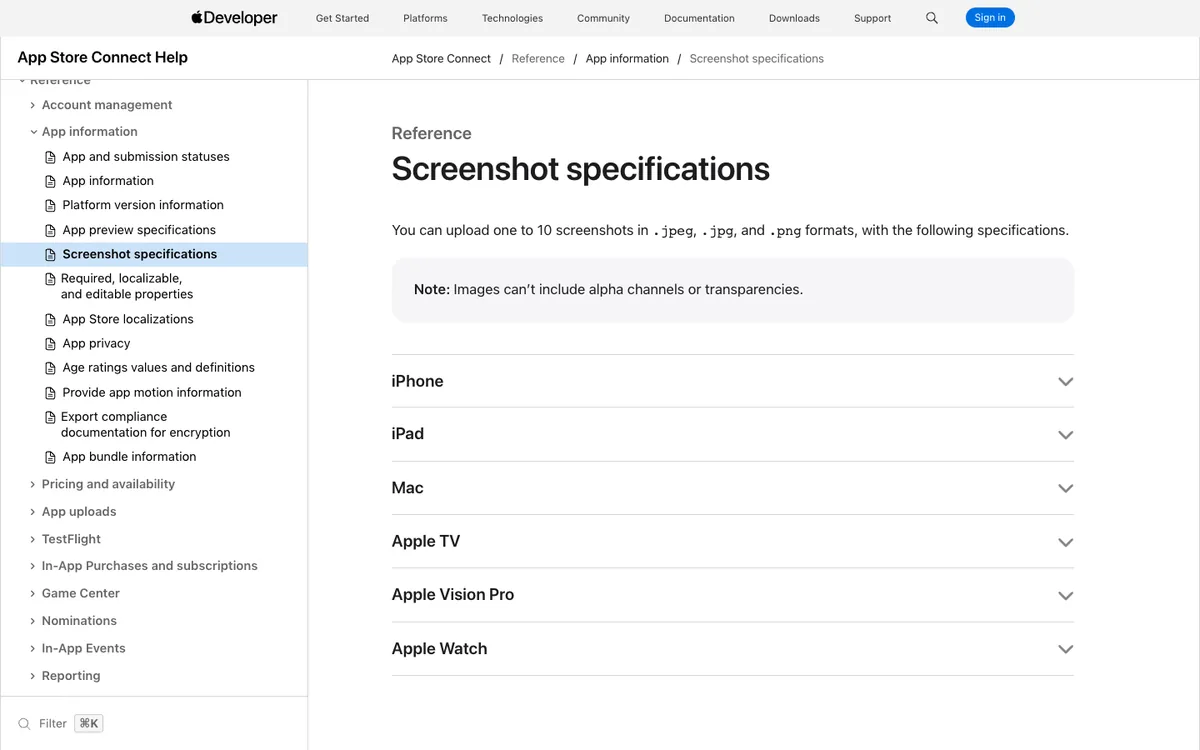
One set for iPhone at the 6.9-inch display size, if your app runs on iPhone, and one for iPad at 13 inches if it runs on iPad. Apple's screenshot specifications list the details:
| Rule | What Apple says |
|---|---|
| How many | 1 to 10 screenshots per device type |
| iPhone | 6.9-inch display required if the app runs on iPhone; accepted sizes include 1320 × 2868, 1290 × 2796 and 1260 × 2736 (portrait) |
| Smaller iPhones | The 6.5-inch set is required only if you don't provide 6.9-inch screenshots; otherwise your 6.9-inch ones are scaled |
| iPad | 13-inch display required if the app runs on iPad, such as 2064 × 2752 or 2048 × 2732 (portrait) |
| Format | JPEG or PNG, with no transparency or alpha channel |
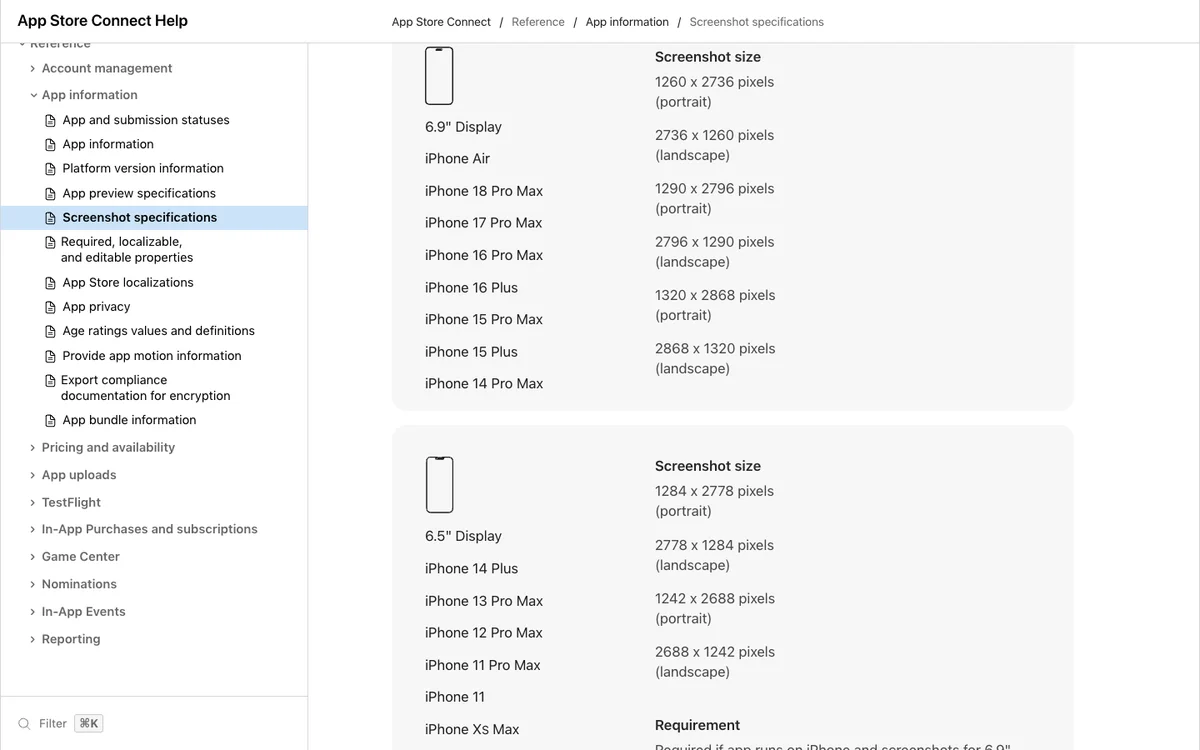
The 6.9-inch list includes recent large iPhones such as iPhone 17 Pro Max and iPhone 18 Pro Max, so a screenshot taken on one of them, or its simulator, is already an accepted size.
Which screenshots matter most?
The first three. Apple's guide to creating your product page says that, depending on their orientation, the first one to three screenshots appear in search results when there's no app preview, "so make sure these highlight the essence of your app." Everything after that is seen only by people who open your page.
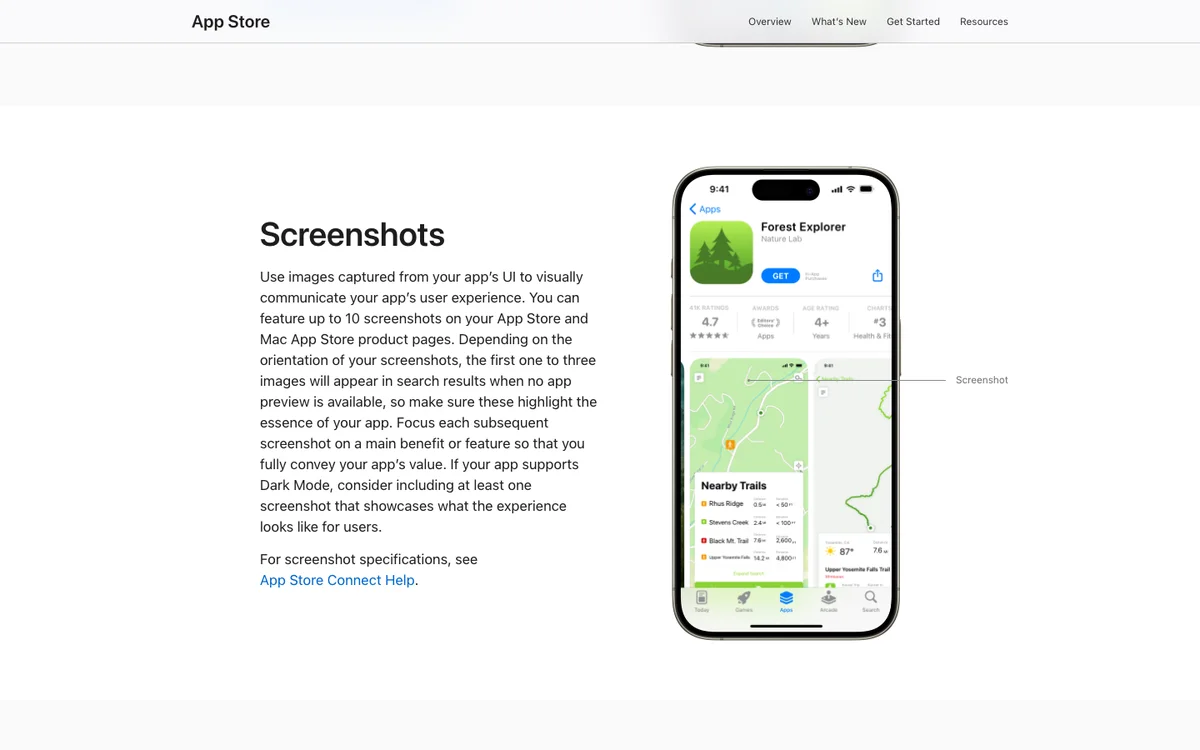
So on a budget, the order of work is clear: make three screenshots you're proud of before you make a fourth. Apple's advice for the rest is to focus each one on a main benefit or feature, and to include a Dark Mode screenshot if your app supports it.
What can I skip at launch?
More than most guides admit:
- Smaller iPhone sizes. Your 6.9-inch set is scaled for them.
- The iPad set, if your app is iPhone-only.
- All ten slots. Three to five strong screenshots beat ten filler ones.
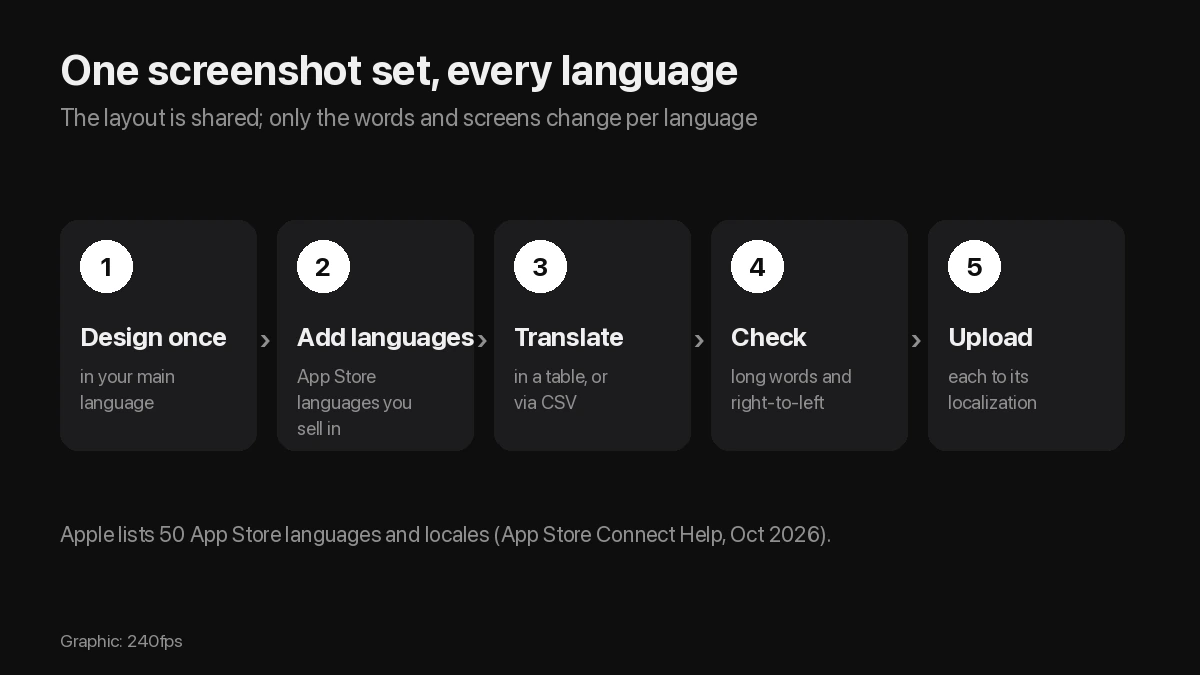
- Localized sets. Start with your main market and add languages once you see where downloads come from.
- An app preview video. It's optional, and a weak video in the first slot does more harm than good.
What does it cost to make them yourself?
It can cost nothing. Here's the cheapest route for each step, with prices from each product's own page on 3 October 2026:
| Step | Free option | Paid shortcut |
|---|---|---|
| Capture the screens | Xcode's Device Hub | None needed |
| Add headlines and a background | Figma's Starter plan, free | Figma Professional, $16 a month per full seat; or a screenshot tool |
| Put screens in a device frame, export every size | Doable by hand in Figma | 240fps: $7 a month, or $39 once |
| Upload to App Store Connect | By hand in App Store Connect | 240fps uploads the set for you |
Capturing. Apple's guide to capturing screenshots and videos from devices explains that Device Hub, in Xcode, has a Screenshot button below the device. It captures at the full resolution of the simulated or physical device, whatever your Mac's screen, and saves to your Desktop. Run your app on a 6.9-inch simulator and every capture is App Store size.
Designing. Figma's Starter plan is free with unlimited drafts, which is enough for one screenshot set. Make a frame at 1320 × 2868, drop in a capture, and add a headline above it.
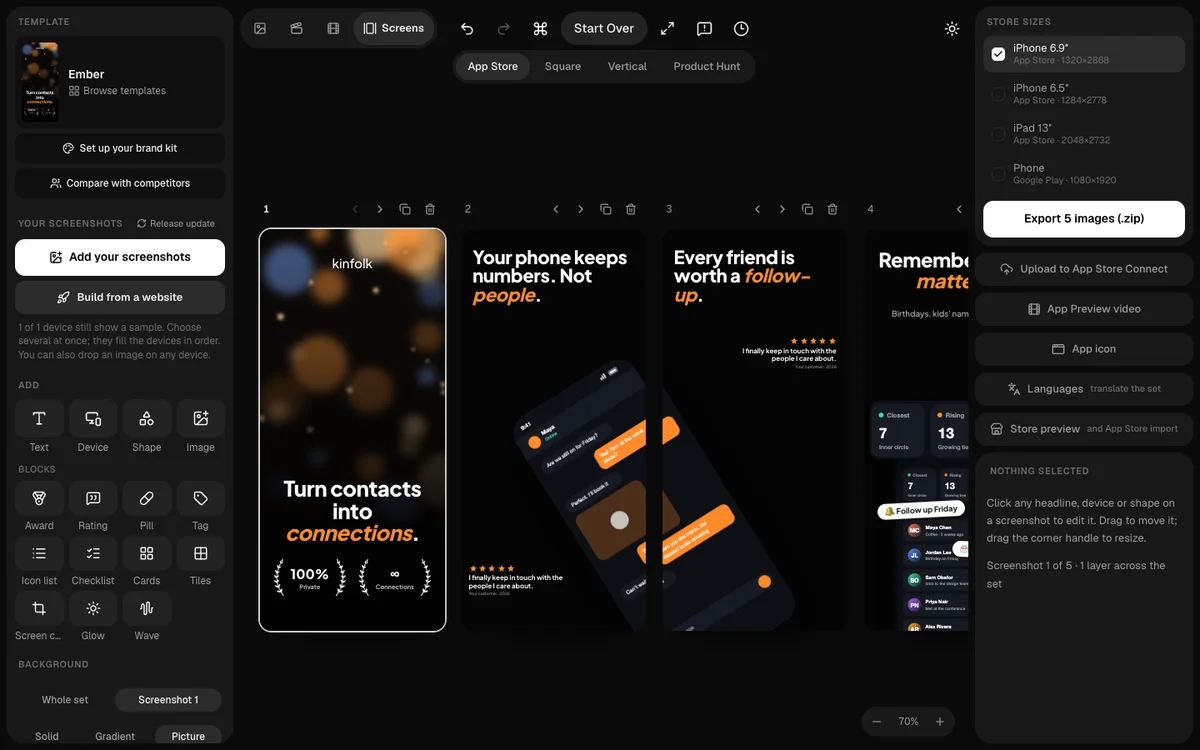
The shortcut. A screenshot tool saves the fiddly parts: device frames, consistent backgrounds, and exporting the right sizes. In 240fps's Screens studio you tick the store sizes you need, such as iPhone 6.9-inch at 1320 × 2868, and export the set as a zip or upload it to App Store Connect.
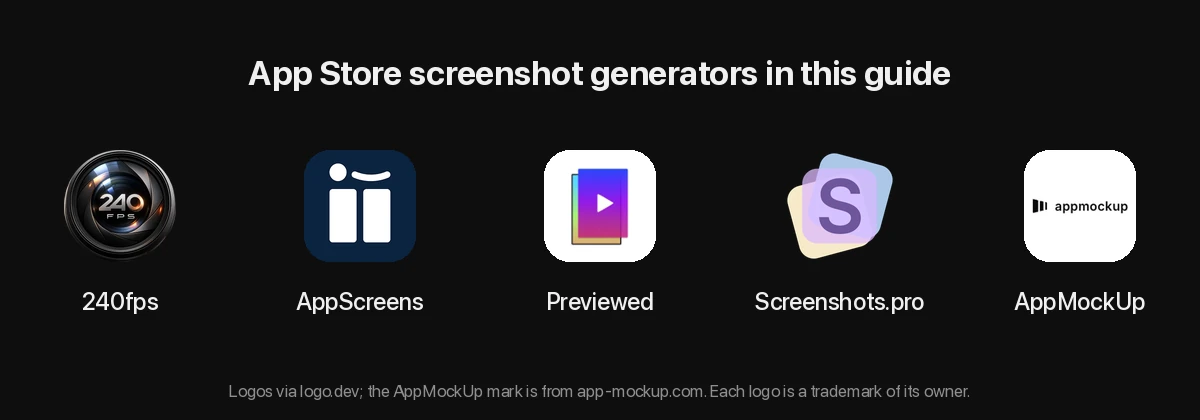
For a wider comparison of screenshot tools and their prices, see the best App Store screenshot generators.
How do I make the set in a day?
Here's a plan that fits in a day:
- Morning: pick five moments. The screen that shows what the app is for, then the four features people choose it for. Write one headline of four to six words for each, as a benefit, not a feature name.
- Fill the app with real-looking data. Believable names, numbers and content. Empty states and lorem ipsum show.
- Capture. Run the app on a 6.9-inch simulator in Device Hub and take the five screenshots, with a clean status bar.
- Afternoon: design. One background and one type style for the whole set. Headline at the top, screen below, large enough to read on a phone.
- Check at search-result size. Shrink the first three to the size they appear in search. If the headline isn't readable, it's too long or too small.
- Export and upload. PNG or JPEG, no transparency, at an accepted size.
Apple's rules on what screenshots may show are worth a read before you upload: see App Store screenshot rules.
When is it worth paying for screenshots?
When your time is worth more than the tool, or when you'll redo the set often. If you ship updates every few weeks, change your headlines to test them, or add languages, a tool that keeps the whole set consistent pays for itself quickly. If you're launching once and won't touch the page for months, the free route is fine.
Hiring a designer makes sense when the screenshots need custom illustration or a brand you don't have yet. Give them the five moments and headlines from step 1; that's the part only you can write.
FAQs
How many App Store screenshots do I need?
At least one, and up to ten, per device type. On a budget, make three to five, and put the most effort into the first three, which appear in search results when you don't have an app preview.
Do I need screenshots for every iPhone size?
No. Make one set at the 6.9-inch size, such as 1320 × 2868 pixels. Apple uses scaled 6.9-inch screenshots for smaller iPhones when you don't provide those sizes.
Do I need iPad screenshots?
Only if your app runs on iPad. Then Apple requires a 13-inch set, such as 2064 × 2752 pixels in portrait.
How do I take App Store screenshots for free?
Run your app in Xcode's Device Hub on a 6.9-inch simulator and click the Screenshot button below the device. It captures at full device resolution and saves to your Desktop.
Can App Store screenshots have transparency?
No. Apple accepts JPEG and PNG, and the images can't include alpha channels or transparency.
Last updated: 3 October 2026. Apple's requirements are from its developer documentation, and prices from each product's pricing page, on 3 October 2026.