By Shaheer Malik · · 8 min read
Free Screen Recorders for Mac (2026): 5 Options, Limits Checked
The best free screen recorder for Mac is the one already on it, Shift-Command-5, for quick clips with your microphone. For the Mac's own sound or long recordings, use OBS Studio, which is free and open source. For automatic zooms on your clicks, Cap is free for personal use. For a quick message with a share link, Loom's free Starter plan allows 25 videos of up to 5 minutes.
You don't need to pay to record your screen on a Mac. macOS has a recorder built in, and several good free apps cover what it can't do. What differs is the catch: one doesn't list the Mac's own sound, one is free only for personal use, one caps your video length.
This guide covers five free options and the real limit of each, so you can pick the one whose catch doesn't matter to you.
A disclosure first: I make 240fps, a paid Mac screen recorder that I mention once at the end. Everything else here is free. Every limit and price comes from each product's own website or guide, read on 2 October 2026, and every screenshot was taken the same day.
What are the free screen recorders for Mac?
Five options cover almost every need: the macOS built-in tools, OBS Studio, Cap, Loom and Kap. Here is what each costs and where its limit is:
| Recorder | Cost | The catch | Best for |
|---|---|---|---|
| Shift-Command-5 and QuickTime | Built into macOS | Apple's guide lists only a microphone, not the Mac's own sound | Quick clips with no install |
| OBS Studio | Free, open source | No automatic zooms, and more setup | Long recordings, tutorials, streaming |
| Cap | Free for personal use | Work use needs a $29-a-year licence; share links up to 5 minutes | Polished demos with click zooms |
| Loom Starter | Free | 25 videos per person, 5 minutes each | Quick messages with a share link |
| Kap | Free, open source | No release since October 2022 | Short GIFs, if it runs on your Mac |
How do I record my screen on a Mac without installing anything?
Press Shift-Command-5. That opens Screenshot, the tool built into macOS, with buttons to record the entire screen or a portion of it. According to Apple's guide, Take screenshots or screen recordings on Mac, you can also:
- Pick a microphone under Options to record your voice.
- Set a timer so recording starts after a few seconds.
- Choose where the file is saved.
- Show the mouse pointer.
- Stop with the Stop Recording button in the menu bar.
QuickTime Player opens the same tools: in QuickTime, choose File > New Screen Recording. Apple's QuickTime Player guide adds that Options can include clicks in the recording, which helps viewers follow what you're doing.
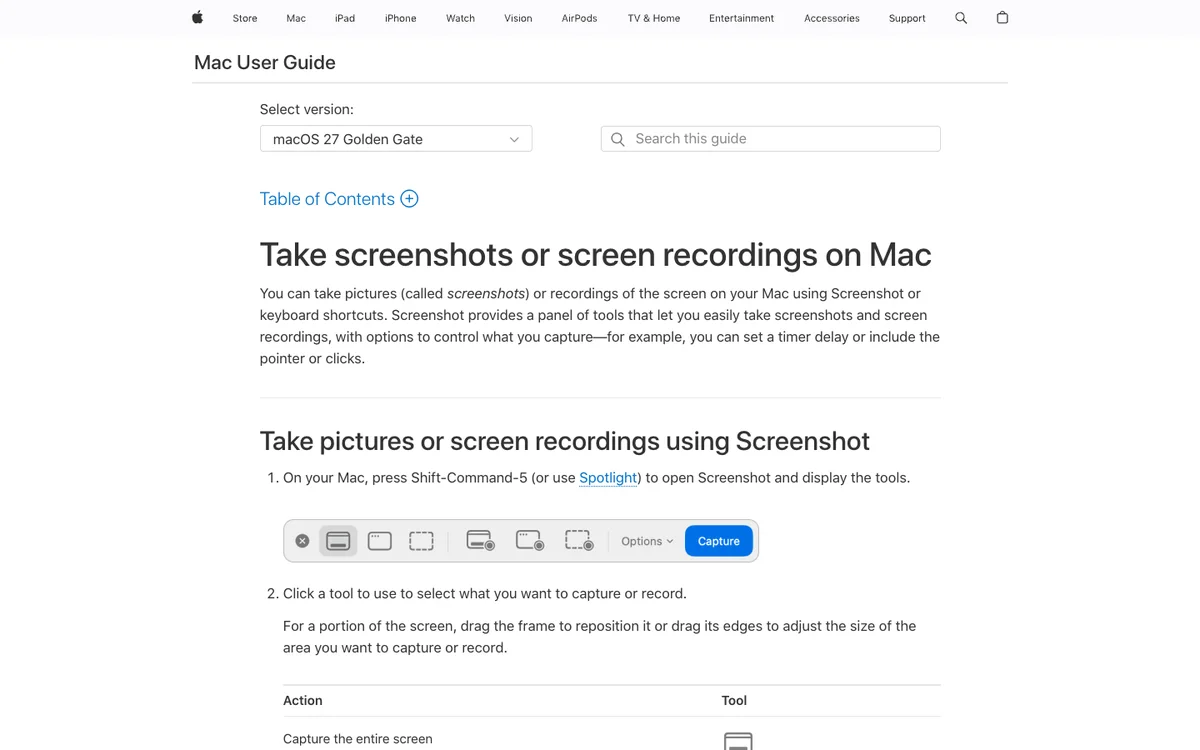
The limit is sound. Apple's guide only lists a microphone, so plan on your voice and nothing else. If the video needs the app's own sounds, such as a notification chime or a video playing, use OBS Studio or Cap instead.
Which free recorder records the Mac's own sound?
OBS Studio and Cap both do. OBS's macOS desktop audio guide says OBS Studio 30 and later on macOS 13 Ventura or newer can capture all desktop audio or a single app, using its macOS Audio Capture source. Cap's website shows Record System Audio as an option next to the microphone.
OBS Studio: best for long recordings and tutorials
OBS Studio is free and open source: its home page describes it as free and open source software for video recording and live streaming. The current release, 32.2.2, supports macOS 13 or newer.
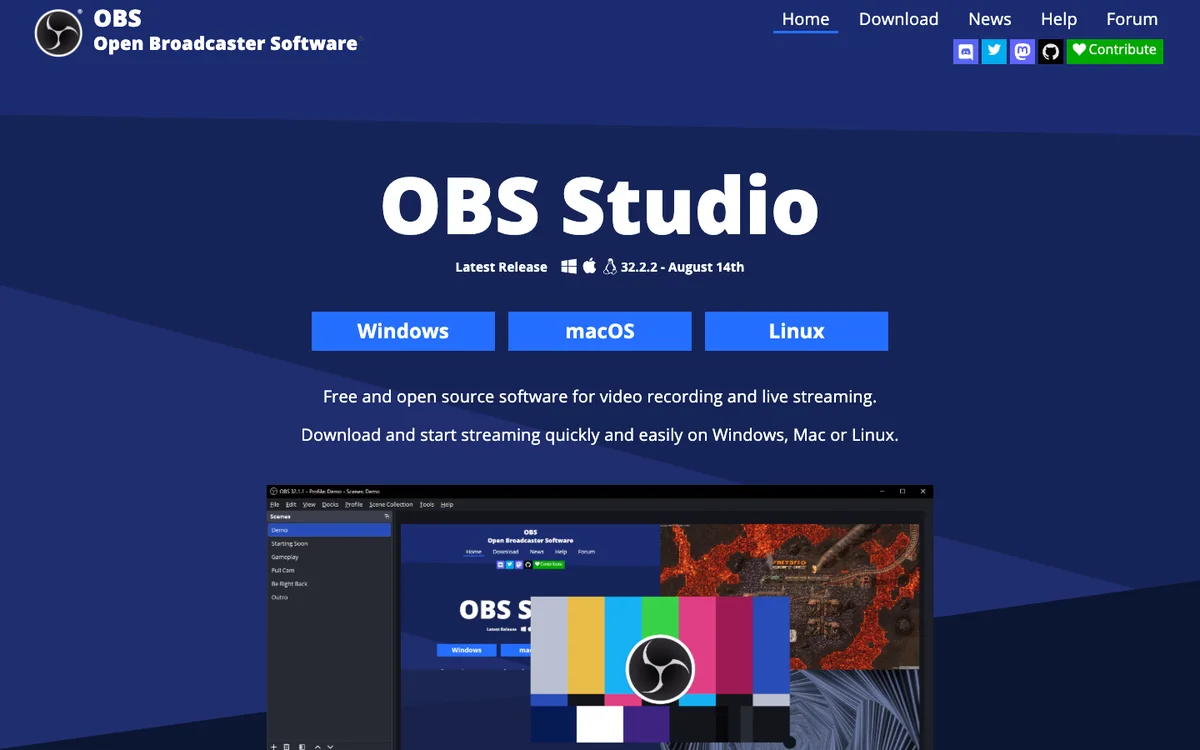
The trade-off is setup. OBS is built around scenes and sources, so your first recording takes a few minutes of configuring: add a macOS Screen Capture source, add an Audio Capture source for the Mac's sound, and check your microphone levels. After that it's very dependable, which is why it's the usual choice for course videos, long walkthroughs and anything you'll stream.
It doesn't edit for you. There are no automatic zooms, so viewers see the whole screen unless you zoom in later in an editor.
Cap: best free option for polished demos
Cap is the free recorder closest to paid demo tools. Its Studio Mode, according to its website, generates zooms from your recorded clicks, or lets you draw your own, so a raw recording looks edited.
Its pricing page says Cap is free for personal use, with unlimited local recordings and editing and export up to 4K at 60 fps. Two limits matter:
- Commercial use needs a licence. The free plan has no commercial usage rights; the Desktop License adds them for $29 a year, or $58 once.
- Share links are capped. Free cloud share links go up to 5 minutes. Recordings you export and keep yourself aren't capped.
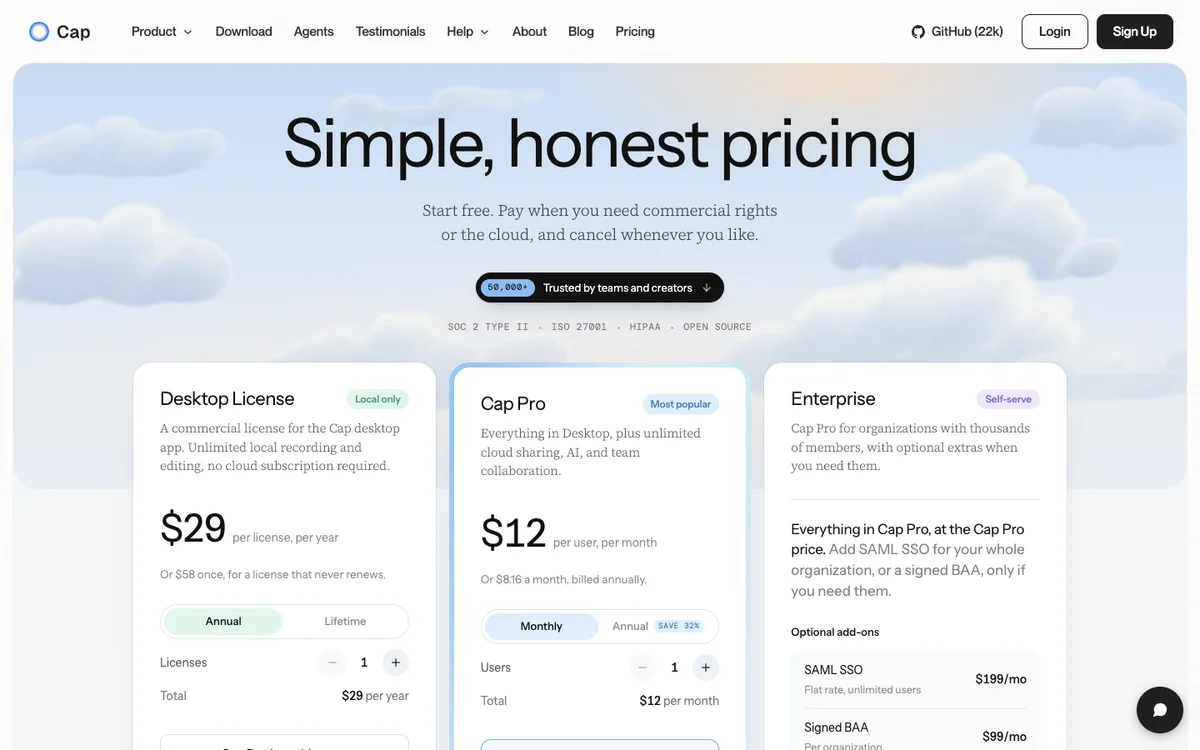
If you're recording a personal project or a tutorial for friends, Cap gives you the polished look for nothing. If it's for your company's launch, budget for the licence.
Loom: best for quick messages with a link
Loom is built for sending a short video to someone rather than making a polished demo. Its free Starter plan allows up to 25 videos per person, each up to 5 minutes long. The paid Business plan was $18 per user a month on the pricing page, billed monthly.
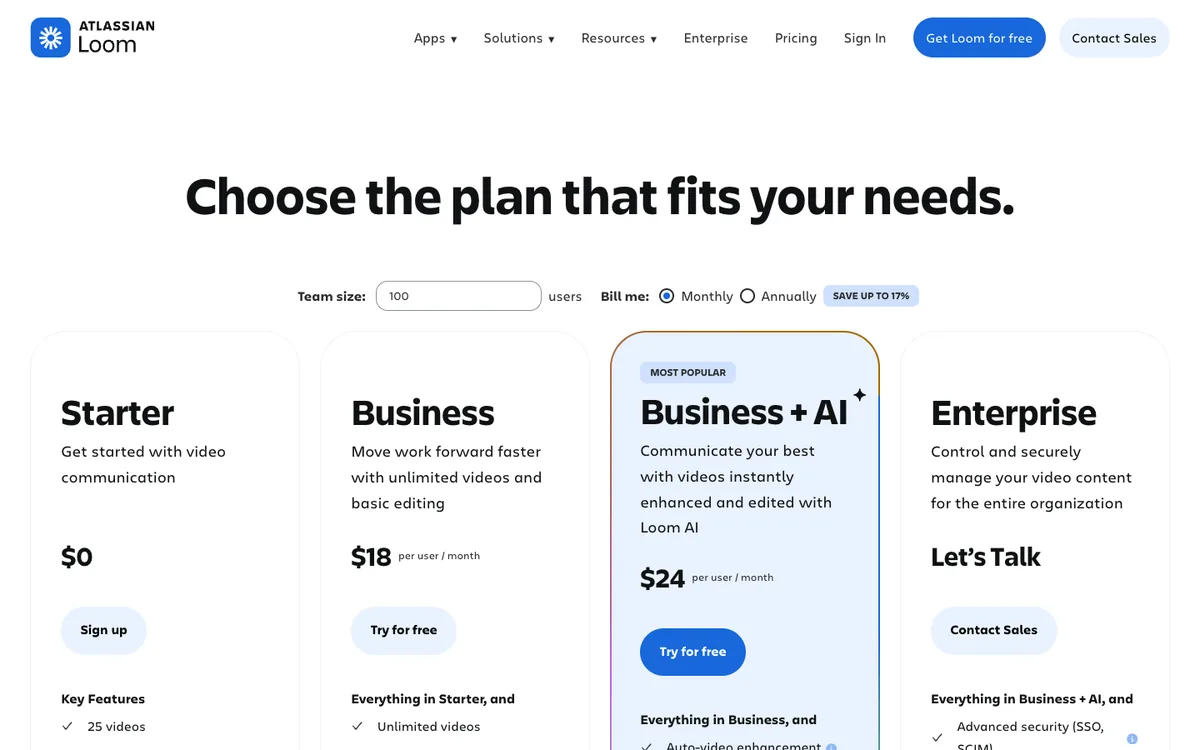
Its strength is the share link: you record, send the link, and the other person watches in their browser. That makes it a quick way to say "here's the bug" or "here's how this works" to a colleague. The 5-minute cap and 25-video limit make it a poor home for a library of demos.
Kap: open source, but quiet
Kap is a small, open-source recorder with an MIT licence, popular for making GIFs. Check before you rely on it: on GitHub, its latest release is version 3.6.0 from 27 October 2022, and the repository was last updated in November 2024. It may still work for you, but it isn't keeping up with new versions of macOS.
For README GIFs specifically, see how to make a GIF of your app for a GitHub README.
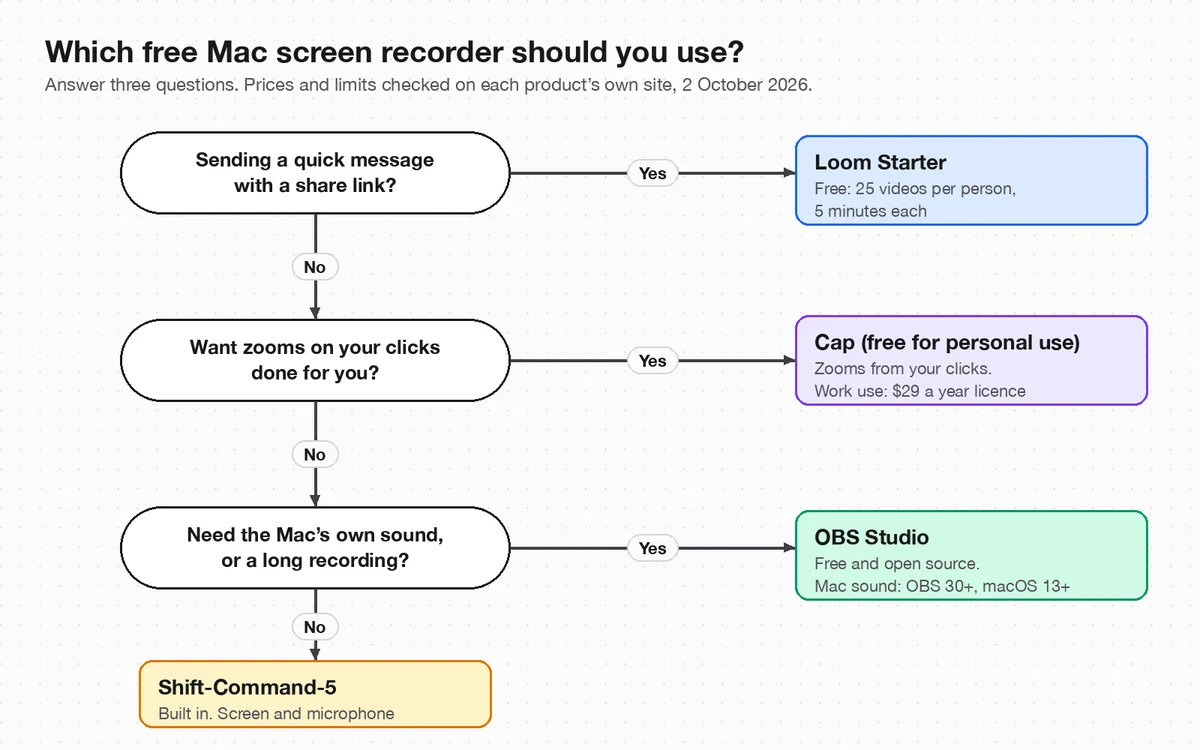
How do I choose the right free recorder?
Start from what the video is for, not from the app:
- A quick clip for yourself or a colleague? Shift-Command-5. It's already there.
- A message someone should watch from a link? Loom's free plan, if it's under 5 minutes.
- A demo that should look edited? Cap, if it's personal. For work, budget for its $29-a-year licence.
- A long tutorial, a course or the Mac's own sound? OBS Studio.
When is a paid recorder worth it?
When the recording is going on a landing page, in a launch video or on the App Store, and you'd otherwise spend an hour zooming and cropping by hand.
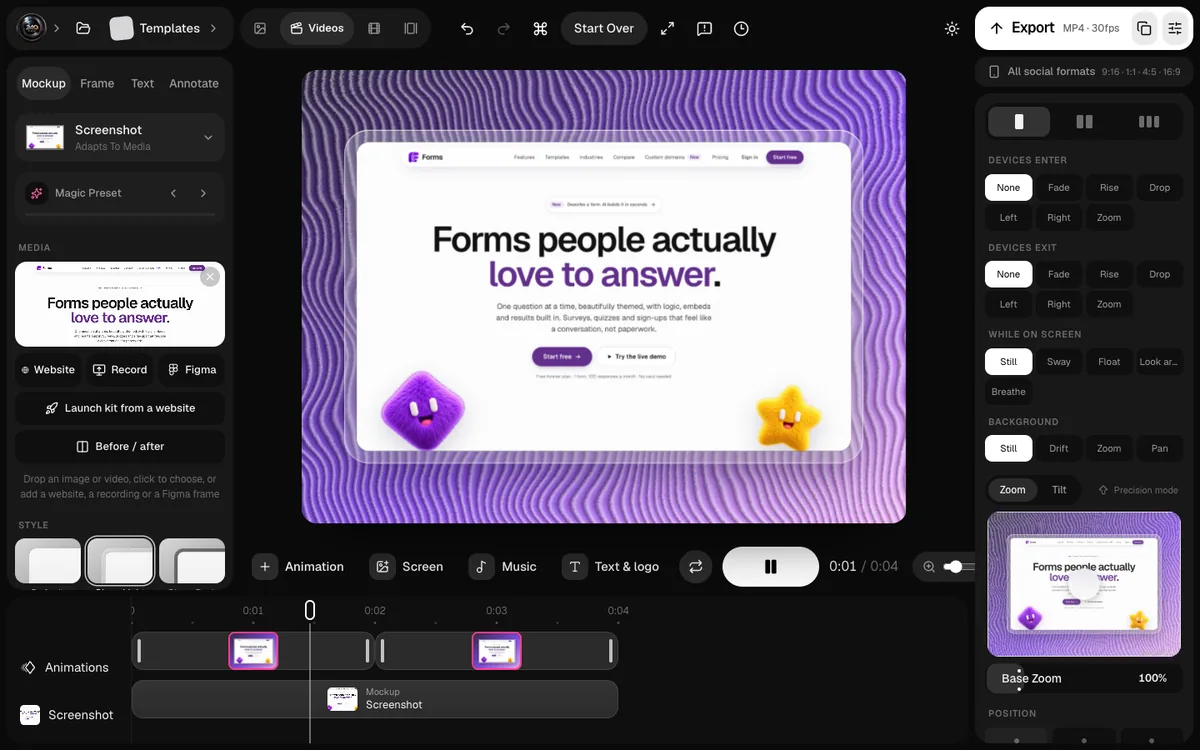
That's the job I built 240fps for Mac for. It records a display, a window or an area with your microphone and the computer's sound. It logs your clicks so the zooms are already placed, and exports MP4 up to 4K at 60 fps. Designing is free; exporting comes with 240fps Monthly at $7 a month or Lifetime at $39 once. It needs macOS 15 Sequoia or later on Apple silicon.
For a side-by-side of the paid options, see Screen Studio alternatives, and for the whole process, how to make a product demo video on Mac.
FAQs
Does Mac have a free screen recorder?
Yes. Press Shift-Command-5 to open Screenshot, which records the entire screen or part of it, with your microphone if you choose one. QuickTime Player opens the same tools from File > New Screen Recording.
How do I screen record on a Mac with sound?
For your voice, choose a microphone under Options in Shift-Command-5. For the Mac's own sound, use a free app such as OBS Studio, which captures desktop audio in version 30 and later on macOS 13 or newer, or Cap, which has a Record System Audio option.
Is OBS Studio free on Mac?
Yes. OBS Studio is free and open source software for video recording and live streaming. The current version, 32.2.2, supports macOS 13 or newer.
Is Cap really free?
Cap is free for personal use, with unlimited local recordings and export up to 4K at 60 fps. Commercial use needs its Desktop License, which was $29 a year or $58 once on 2 October 2026.
How long can you record on Loom for free?
Loom's free Starter plan allows recordings of up to 5 minutes each, and up to 25 videos per person.
What is the best free screen recorder for Mac with zoom?
Cap generates zooms from your recorded clicks and is free for personal use. The built-in Shift-Command-5 and OBS Studio don't add zooms automatically.
Last updated: 2 October 2026. Prices, limits and versions are from each product's own website or guide on 2 October 2026.