Mockup
TV mockups for screenshots and screen recordings
To make a TV mockup in 240fps, open the Retro TV template, drop in your screenshot or clip, and export a 5-second MP4, WebM or GIF. For a clean modern screen, use a big-screen frame such as Studio Display or Pro Display XDR at 16:9. Designing is free; exports need Monthly ($7) or Lifetime ($39 once).
By the 240fps team
A flat screenshot looks like a screenshot. Put it on a screen and it looks like a product. For a TV look, you have two honest options in 240fps: a retro TV effect, or a clean big-screen frame. Both work in your browser, with a still or a clip.
Two ways to get a TV look
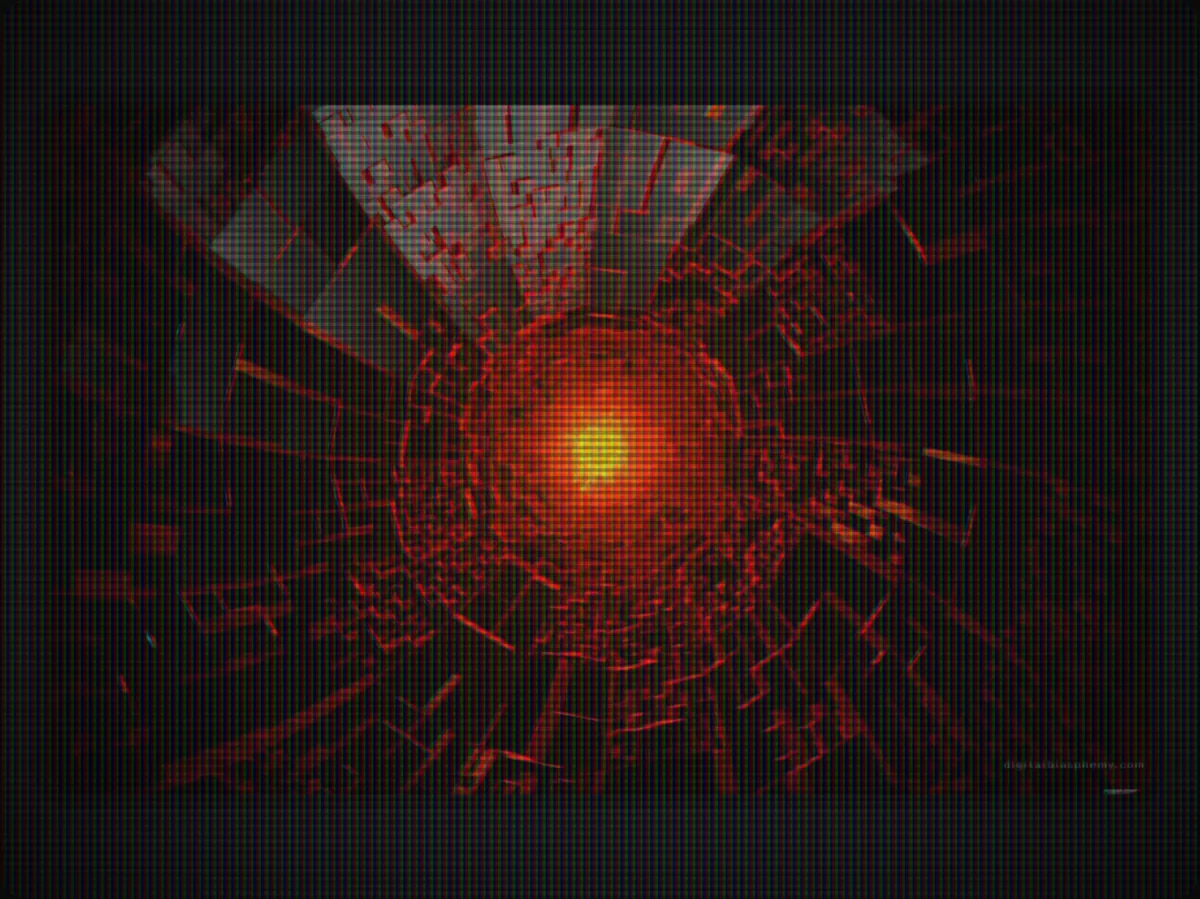
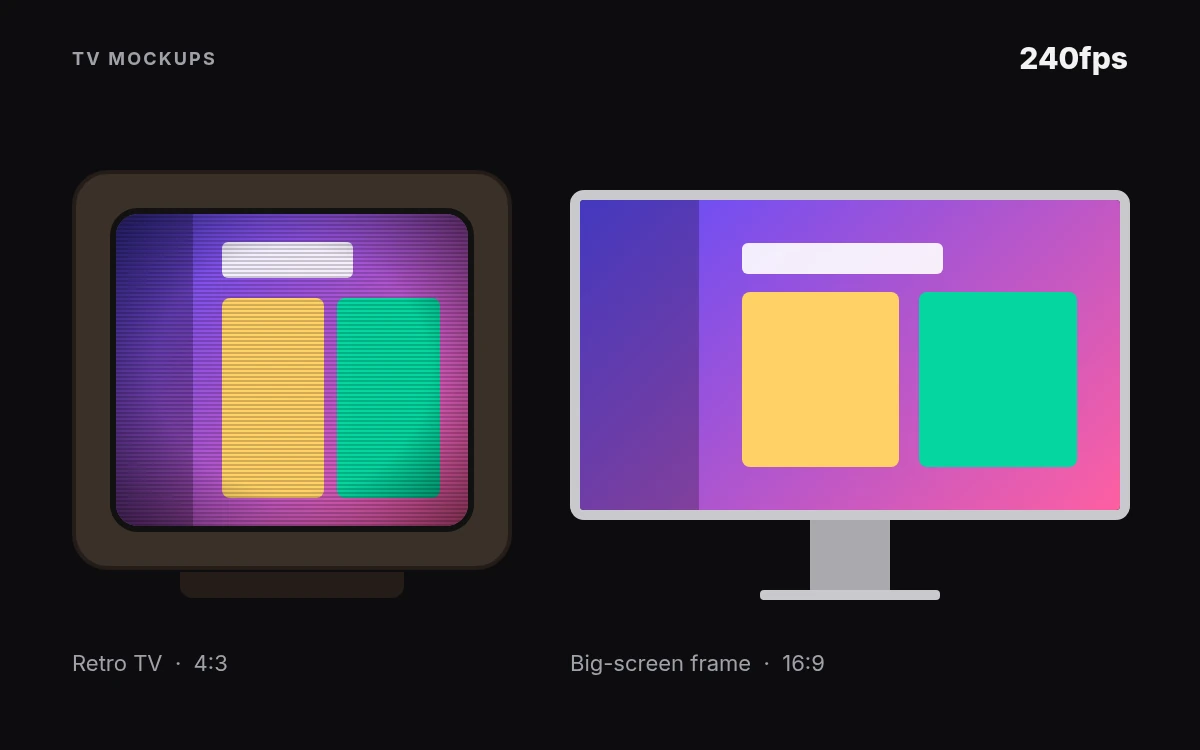
The Retro TV look. The Retro TV template is a 5-second video with the "tv" effect on a Screenshot frame at 4:3 (1920 × 1440). It suits nostalgia, launch teasers and social posts. You can swap to any device. For a rougher feel, try Retro VHS or Retro Glitch.
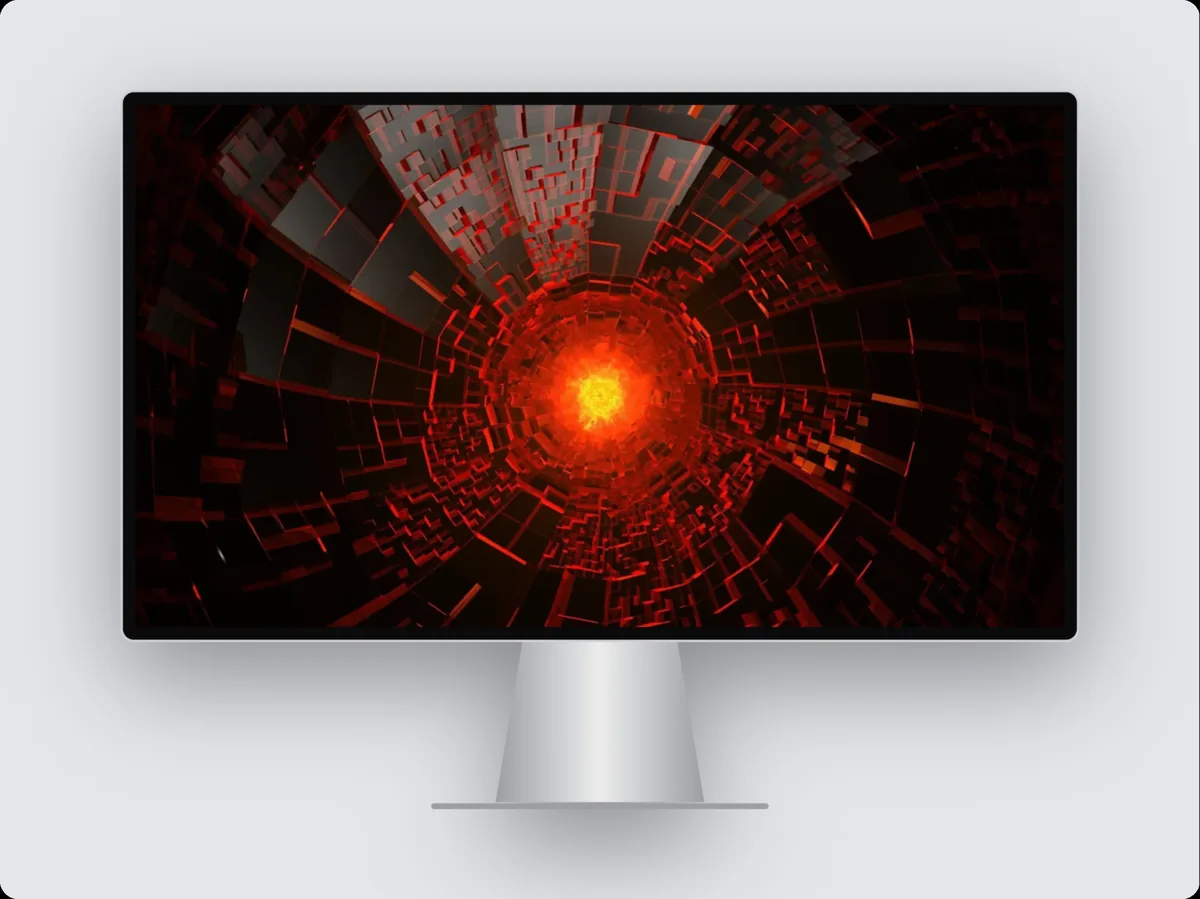
A clean big-screen frame. For product shots, a TV-app listing or a landing page, use a large display frame at 16:9. It reads as "big screen" without fake hardware. See the frames below.
Which one fits? Use Retro TV when the mood matters more than the detail: a teaser, a throwback post, a short loop on social. The scanlines and 4:3 shape soften small text, so keep the screen simple. Use Studio Display or Pro Display XDR when people need to read the screen: a store image, a pitch deck, a feature shot on your site.
Make one in four steps
- Upload a screenshot or a screen recording.
- Pick the Retro TV template, or a big-screen frame.
- Set the aspect: 16:9 for a modern screen, 4:3 for the retro look.
- Export as MP4, WebM or GIF.
4:3 or 16:9? Pick the aspect before you place your screen, not after. A 16:9 screenshot dropped into a 4:3 frame gets cropped or letterboxed. If your source is a widescreen TV-app capture, stay at 16:9 and use a big-screen frame. Save 4:3 for the retro look.
Starting from a still? Screenshot to mockup is the quickest route. The Screenshot frame lets you set the canvas yourself.
Sizes that match TV store listings
- Apple TV apps: App Store Connect lists screenshots at 1920 × 1080 or 3840 × 2160 px. See Apple's screenshot specifications.
- Android TV apps: Google Play needs at least one Android TV screenshot to publish a TV app, plus a TV banner at 1280 × 720 px. See Google's preview assets help.
A quick checklist before you upload:
- Design at 16:9 so the shape matches both stores.
- Export, then check the size against the store's list.
- For Google Play, make the TV banner as a separate 1280 × 720 image.
- Re-read Apple's and Google's pages on the day you submit, as specs can change.
All our size guides are on sizes.
Big-screen frames to use instead
- Studio Display mockup: a thin, clean frame for 16:9 shots.
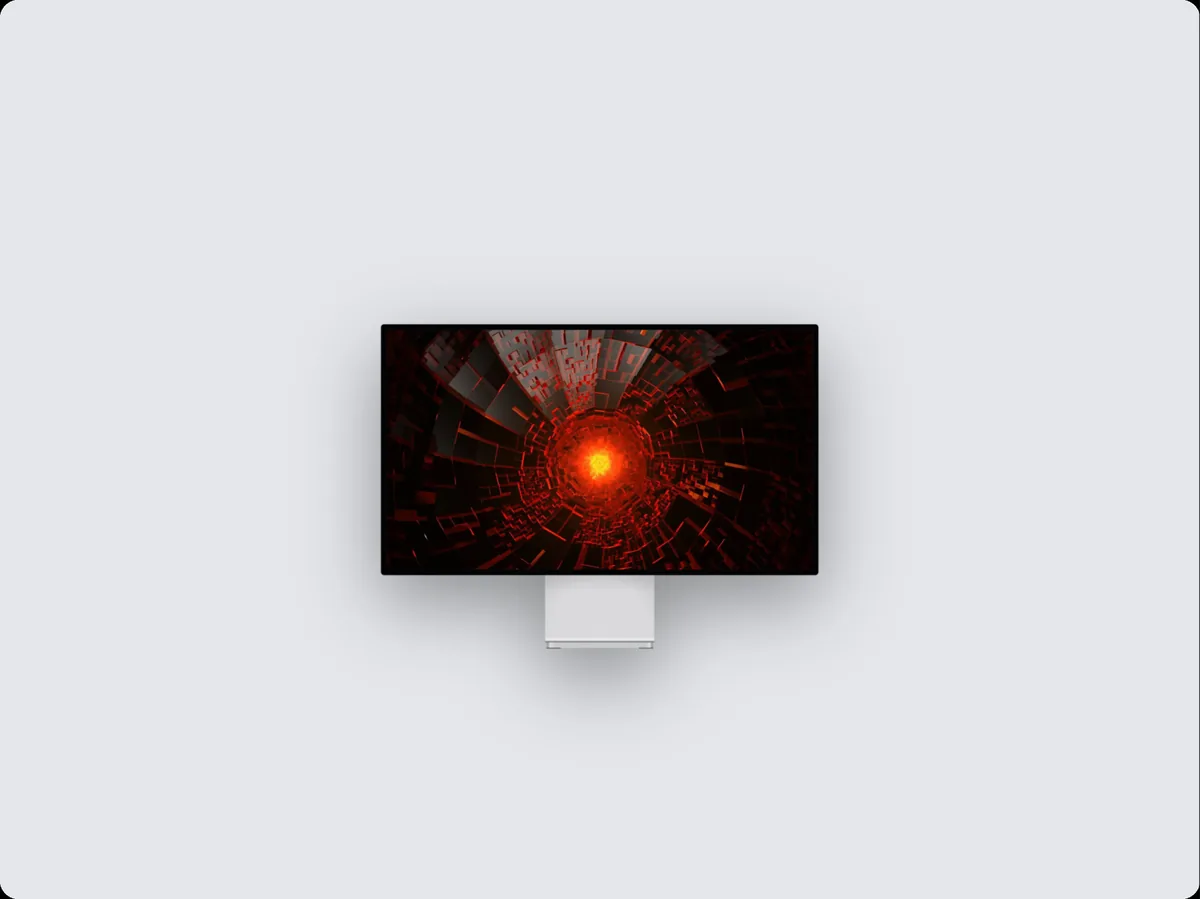
- Pro Display XDR mockup: the largest screen in the set.
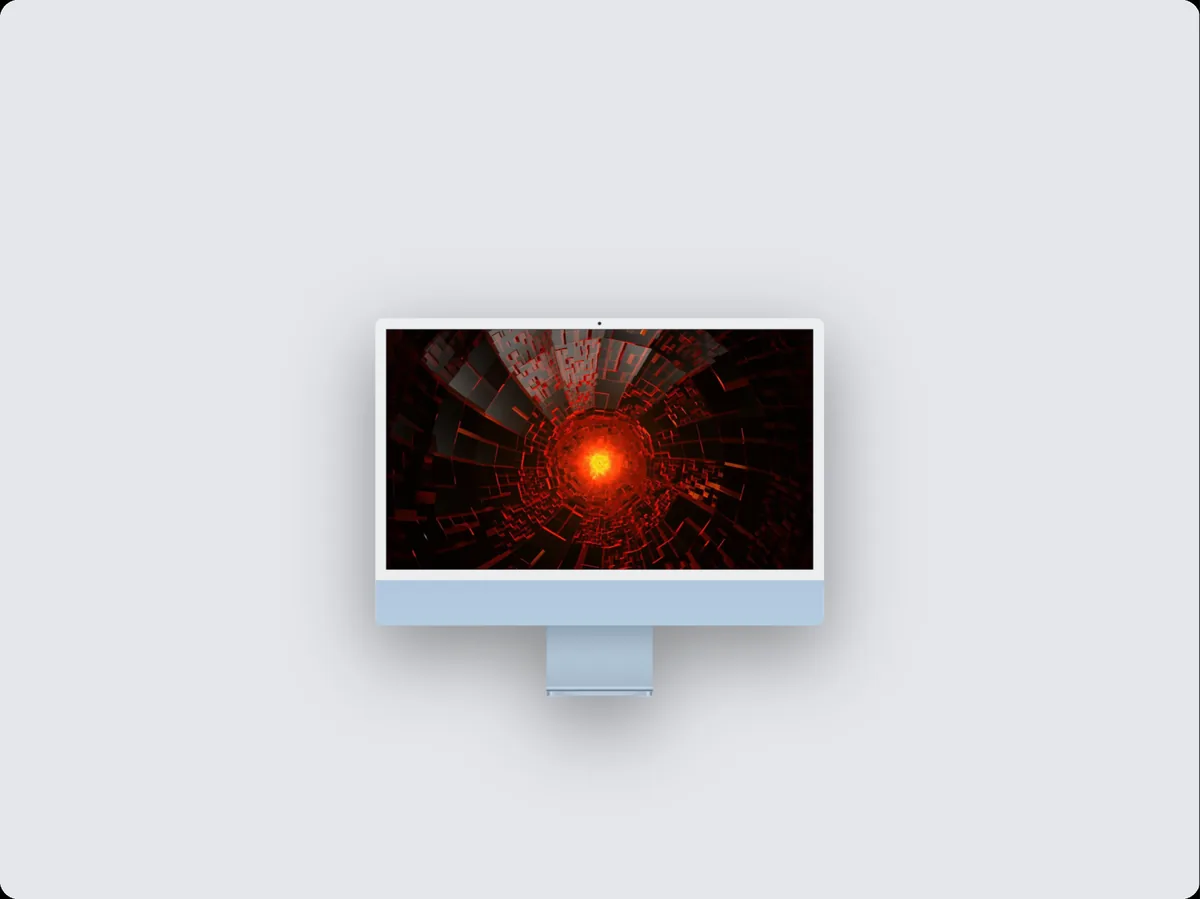
- iMac 24 mockup: a big screen with a stand, for desk scenes.
- Browser mockup: for web apps shown on a big screen.
Need a handset next to it? Add a phone mockup. Browse all mockups or all templates. New to the idea? Read what is a mockup.
Turn it into a promo video
A TV frame makes a good final shot in a longer clip. Open on the problem, show two or three screens, then end on the TV shot with your name. Build the rest with the app promo video tool. If your product is a website, website to video turns a live page into motion you can place inside a big-screen frame. Keep the retro shot short, since 5 seconds is the template's length. Prefer an app? Download 240fps.
Pricing
Designing is free. Exports need a plan: Monthly at $7 a month, or Lifetime at $39 once. See 240fps pricing.
TV mockup questions
How do I make a TV mockup?
Open the Retro TV template in 240fps, drop in your screenshot or clip, and export a 5-second MP4, WebM or GIF. For a modern look, put your image in a big-screen frame like Studio Display or Pro Display XDR at 16:9 instead. Both run in your browser, and you can design for free.
Is there a free TV mockup?
Designing is free in 240fps, so you can build and preview a TV mockup without paying. Exports are paid. To download the finished MP4, WebM or GIF, you need Monthly at $7 a month or Lifetime at $39 once. You can check every detail on the pricing page before you buy.
What size are Apple TV app screenshots?
App Store Connect lists Apple TV screenshots at 1920 × 1080 or 3840 × 2160 pixels, and they are required for Apple TV apps. Design your mockup at 16:9, export it, then check the exported size against Apple's screenshot specifications page before you upload it to App Store Connect.
Does Google Play need TV screenshots?
Yes. To publish an Android TV app, Google Play needs at least one Android TV screenshot. You also need a TV banner at 1280 × 720 pixels. Google's Play Console help page on preview assets lists the details, so check it before you submit your app for review.
Can I export a TV mockup as a GIF?
Yes. The Retro TV template exports as MP4, WebM or GIF, and so do the big-screen frames. GIF works well for quick social posts and docs. MP4 and WebM keep files smaller for websites. Exports need Monthly at $7 a month or Lifetime at $39 once; designing stays free.
240fps is not affiliated with Apple, Google or any TV maker.