By Shaheer Malik · · 6 min read
Auto-Zoom Screen Recording, Explained (2026)
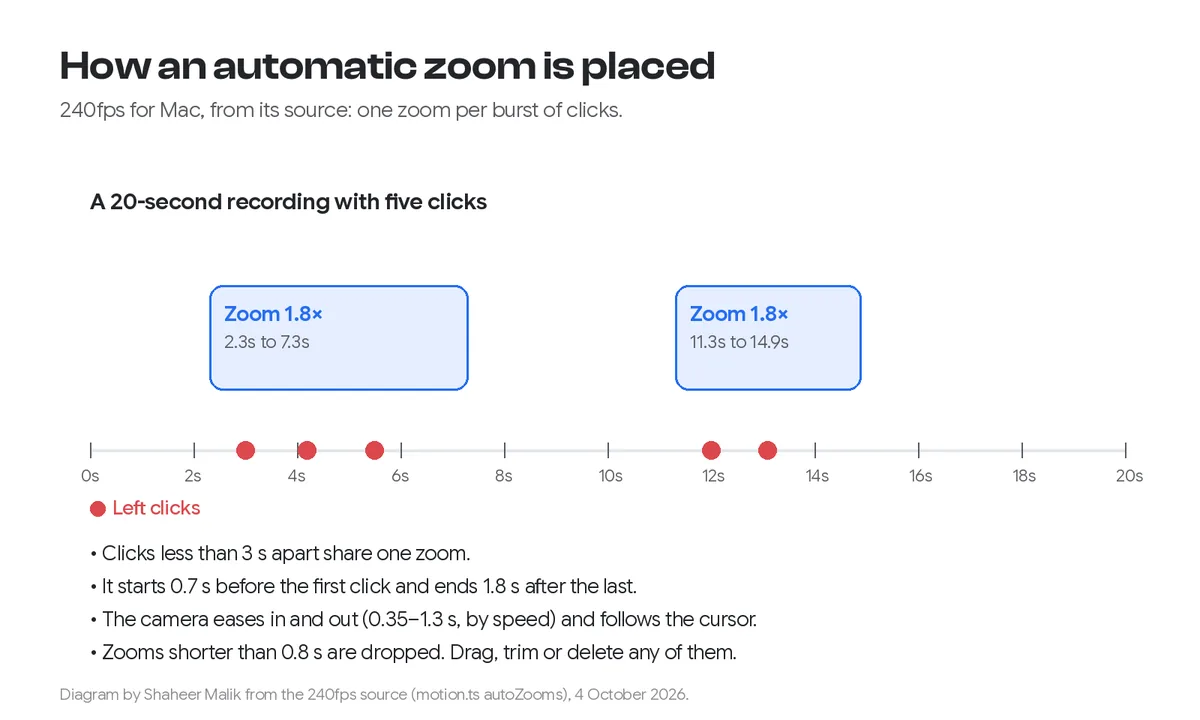
Auto-zoom screen recording means the recorder logs your clicks and cursor while you record, then zooms the finished video in on the moments you clicked, easing in and out like a camera. In 240fps for Mac, clicks less than three seconds apart share one zoom, which starts 0.7 seconds before the first click, ends 1.8 seconds after the last, zooms 1.8× by default and follows your cursor. You can move, trim or delete every zoom afterwards.
A full-screen recording of a Mac is mostly empty space with a small cursor in it. Watch one on a phone and you can't read the buttons being clicked. Auto-zoom fixes that: the video pushes in on the part of the screen you're working in, then pulls back out, as if someone were operating a camera.
This post explains how that works under the hood, using the actual rules from the recorder I make, and how to record so the zooms land where you want them.
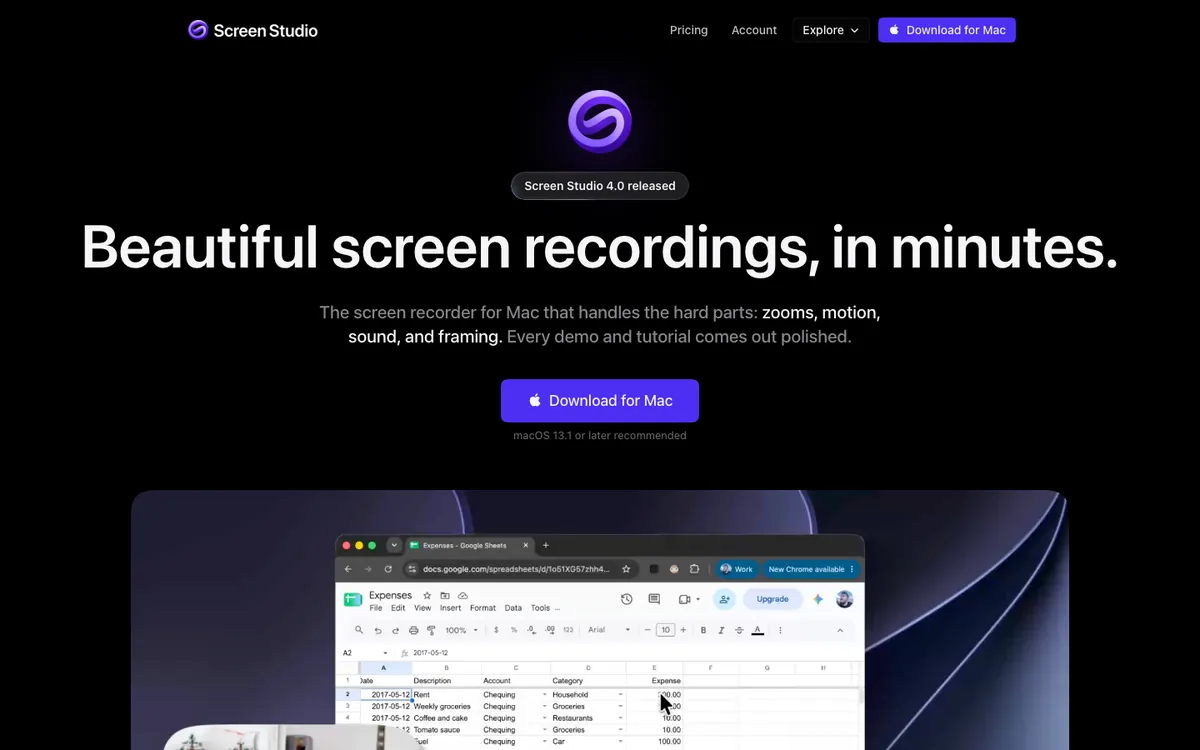
A disclosure first: I make 240fps, whose Mac recorder does automatic zooms. The numbers below come from its source code. Screen Studio's description comes from its own website, read on 4 October 2026.
What is auto-zoom screen recording?
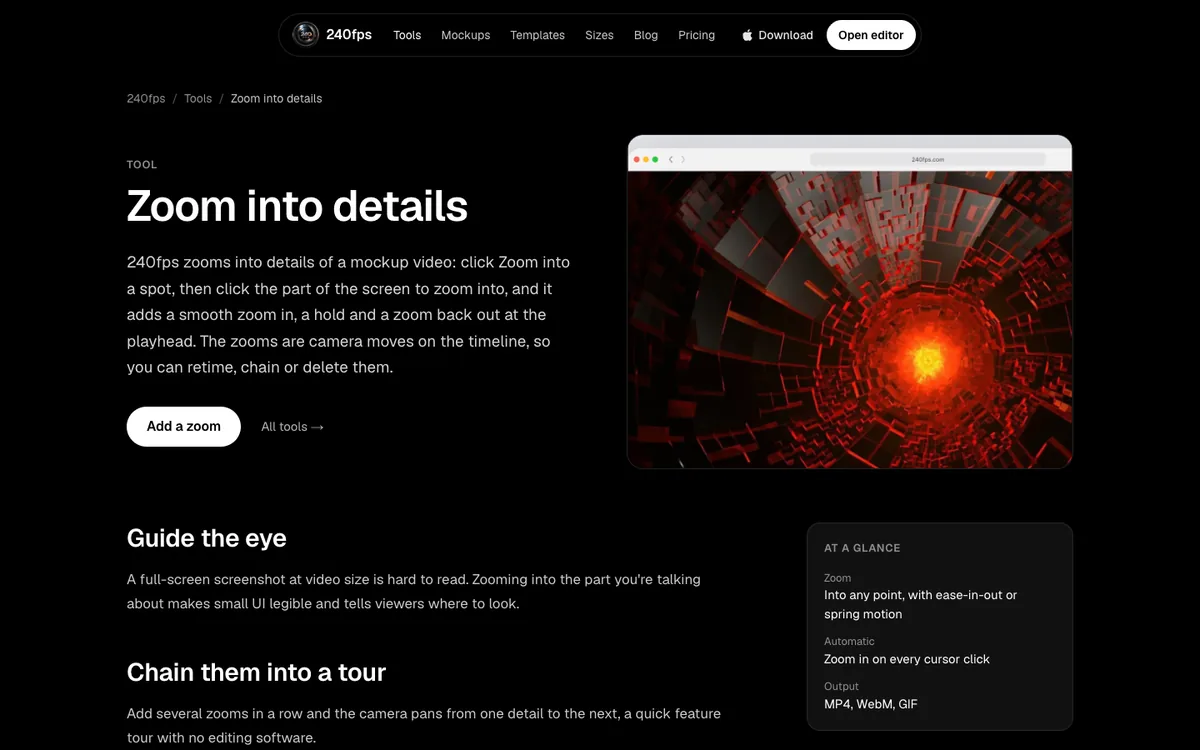
It's a screen recording where the zooms are created for you. Instead of recording a static screen and keyframing zooms in a video editor, the recorder notes where and when you clicked. It then places zooms on those moments in its own editor. The zooms aren't baked into the recording. They're a layer of camera moves on top of the full-resolution capture, so you can change them without re-recording.
Screen Studio, which made the idea popular, describes the same principle on its site: automatic zoom looks at what you did while recording, like where you clicked, and zooms in on the moments that matter. You can add manual zooms too.
How does a recorder decide when to zoom?
From bursts of clicks. Here is exactly how 240fps for Mac does it, from its source:
- Log the clicks. While you record, the app saves every left click with its time and position, separately from the video.
- Group nearby clicks. Clicks less than three seconds apart belong to the same burst, because they're usually one task, such as filling in a form.
- Make one zoom per burst. The zoom starts 0.7 seconds before the first click, so the viewer sees where the cursor is heading, and ends 1.8 seconds after the last click, so they see the result.
- Merge overlaps. If a new zoom would start before the previous one ends, the two become one long zoom.
- Drop blips. Any zoom shorter than 0.8 seconds is discarded; it would feel like a twitch.
The zoom's strength is 1.8× by default, and every zoom uses the same amount until you change it. You can then drag a zoom's edges on the timeline, switch it from following the cursor to a fixed point, or delete it.
Why does a good zoom feel smooth?
Because of easing and a slow-following camera. A zoom that jumps instantly to 1.8× and snaps back is disorientating. Three details make the difference:
- Easing in and out. 240fps ramps each zoom with a smootherstep curve over a set time: 0.35 seconds (fast), 0.6 (normal, the default), 0.9 (gentle) or 1.3 (slow).
- A camera that drifts. In follow mode, the zoomed view tracks a smoothed copy of the cursor path, not the raw one, so it drifts rather than jitters.
- Staying inside the frame. The view is kept within the edges of the screen, so a click near a corner never shows empty space beyond it.
The same thinking applies to the cursor: the recorder smooths its path and can enlarge it, because a 1:1 macOS cursor is tiny once the video is shrunk onto a phone.
Auto-zoom vs adding zooms by hand
Auto-zoom gets you most of the way in seconds; manual zooms are for emphasis. Here's how they compare:
| Automatic zooms | Manual zooms in a video editor | |
|---|---|---|
| Time to set up | None: generated when you stop recording | Keyframes for each zoom, in and out |
| Where it zooms | Where you clicked, following the cursor | Wherever you choose |
| Editing later | Drag, trim, change strength, delete | Move keyframes |
| Quality | Uses the full-resolution recording, so zooms stay sharp | Depends on the source resolution |
| Weakness | Zooms on clicks that don't matter, misses moments without clicks | Slow, easy to make jerky |
Most good demos use both: keep the automatic zooms, delete the ones on unimportant clicks, and add one manual zoom on something you pointed at without clicking, such as a number in a chart.
How do I record so the zooms land well?
Record a little slower than feels natural, and let your clicks tell the story.
- Record at Retina resolution. Zooming 1.8× into a standard-resolution recording looks soft. 240fps records at 2x by default.
- Pause before you click. That 0.7-second lead-in only helps if the cursor is already on its way. Move, settle, then click.
- Group related clicks. Do one task in one burst: fill the form, then submit. Clicks within three seconds stay in one zoom instead of zooming in and out repeatedly.
- Leave gaps between steps. A three-second pause lets the view pull back out, so the viewer sees where they are before the next close-up.
- Avoid clicking just to think. Idle clicks become zooms. Delete them afterwards if they slip in.
- Hide clutter first. Close notifications and hide desktop icons; a zoom makes everything near the cursor larger.
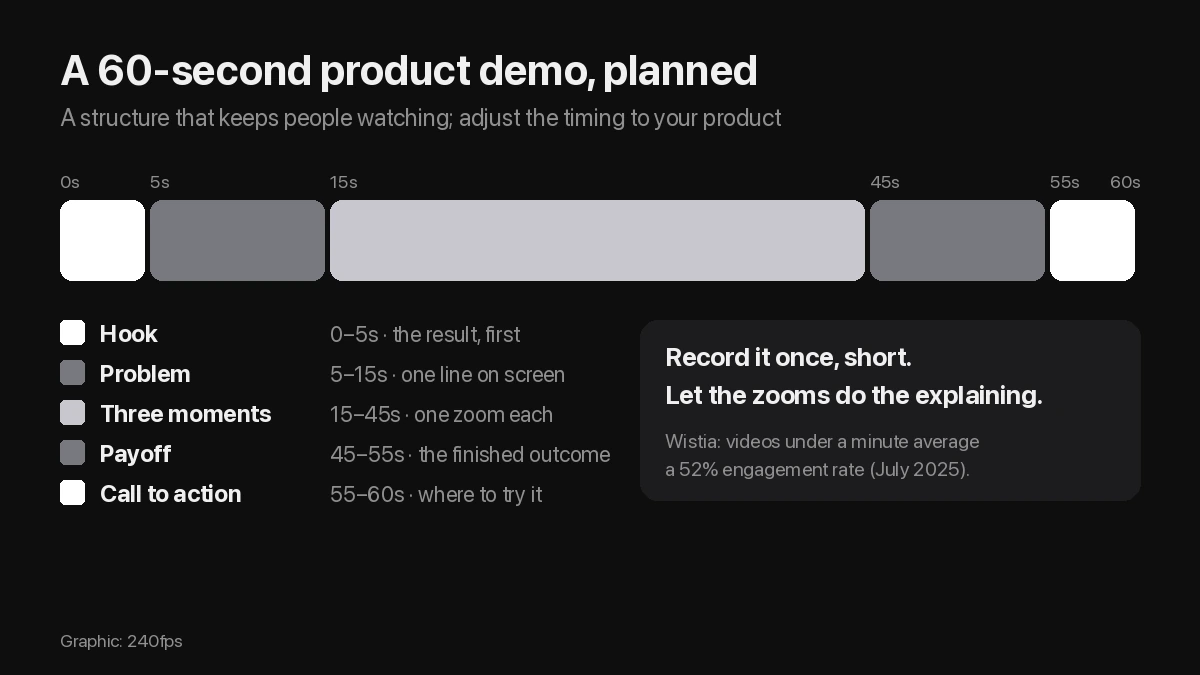
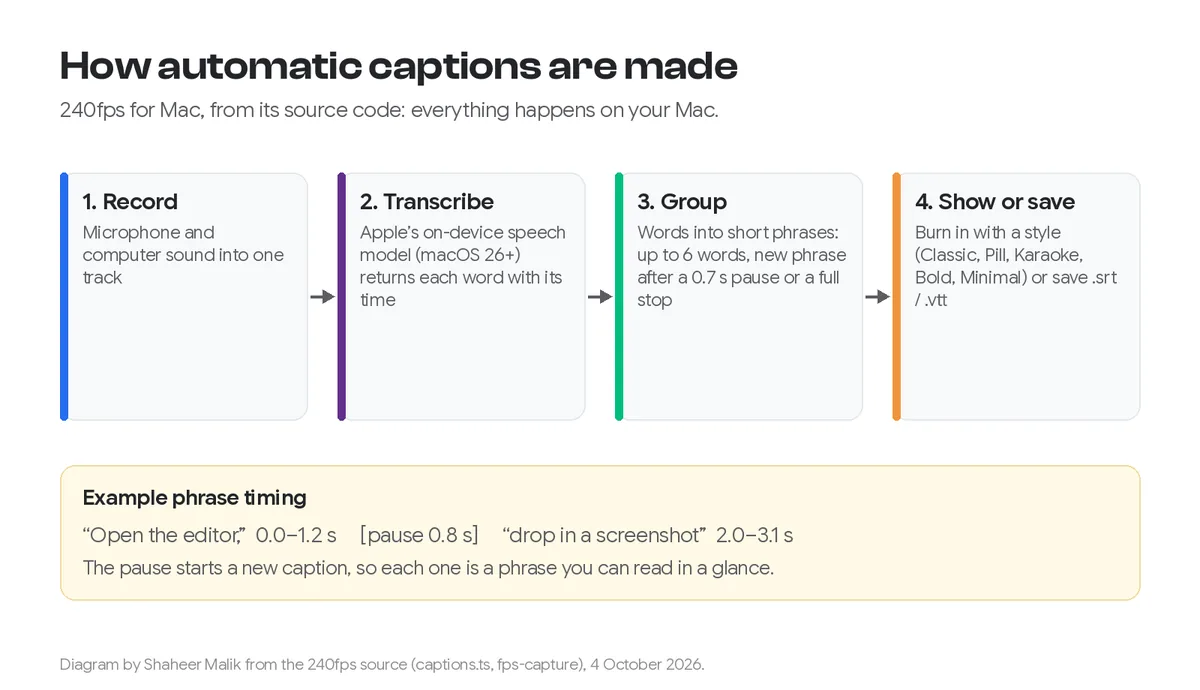
My guide to making a product demo video on a Mac walks through a whole recording, and automatic captions cover the voice-over side.
Which recorders do automatic zooms?
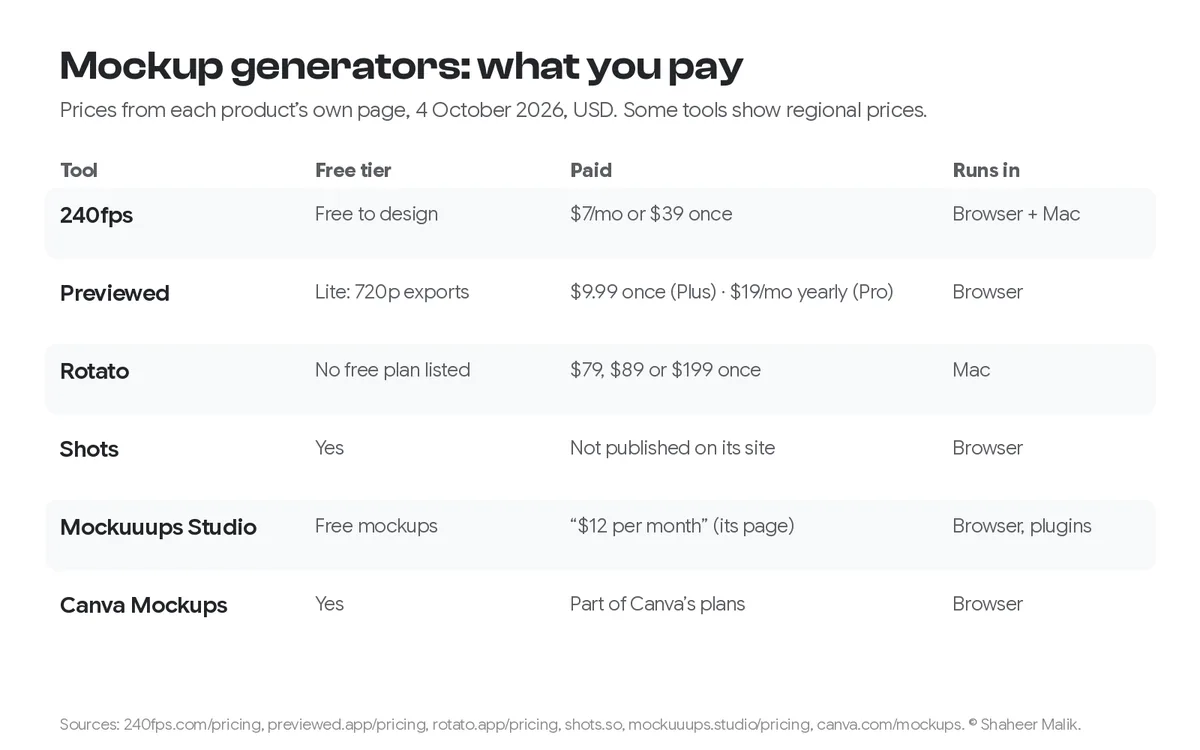
On the Mac, the best-known are Screen Studio and 240fps for Mac, and Screen Movie's site describes automatic zooms that follow your cursor too. I compare the $39 options in 240fps vs Screen Movie and the subscription one in Screen Studio alternatives. Free recorders such as QuickTime and OBS record the screen but don't add zooms; you'd keyframe them yourself in an editor.
FAQs
What is auto-zoom in screen recording?
A feature where the recorder logs your clicks during recording and then zooms the video in on those moments automatically, easing in and out. The zooms are editable afterwards.
How does auto-zoom decide where to zoom?
In 240fps for Mac, it groups left clicks less than three seconds apart, starts a zoom 0.7 seconds before the first click and ends it 1.8 seconds after the last, centred on the clicks and following the cursor.
Can I change or remove automatic zooms?
Yes. Each zoom is a segment on the timeline: drag its edges, change its strength or speed, switch it to a fixed point, or delete it.
Does zooming make the video blurry?
Not if you record at Retina (2x) resolution, because the zoom uses the full-resolution recording. A 1.8× zoom on a standard-resolution recording will look softer.
Can QuickTime zoom in on clicks automatically?
No. QuickTime and the Shift-Command-5 toolbar record the screen as it is. You need a recorder with automatic zooms, or you add zooms by hand in a video editor.
Last updated: 4 October 2026. 240fps's behaviour is from its source code; Screen Studio's from screen.studio, read on 4 October 2026.