By Shaheer Malik · · 7 min read
How to Record Your Mac Screen with System Audio (2026)
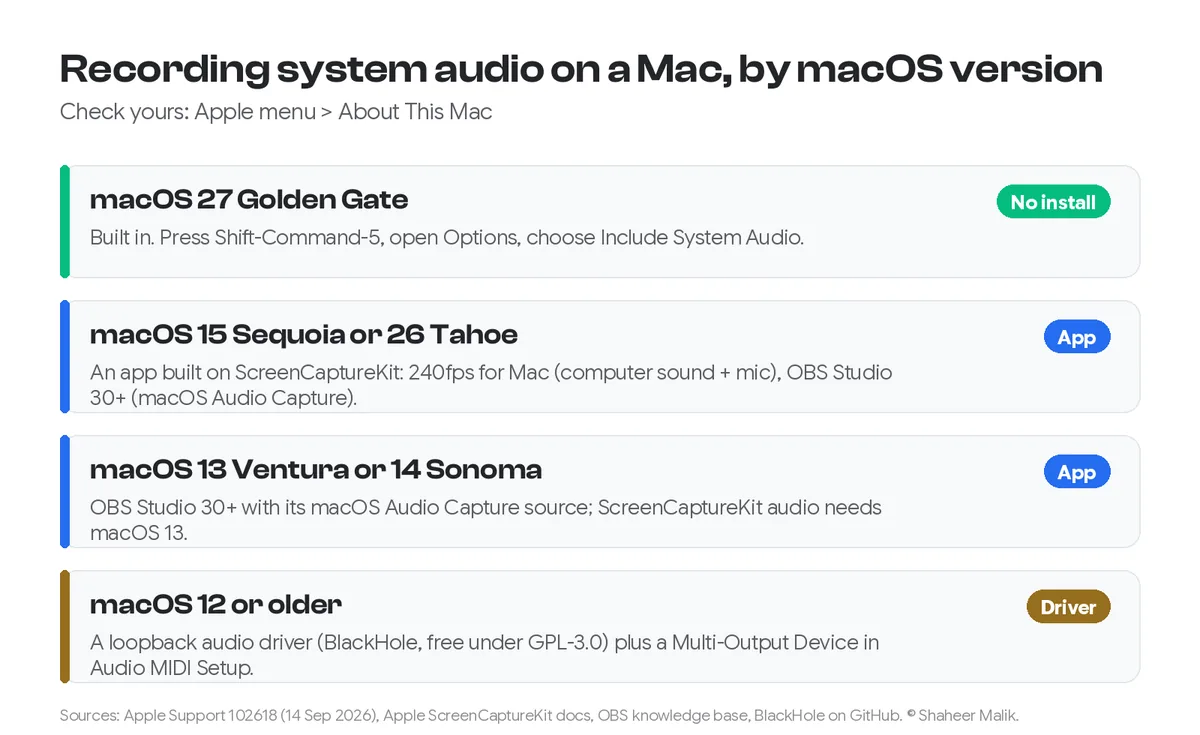
On macOS 27 Golden Gate, press Shift-Command-5, click Options and choose Include System Audio before you record. On macOS 13 to 26 there's no built-in switch, so use an app built on Apple's ScreenCaptureKit, such as OBS Studio 30 or later (free) or 240fps for Mac, which records computer sound and your microphone together. On macOS 12 or older, install a loopback driver such as BlackHole and record it as an input.
For years, the most common complaint about recording a Mac screen was the silence. Shift-Command-5 and QuickTime would record your microphone, but not the sound your Mac itself was playing: the app's alerts, a video's audio, the other side of a call. You needed a workaround.
In 2026 that changed. Apple's own support article now describes a built-in switch for it, but only on the newest macOS. This guide covers every version: what to press on macOS 27, which apps work on macOS 13 to 26, and the driver route for older Macs.
A disclosure first: I make 240fps, a screen recorder for Mac that's one of the options below. Apple's and OBS's instructions come from their own documentation, read on 4 October 2026, and I list the free routes first.
Which macOS do you have?
Check before anything else, because the answer depends entirely on it. Open the Apple menu and choose About This Mac. The name and number at the top (Golden Gate 27, Tahoe 26, Sequoia 15, Sonoma 14, Ventura 13) decide which method below works for you. The chart at the top of this post sums them up.
How do I record system audio on macOS 27?
Use the built-in Screenshot toolbar. Apple's support article How to record the screen on Mac, published 14 September 2026, lists it among the recording options:
- Press Shift-Command-5 to open the Screenshot toolbar.
- Choose what to record: the entire screen, a window or a portion.
- Click Options and choose Include System Audio.
- If you want your voice too, choose a microphone in the same menu.
- Click Record. Stop with the Stop button in the menu bar, or Command-Control-Esc.
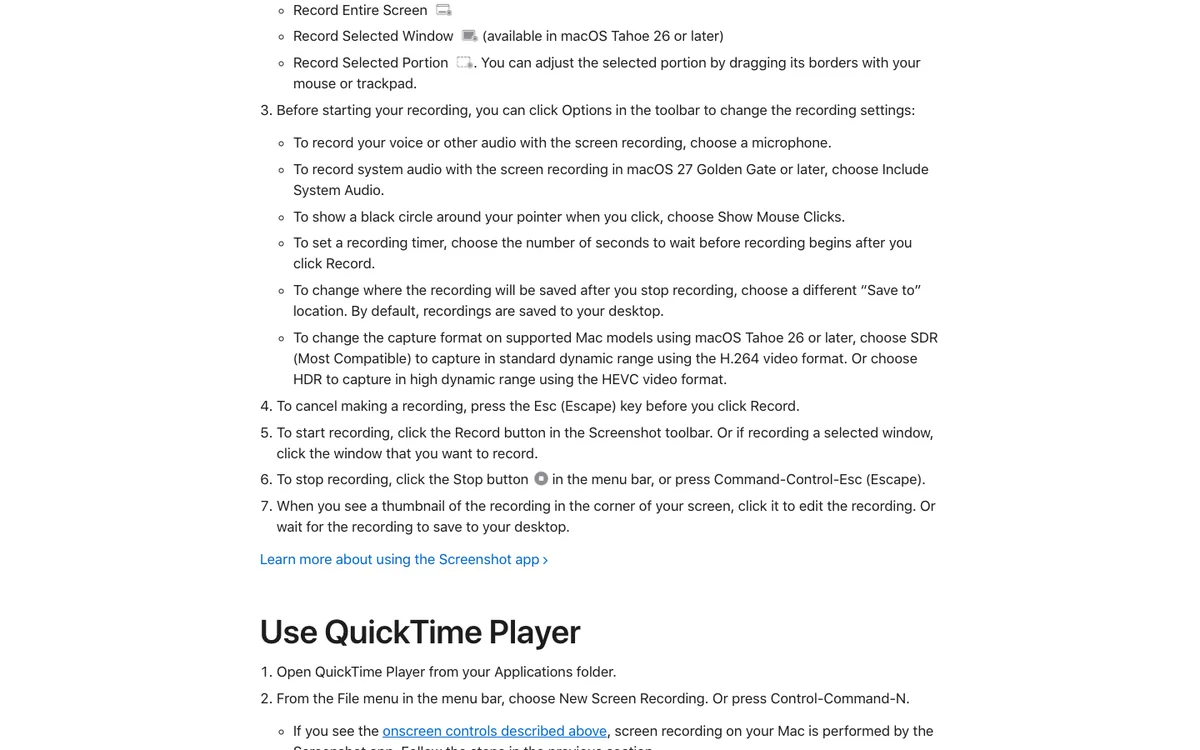
Two limits from the same article. QuickTime Player's own Screen Recording window lists only a microphone option. Apple also says that if QuickTime's New Screen Recording shows the Screenshot toolbar instead, the Screenshot app is doing the recording, so the toolbar's options apply. Apple also notes that some apps, such as the Apple TV app, may not let you record their windows at all; protected video stays protected.
How do I record system audio on macOS 13 to 26?
Use a recording app built on ScreenCaptureKit. That's the framework Apple gave developers in macOS 12, and it added audio capture in macOS 13. Apple's documentation lists the `capturesAudio` setting as available from macOS 13.0. Microphone capture in the same stream (`captureMicrophone`) came in macOS 15. Any app using these needs the Screen & System Audio Recording permission in System Settings, under Privacy & Security, and macOS asks for it once.
Two apps that do this well:
| App | Price | macOS | System audio | Mic in the same recording | Editing after |
|---|---|---|---|---|---|
| OBS Studio 30+ | Free, open source | 13 or later for native audio | macOS Audio Capture source, whole desktop or one app | Yes, as a separate source | None; it records and streams |
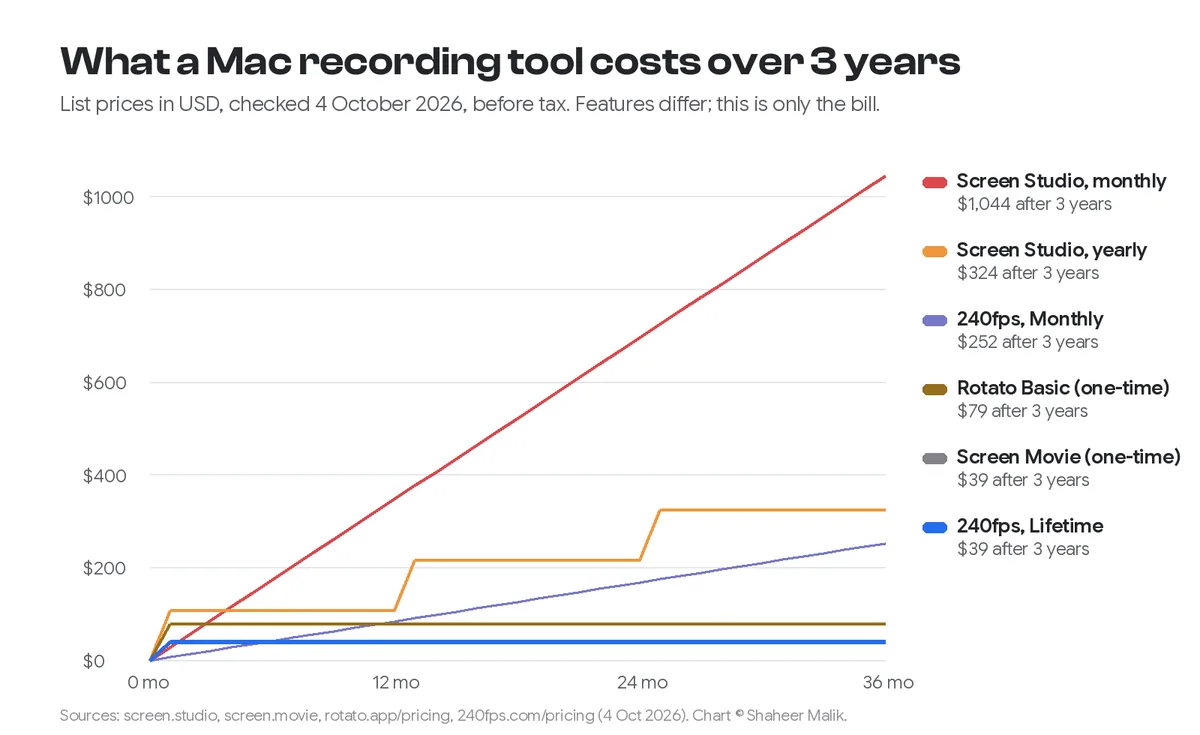
| 240fps for Mac | $39 once or $7/month (recording is included) | 15 Sequoia or later, Apple silicon | "Computer sound" switch | Yes, mixed into one track | Automatic zooms, captions, scenes |
| Built-in Screenshot (macOS 27) | Free | 27 Golden Gate | Include System Audio | Yes | Trim only |
OBS Studio
OBS is free and handles audio well, though it takes some setup. Its knowledge base guide, macOS Desktop Audio Capture, says that on macOS 13 and later, OBS Studio 30 adds a macOS Audio Capture source. It can take all desktop audio or a single app. On OBS 28 and 29, the macOS Screen Capture source picks up audio by itself.
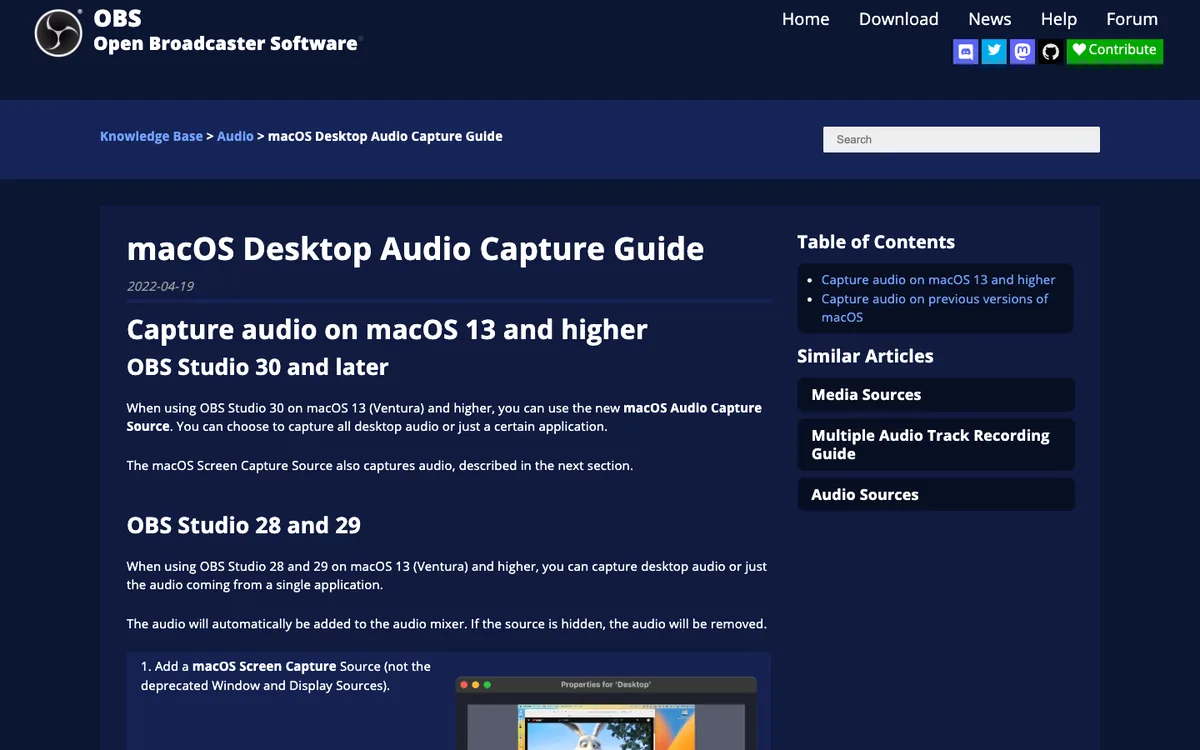
The steps: add a macOS Screen Capture source for the picture, then add a macOS Audio Capture source and choose "all desktop audio" or a specific app. Check that both meters move in the Audio Mixer, then click Start Recording. OBS gives you a raw recording; you edit it somewhere else.
240fps for Mac
240fps is the one I make, for product demos rather than streaming. In the recorder, turn on Computer sound next to Microphone. Both are recorded through ScreenCaptureKit and mixed into one audio track that the editor plays and exports. The app also leaves its own sounds out of the recording. After you stop, it adds zooms on your clicks automatically; my guide to making a product demo video on a Mac shows the whole flow. It needs macOS 15 Sequoia or later on an Apple silicon Mac, and either paid plan unlocks it.
How do I record system audio on macOS 12 or older?
Install a loopback audio driver, which turns your Mac's output into an input that any recorder can use. The best known is BlackHole by Existential Audio. It's free to download under the GPL-3.0 licence and works on macOS 10.10 Yosemite and newer. It comes in 2-, 16- and 64-channel versions; 2 channels is plenty for screen recording.
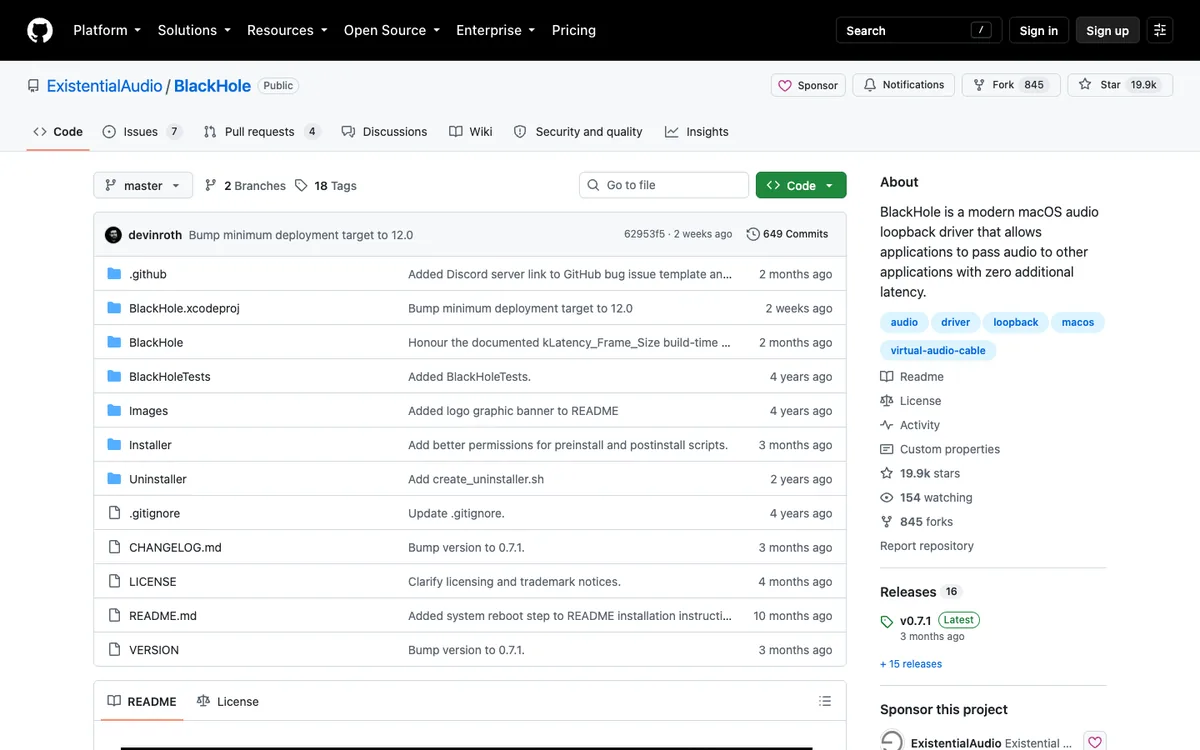
The setup, once:
- Install BlackHole 2ch from its GitHub page or with Homebrew.
- Open Audio MIDI Setup (in Applications > Utilities), click + and choose Create Multi-Output Device.
- Tick both your speakers or headphones and BlackHole 2ch, so you still hear the sound while it's recorded.
- Set that Multi-Output Device as your Mac's sound output.
- In QuickTime's New Screen Recording, open the options and choose BlackHole 2ch as the microphone. Record.
The catch: your normal microphone isn't in that recording. To get both, create an Aggregate Device in Audio MIDI Setup with your mic and BlackHole, and choose that as the input. OBS's guide also names paid apps that make this routing easier: Rogue Amoeba's Loopback and Static Z Software's Sound Siphon.
Why does my screen recording have no sound?
Usually one of four things:
- System audio wasn't turned on. On macOS 27 it's off until you choose Include System Audio in Options. In apps, check the switch before you press Record.
- The permission is missing. Open System Settings > Privacy & Security > Screen & System Audio Recording and make sure your recording app is allowed. Then quit and reopen it.
- The app is protected. Streaming apps that use DRM, such as the Apple TV app, can block both picture and sound.
- Sound went to the wrong place. With a loopback driver, if your output isn't set to the Multi-Output Device, nothing reaches BlackHole.
Is it legal to record system audio?
Recording your own Mac is fine. What you record is another matter. Music, films and other people's voices on a call have their own rules: copyright for media, and consent laws for calls, which vary by country and by US state. If you record a meeting, tell people. For product demos, record your own app's sounds and add licensed or original music in the edit.
FAQs
Can QuickTime record internal audio on a Mac?
Not directly. QuickTime's own recording options only list a microphone. On macOS 27, use the Screenshot toolbar's Include System Audio option instead. On older macOS, route a loopback driver such as BlackHole in as QuickTime's microphone.
What's the shortcut to record my Mac screen with sound?
Shift-Command-5 opens the Screenshot toolbar. On macOS 27 Golden Gate, click Options and choose Include System Audio, plus a microphone if you want your voice. Command-Control-Esc stops the recording.
Can I record system audio and my microphone at the same time?
Yes. On macOS 27, choose both in the Screenshot toolbar's Options. In OBS, add a microphone source alongside macOS Audio Capture. 240fps for Mac mixes computer sound and the microphone into one track. With BlackHole, combine your mic and BlackHole in an Aggregate Device.
Can I record the sound from just one app?
Yes, with OBS Studio 30 or later: its macOS Audio Capture source can capture a single app instead of the whole desktop. Paid routing apps such as Loopback also do per-app capture.
Does recording system audio work on Intel Macs?
The built-in option on macOS 27, OBS and BlackHole run on any Mac that supports those macOS versions. 240fps for Mac needs an Apple silicon Mac (M1 or later).
Last updated: 4 October 2026. Apple's steps are from Apple Support article 102618 and Apple's ScreenCaptureKit documentation; OBS's from its knowledge base; BlackHole's from its GitHub page, all read on 4 October 2026.