Guide
How to make an app promo video with device mockups
Five steps to turn app screenshots into an animated iPhone or Mac mockup video with text and music, exported as MP4, WebM or GIF, in your browser.
Step 1
Add your screenshot or website
Paste a screenshot (⌘V), drop it on the canvas, or click the empty screen: PNG, JPG, WebP, HEIC, MP4, WebM and MOV all work. Or choose Website under Media and paste a URL; the page renders at the device's screen size.
Step 2
Pick a device
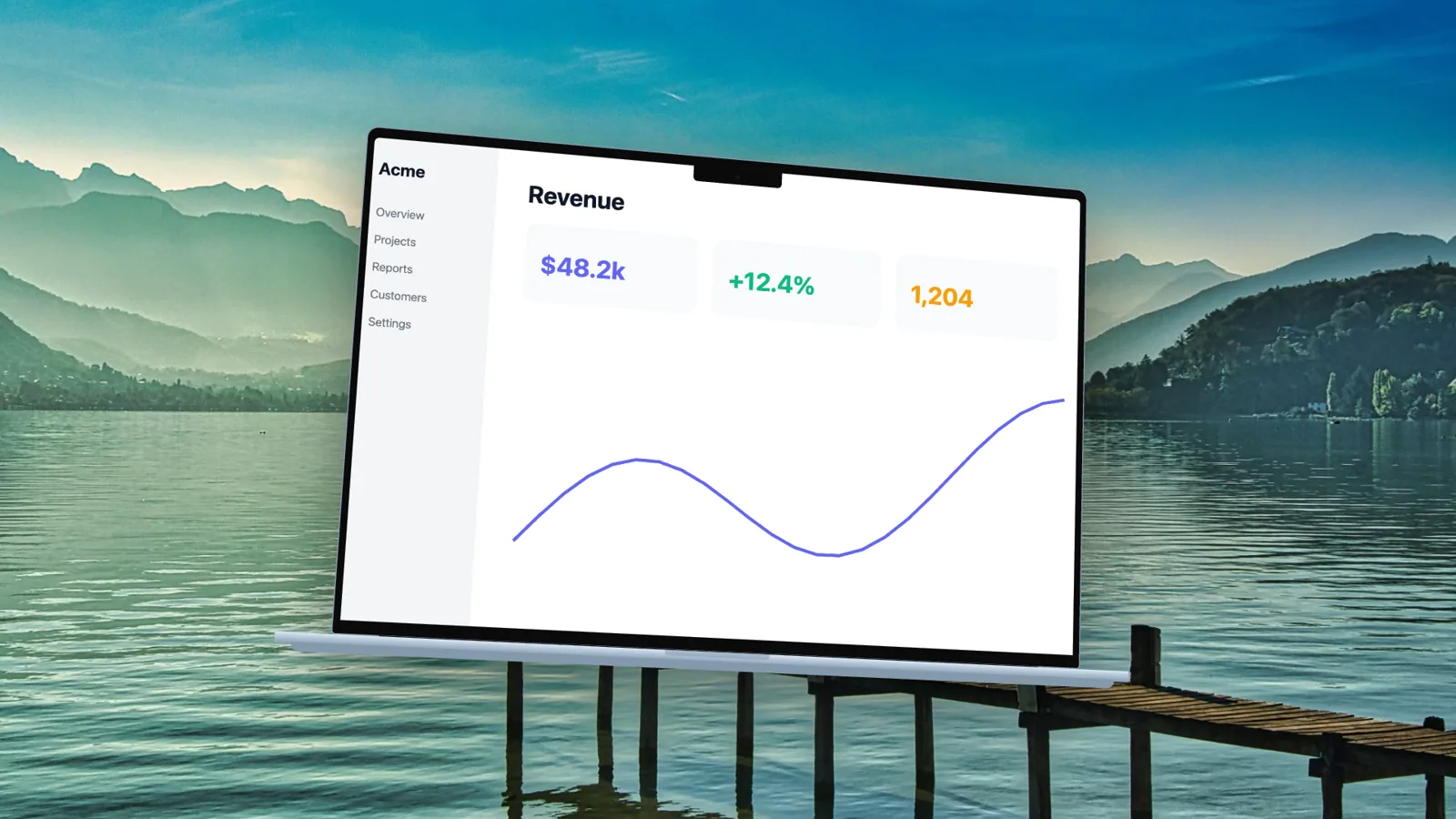
Choose an iPhone, iPad, Mac, Watch, browser window or a plain screenshot frame, and a finish.
Step 3
Style the scene
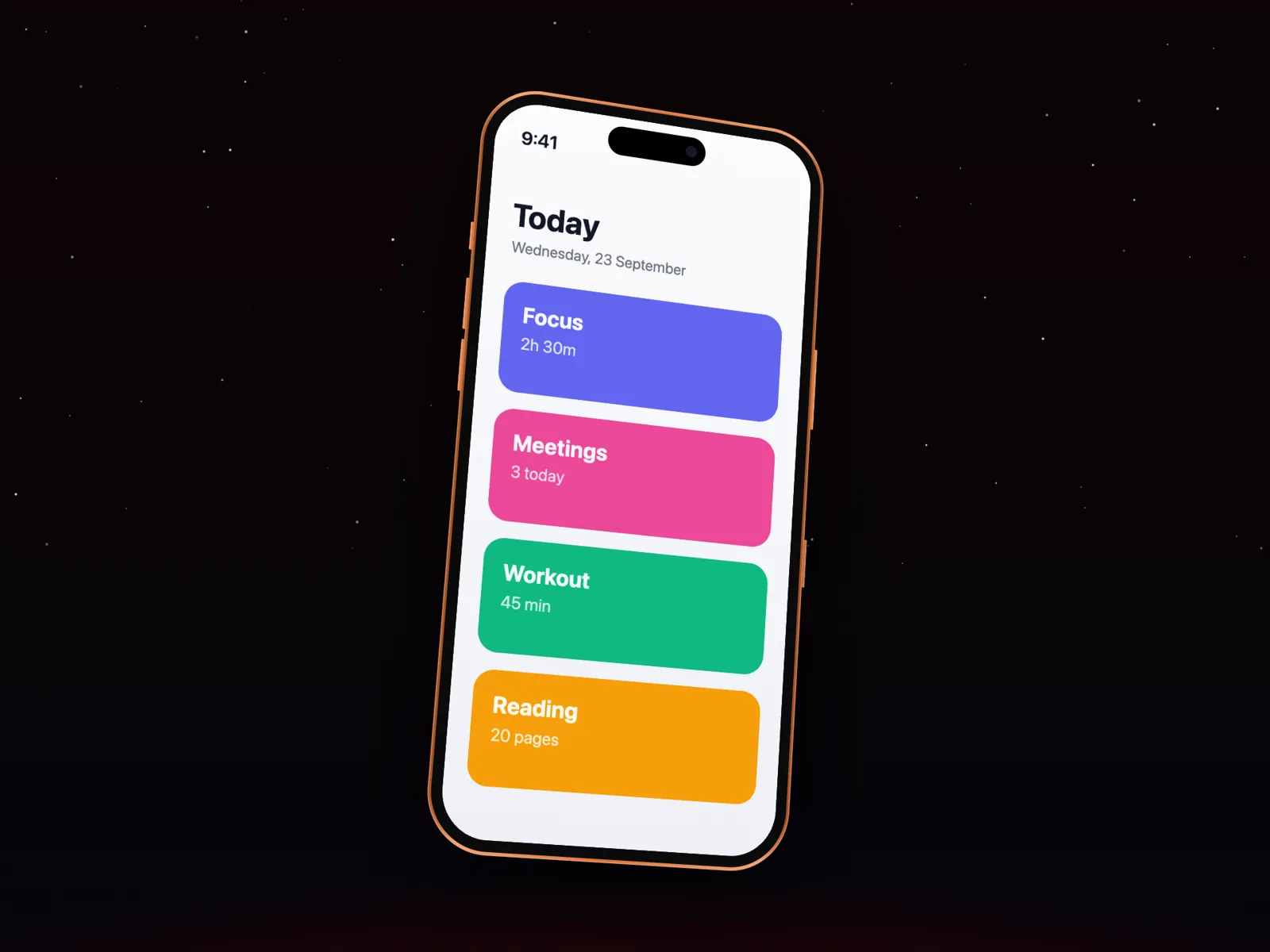
Pick a layout and background, or start from a template. Add a shadow, a watermark or effects.
Step 4
Switch to Videos
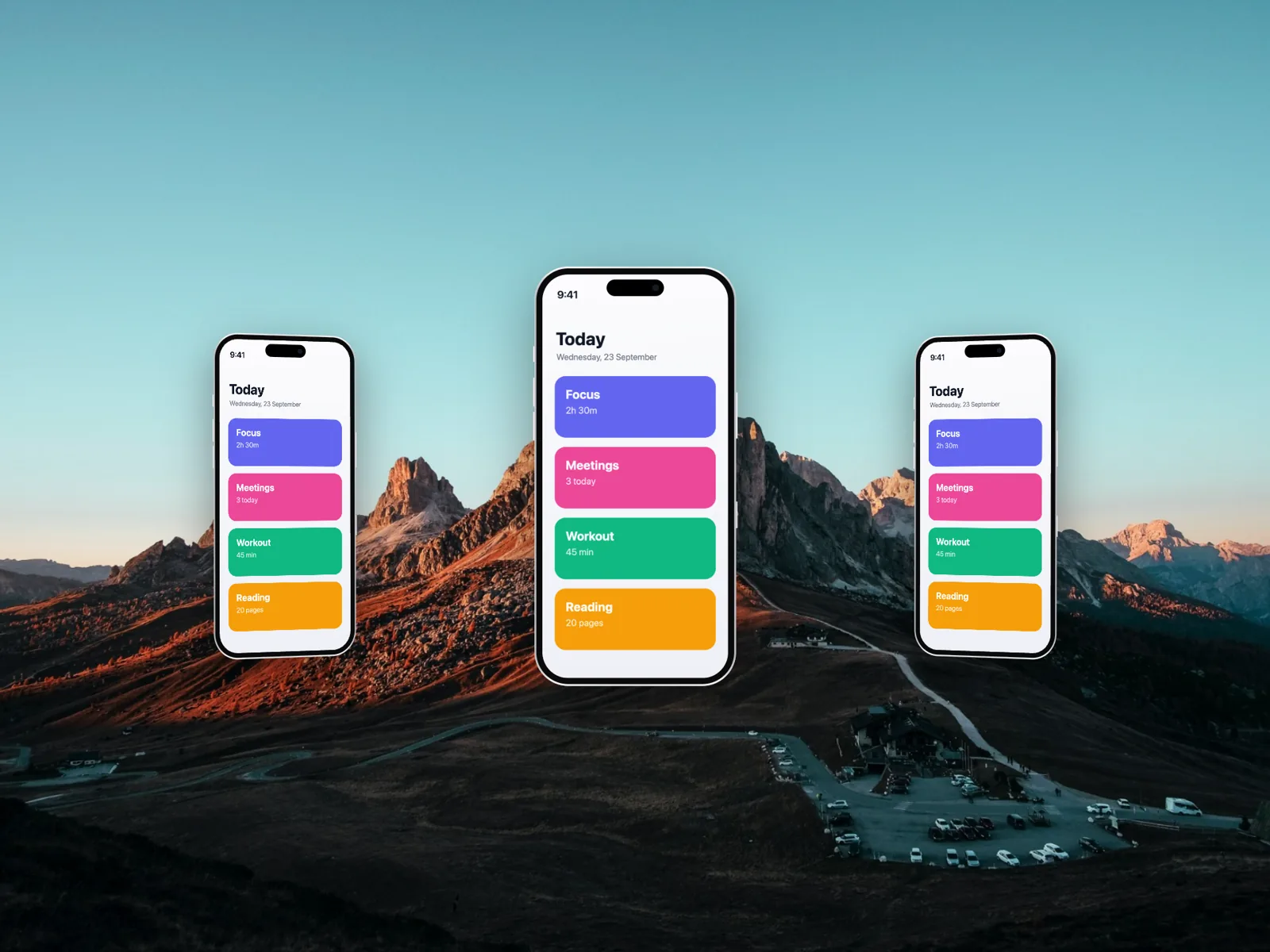
Flip the Mockup | Videos switch. Add camera moves on the timeline, more screens with the Screen button, a headline or your logo in the Text tab, a cursor and callouts in the Annotate tab, and music.
Step 5
Export
Export an image, or a video as MP4, WebM or GIF. Press ⌘S at any time. Exporting is part of 240fps Lifetime ($39 once).
Tips for a better promo
- Keep it under 15 seconds for social; one idea per screen.
- Use a vertical 9:16 frame (Frame tab) for Reels, TikTok and Stories.
- Seamless-loop templates end where they start, so they make clean GIFs for a landing page.
- Export MP4 for social and WebM for your own site, where smaller files load faster.