Tool
Animated cursor for product videos
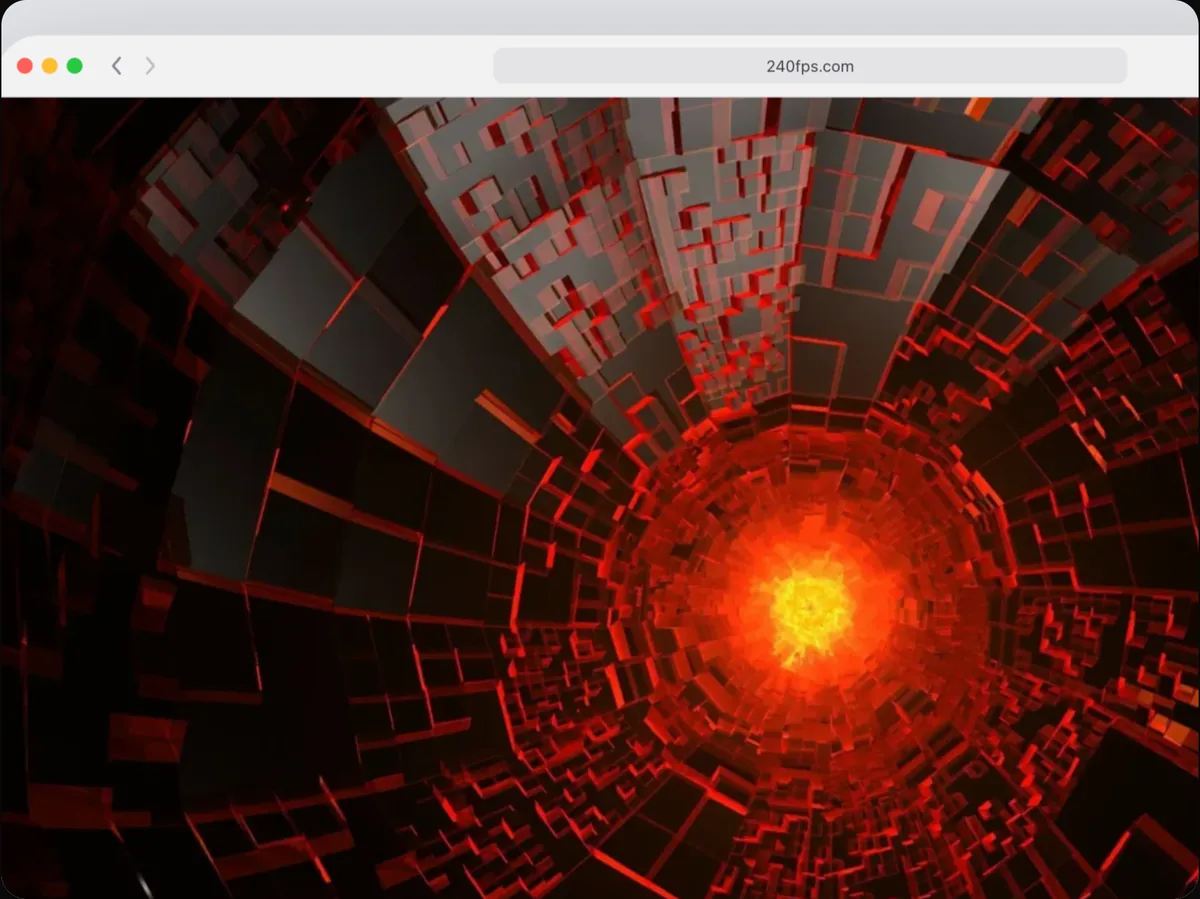
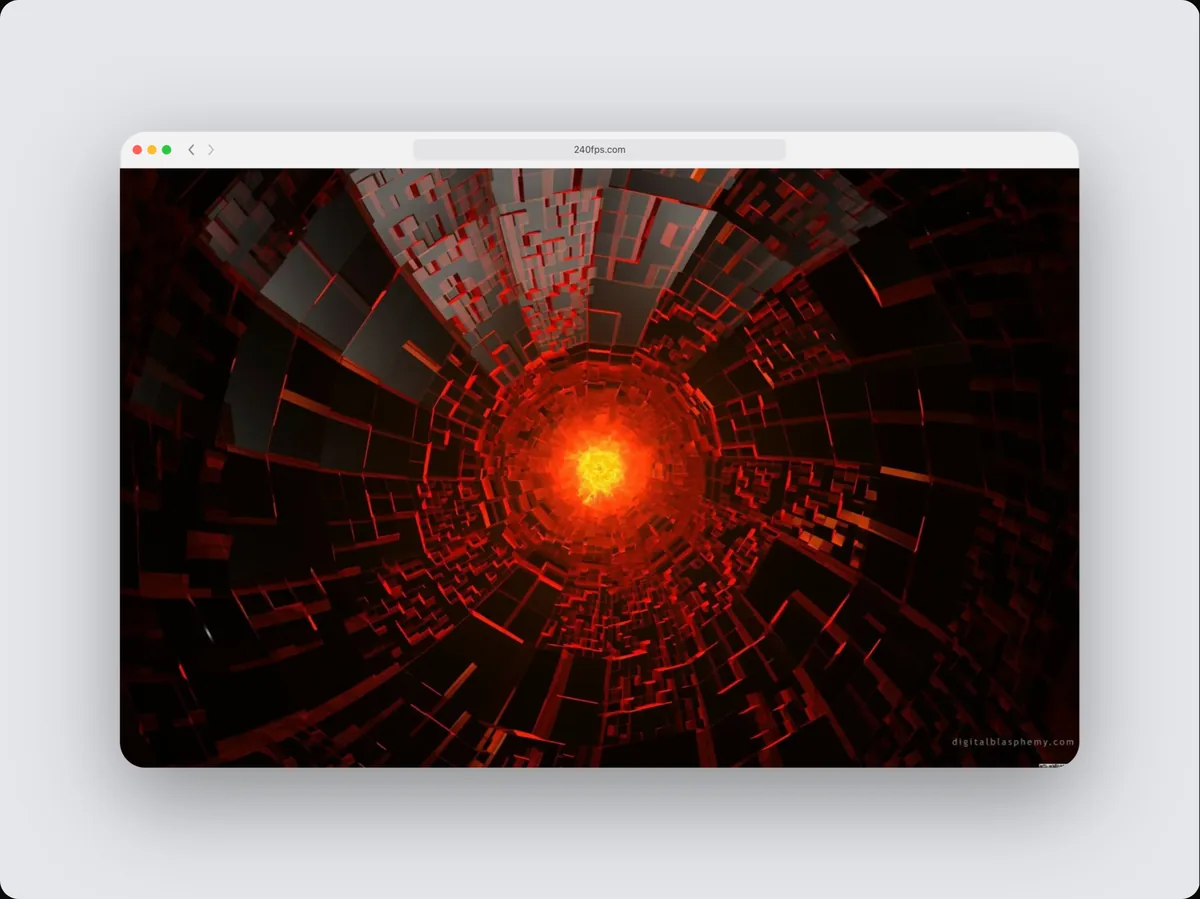
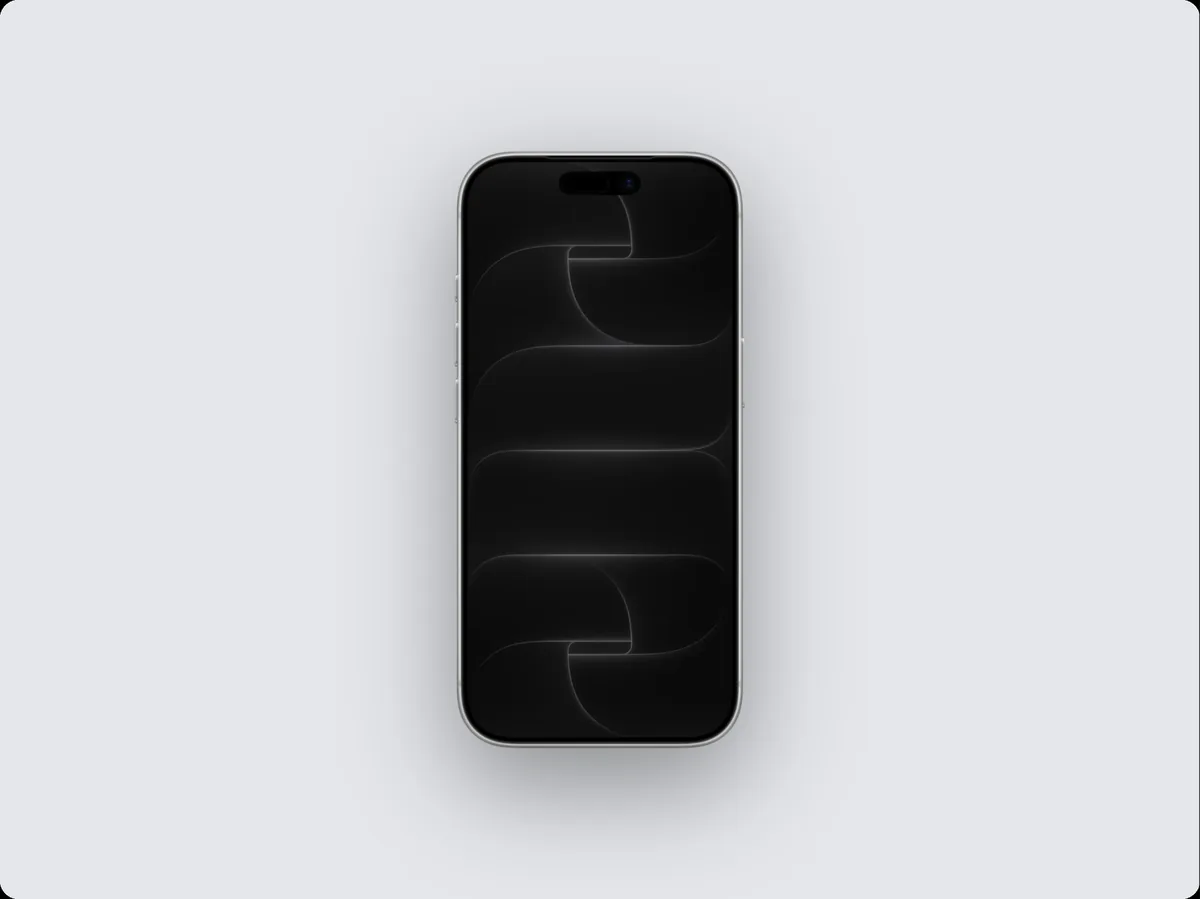
240fps adds an animated cursor to a mockup video: click the spots on the device screen in order, and the cursor glides between them on a natural arc and clicks each one with a ripple. Choose an arrow, a hand or a touch dot, and let the camera zoom in on every click with one button.
Smoother than a screen recording
A recorded cursor jitters, pauses and wanders. This one moves in clean eased arcs between the points you place, at the times you choose, so demos look deliberate.
Pinned to the screen
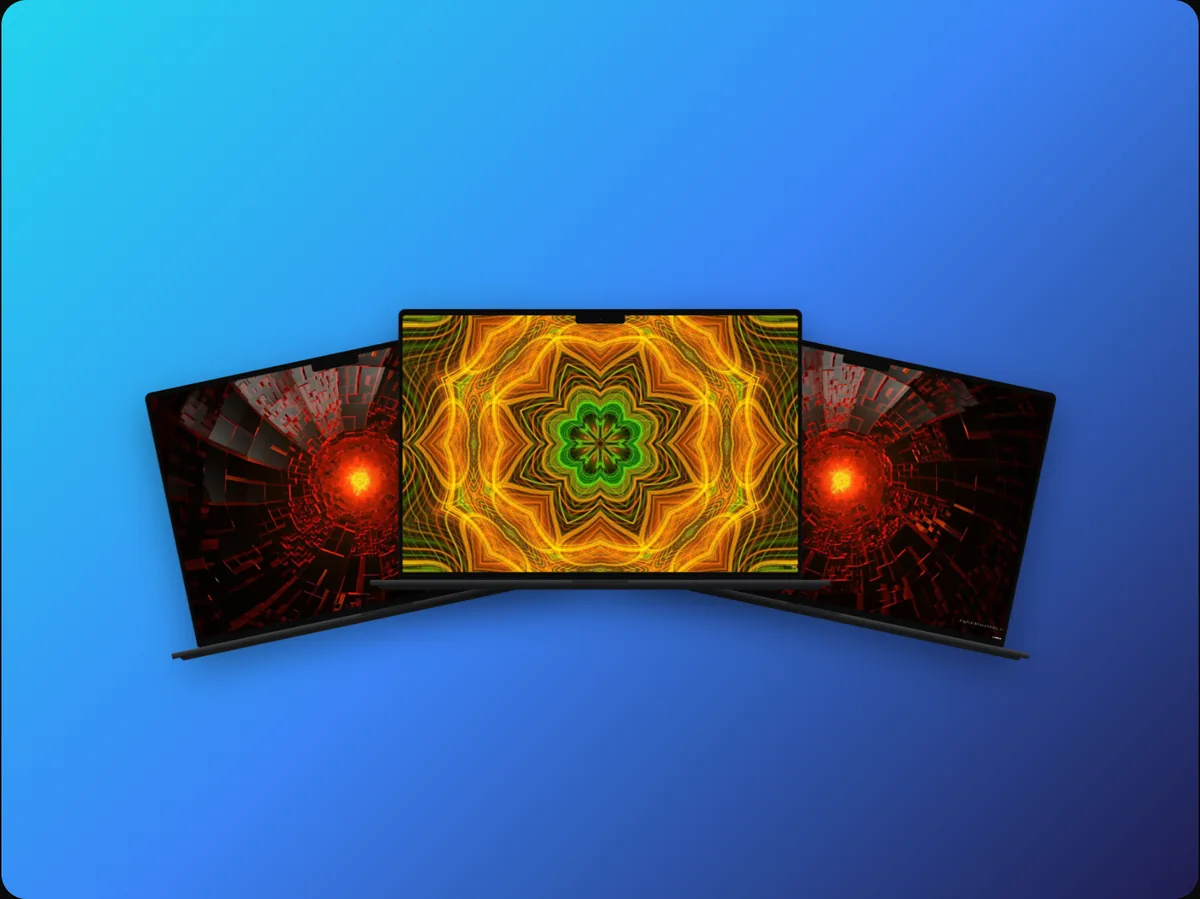
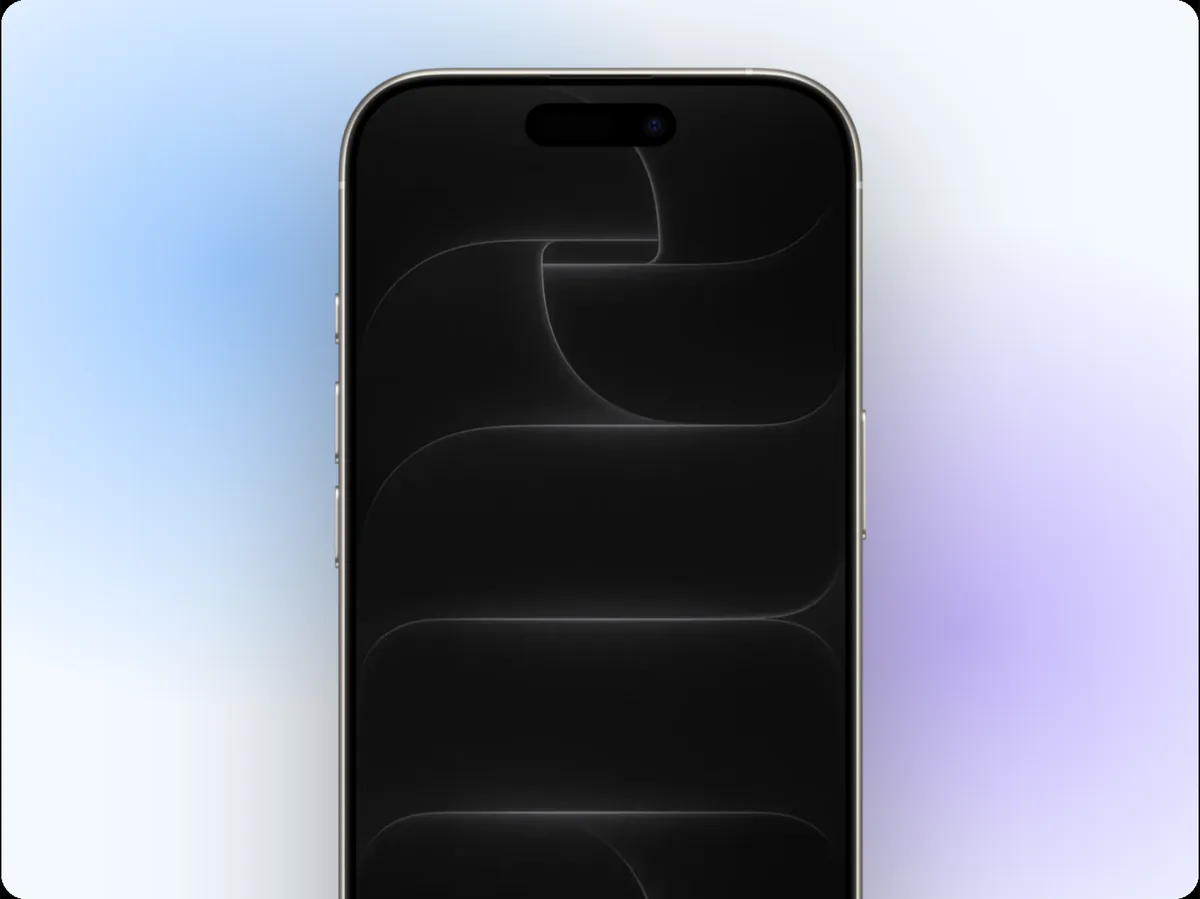
The cursor lives on the device's screen, so it tilts and zooms with the device and stays on the button it's pointing at through every camera move.
How to do it
- 1Open the Annotate tabAdd an animated cursor to the device.
- 2Click to add pointsClick the screen where the cursor should go, in order.
- 3Time itSwitch to Videos and set each point's time, and whether it clicks.
- 4Add zooms and exportPress Zoom in on every click, then export.
Questions
Does it work on a website mockup?
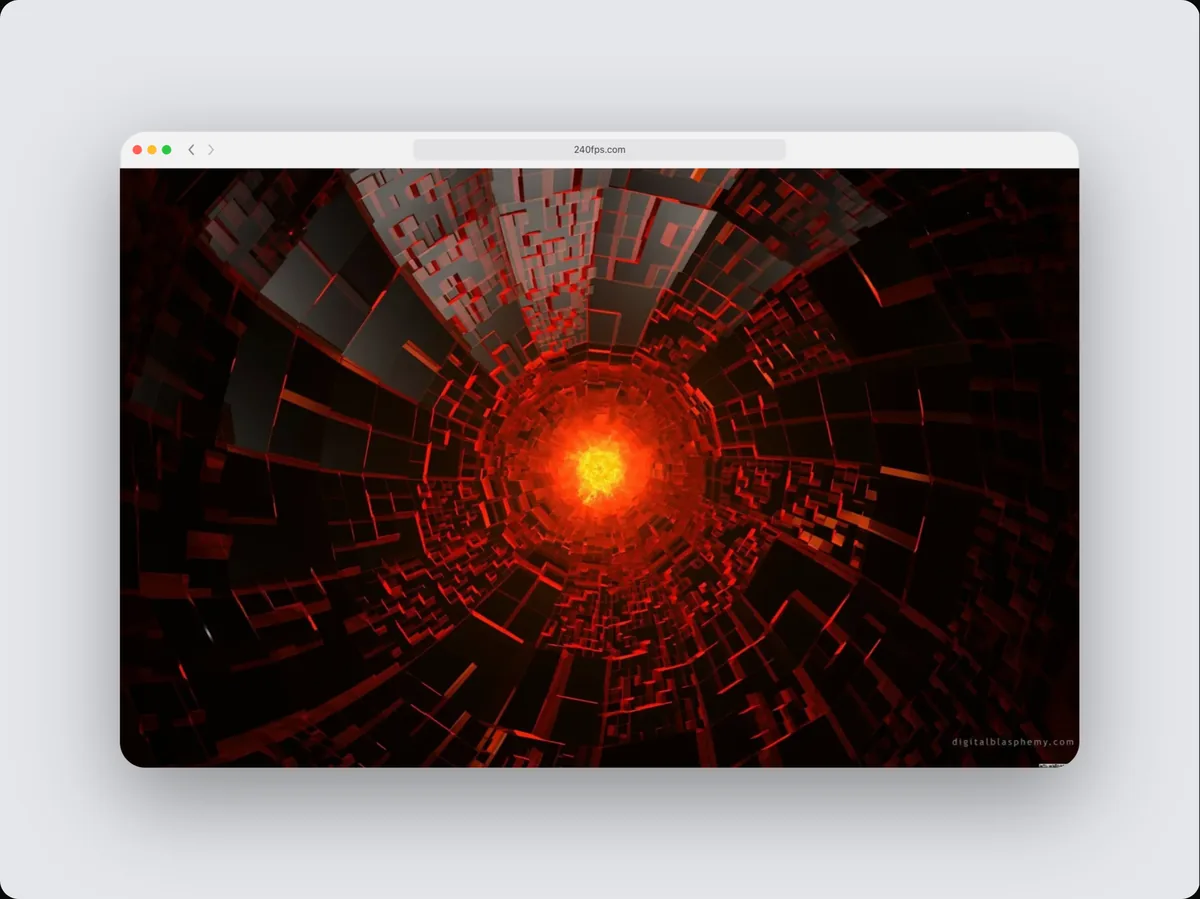
Yes, on any screen: a screenshot, a recording or a live website.
Can the cursor tap instead of click?
Yes. Choose the touch dot style for phones and tablets.
Is it free?
Designing is free. Exporting images and videos comes with 240fps Monthly ($7 a month) or Lifetime ($39 once).