By Shaheer Malik · · 7 min read
How to Turn Your Website Into a Video (Without Screen Recording)
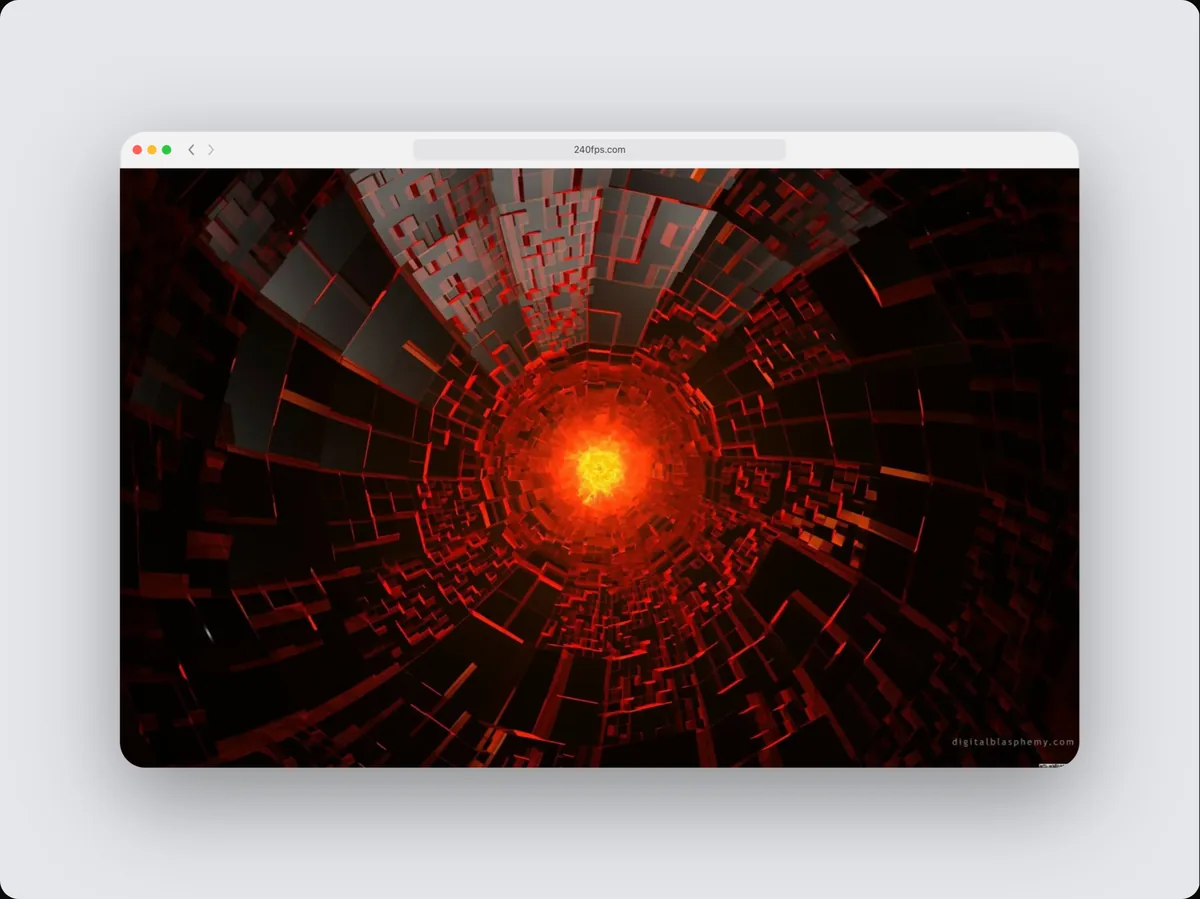
The quickest way to turn a website into a video is to render the page in device mockups and animate a scroll through it, rather than recording your screen. In 240fps you paste a URL, a real browser captures the page at MacBook and iPhone sizes, and it exports an MP4 of both scrolling with a headline, usually in about two minutes. Add pauses, a cursor and callouts to turn the scroll into a walkthrough.

You've launched a new website and want to show it off.
A link is easy to ignore. A screenshot shows only the top of the page. But a short video of the site in motion, scrolling through the sections you're proud of on a laptop and a phone, gets watched, shared and remembered.
The question is how to make one without spending an afternoon recording, re-recording and editing.
In this guide, I'll compare three ways to turn a website into a video, show you the fastest one step by step, and share the details that make a website video look like a launch rather than a bug report.
Option 1: Record Your Screen
The obvious route is a screen recording: open the site, press record, scroll.
It's free and it captures exactly what you see. It also captures everything you don't want:
- The browser's toolbars, tabs and bookmarks bar.
- A jerky, uneven scroll from your mouse or trackpad.
- A notification popping up in the corner.
- The cursor wandering while you think.
You'll likely spend longer fixing it than recording it, and the result still looks like a screen recording.
If you do record
- Use a clean browser profile and hide the bookmarks bar.
- Scroll with the keyboard (Space or Page Down) for even steps.
- Record at the size you'll publish.
- Turn on Do Not Disturb.
Option 2: Animate a Screenshot in a Mockup
A better approach is to capture the page as a tall image and move a camera over it inside a device frame. The scroll is perfectly smooth because it's animated, not performed, and the device frame instantly says "product".
The catch is that a single screenshot only shows one layout. Put a desktop screenshot in a phone frame and it looks wrong. People can tell a shrunken desktop page from a real mobile site.
Option 3: Render the Real Page in Each Device
The best approach renders the page separately for each device: a real browser opens the site at the laptop's screen size and again at the phone's, so each gets its true layout, menus and all. Then the editor animates the scroll through both.
That's what the one-click website to video tool in 240fps does.
| Screen recording | Screenshot in a mockup | Real page per device | |
|---|---|---|---|
| Smooth scroll | Depends on you | Yes | Yes |
| Browser chrome and notifications | Often in the shot | No | No |
| True mobile layout | Only if recorded on a phone | No | Yes |
| Retakes needed | Often | No | No |
| Time to first video | Recording plus editing | A few minutes | About 2 minutes |
Step by Step: One-Click Website Video
- Paste your URL. Open Add Website in the editor and choose Make a website video.
- Watch the capture. The page is captured in a MacBook and an iPhone, side by side. A soft preview of the whole page appears within seconds while the sharp version finishes.
- Let it scroll. Both devices scroll from top to bottom, with your site's name as a headline.
- Download. An MP4 downloads when it's ready.
From there you can change anything: swap the devices, write a better headline, slow the scroll down, pause on your pricing section, or render the site's dark theme if it has one.
Make It Look Like a Launch
A plain top-to-bottom scroll is a start. These details turn it into a video people watch to the end.
Pause on what matters
Even scrolling is hypnotic; pauses tell people where to look. Stop on the hero for a beat, scroll to the feature section, stop again, then finish on your call to action.
Point at things
An animated cursor that clicks the main button, or an arrow that draws in beside your key feature, turns a scroll into a walkthrough.
Zoom into details
A full page at video size is small. A short zoom into a feature card or a testimonial makes it readable.
Keep it short
10 to 20 seconds for social. Nobody watches a whole page scroll by for a minute.
Pick the shape for the platform
- 16:9 for X, LinkedIn and YouTube, where a laptop and phone together look great.
- 9:16 for Reels and TikTok, where a phone alone often works better than a laptop.
- Square for feeds where you don't know how it will be shown.

Where Website Videos Work Best
- Launch posts for a new site or redesign.
- Agency and freelancer portfolios, as a looping case-study hero.
- Before-and-after redesign reveals.
- Client presentations, to show the site on every device at once.
- Product Hunt and social galleries.
What Can't Be Captured
Pages behind a sign-in can't be rendered, and some sites block automated browsers. For a signed-in dashboard, take screenshots or record the screen, then drop them into the device; they work with the same camera moves, cursor and callouts.
Plan the Story Before You Capture
A website video is more effective when it follows a small story rather than scrolling blindly from top to bottom. Before you capture, decide:
- The opening frame: usually your hero, because it carries your headline and main visual.
- Two or three stops: the sections that best explain what the site offers, such as features, social proof, a product screenshot or pricing.
- The closing frame: your call to action or footer, held for a moment so it works as the last thing people see.
Then shape the scroll around those stops: quick movement between them, a pause of a second or two at each one.
Examples by Type of Website
Different kinds of sites call for slightly different videos.
SaaS landing page
Open on the hero, pause on the product screenshot or feature grid, then on pricing. A laptop and phone together emphasise that the product works everywhere. Add a cursor that clicks the main sign-up button at the end.
Agency or portfolio site
Lead with the work. Pause on two or three project thumbnails and let a zoom bring one of them closer. Here the laptop alone often looks cleaner than a laptop and phone together.
Online store
Open on a collection or featured product, pause on a product page with its photos and price, and end on the basket or checkout button. Mobile matters most for many stores, so consider a phone-first vertical version.
Documentation or developer site
Show the search, a code sample and the navigation. A browser window frame suits developer audiences better than a consumer device.
Personal site or newsletter
Open on your name and positioning, pause on the newsletter sign-up or latest posts, and keep it short. A single device with a clean background fits the personal tone.
Reuse the Capture
Once the page is captured, you can make several videos from it without capturing again:
- A 16:9 laptop-and-phone version for X, LinkedIn and YouTube.
- A 9:16 phone-only version for Reels and TikTok.
- A seamless looping version for your own landing page or portfolio.
- A still frame from the hero for link previews and emails.
Save the project, then duplicate it for each version, so the capture and the style stay the same across all of them.
FAQs
How do I make a video of my website without screen recording?
Capture the page in a device mockup and animate the scroll. The fastest way is a one-click website video tool that renders the page at laptop and phone sizes and exports an MP4.
How long should a website video be?
10 to 20 seconds for social media. Up to 30 seconds for a portfolio or presentation, if you pause on several sections.
Will the phone show my mobile site?
Yes, if the page is rendered at the phone's viewport, as 240fps does. A resized desktop screenshot won't show your mobile layout.
Can I show a password-protected page?
No. Only public pages can be captured. Use screenshots or a screen recording of the signed-in view instead.
Conclusion
A website video doesn't need a screen recording or an editor. Render the real page in each device, animate a smooth scroll, pause on what matters and point at your best features, and you have a launch-ready video in minutes.
What's the one section of your site you'd pause on first?