Mockup
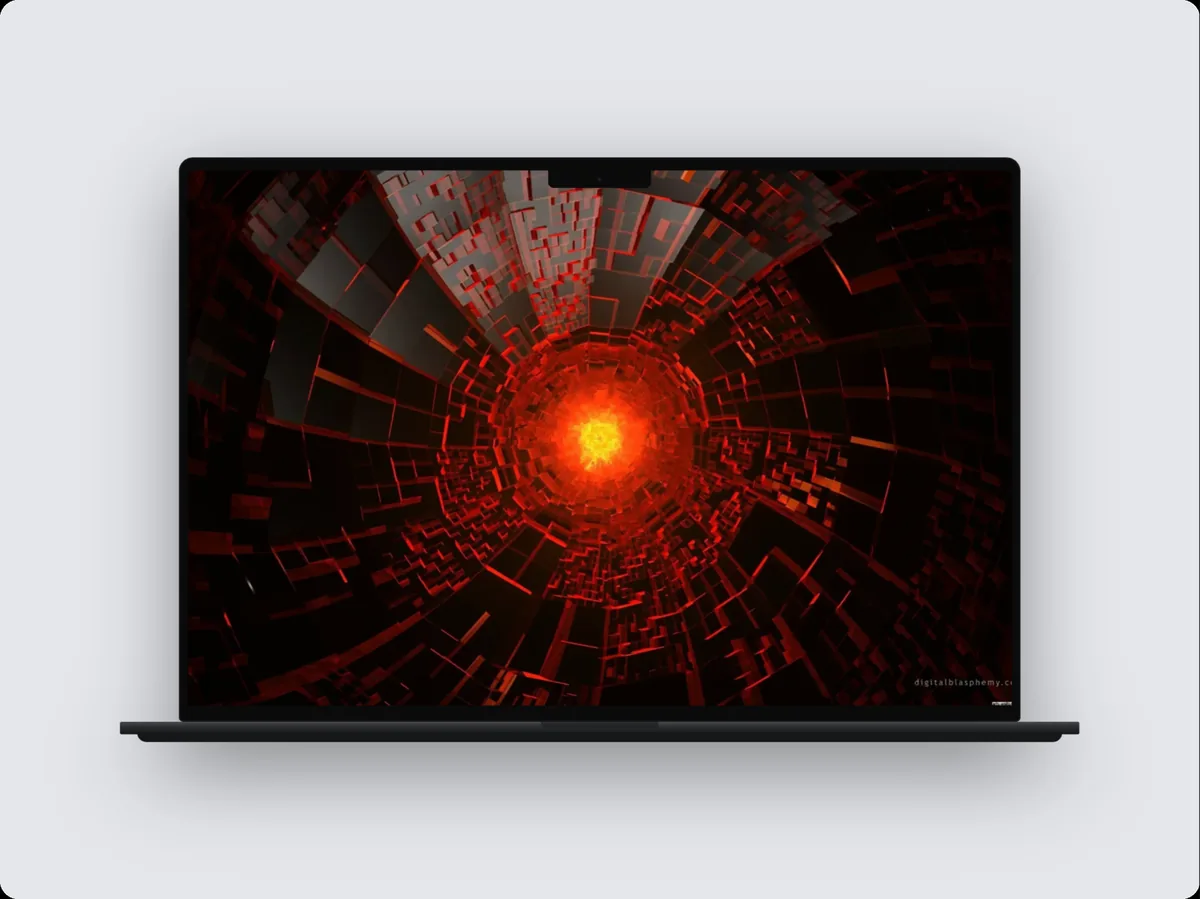
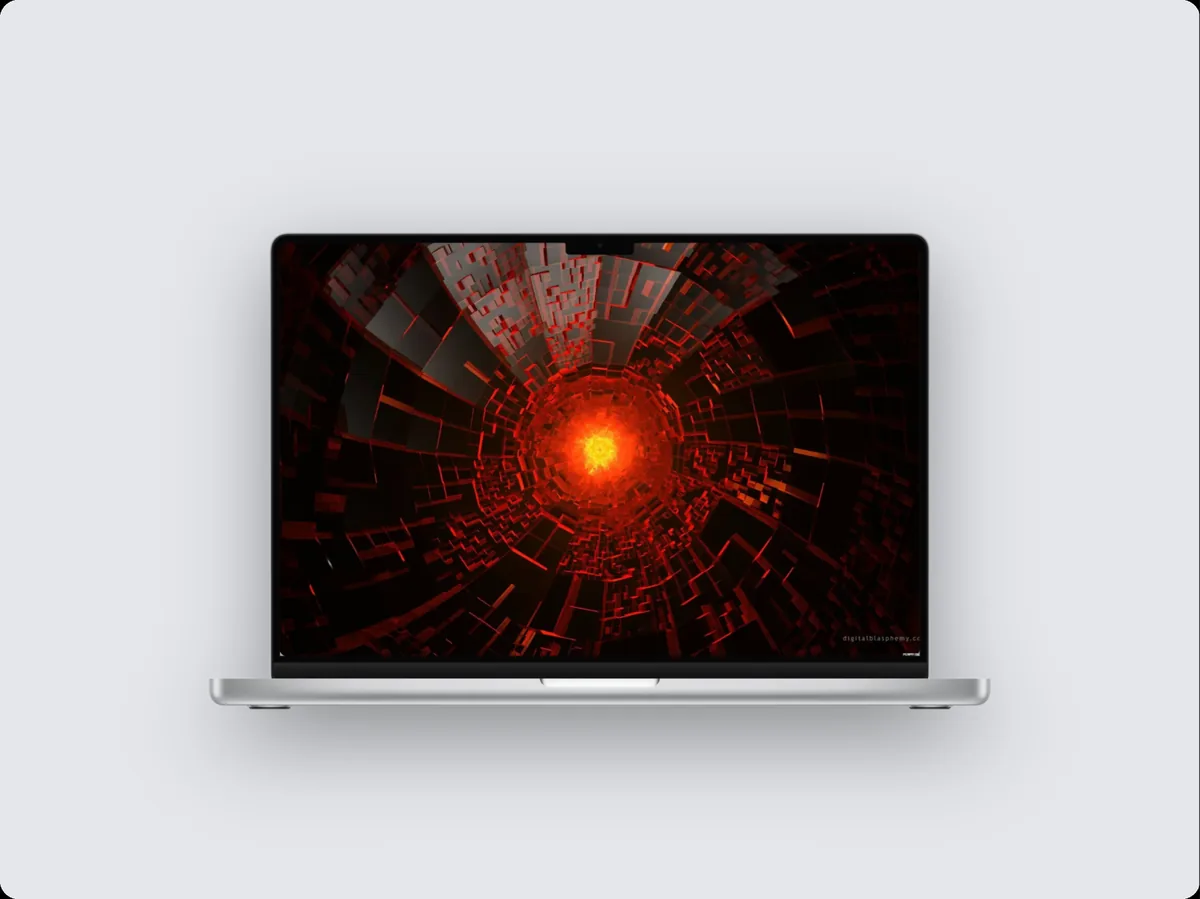
MacBook Pro 16″ mockup
240fps puts a screenshot, a screen recording or a live website inside a MacBook Pro 16″ frame, and exports it as an image (PNG, JPEG, WebP) or an animated video (MP4, WebM, GIF). The frame is drawn in code at any resolution, the MacBook Pro 16″'s screen is 1728 × 1117 points, and designing is free in the browser.
What a MacBook mockup is good for
A MacBook Pro 16″ makes a flat screenshot look like a real product in someone's hands or on their desk. Typical uses:
- Website and SaaS landing page visuals
- Web app demos and walkthrough videos
- Portfolio case studies
- Pitch decks and launch posts
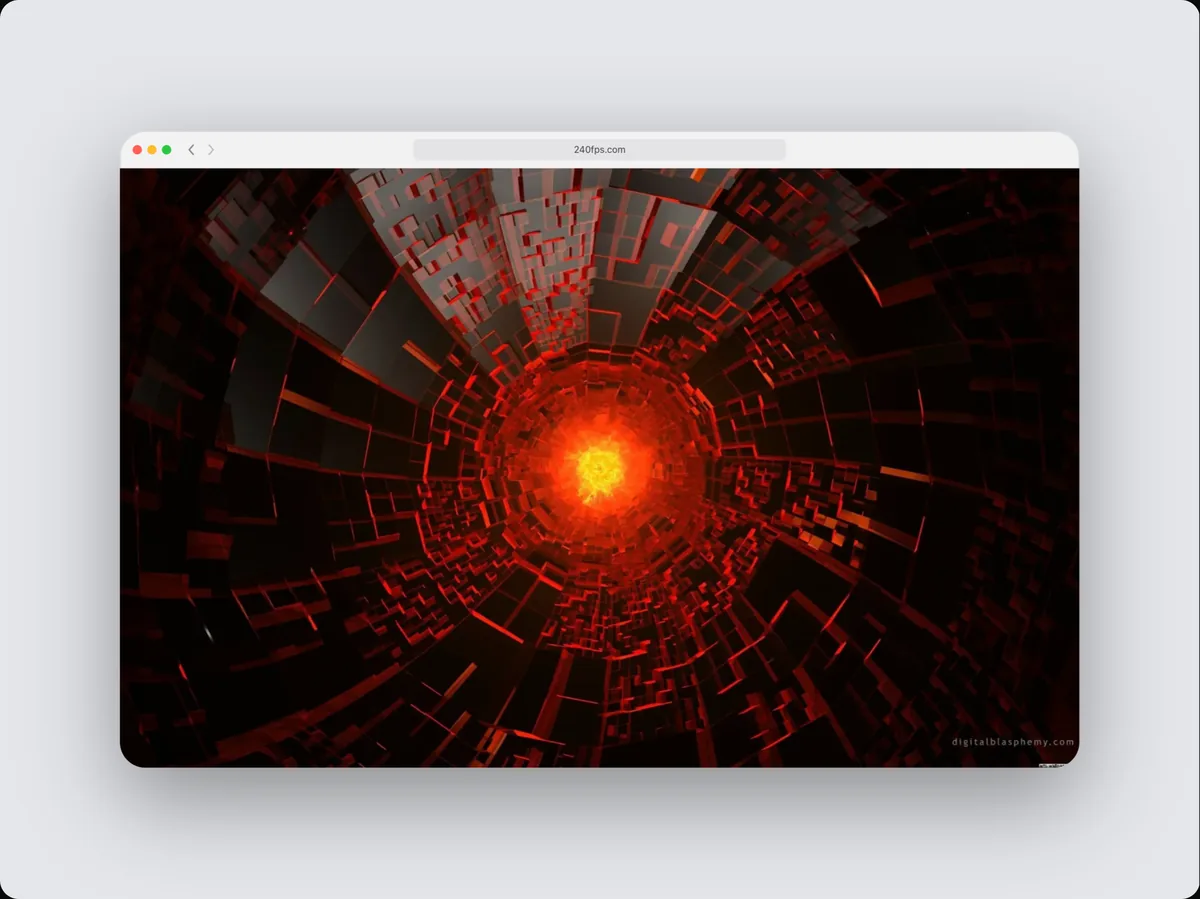
Put a website in the MacBook Pro 16″
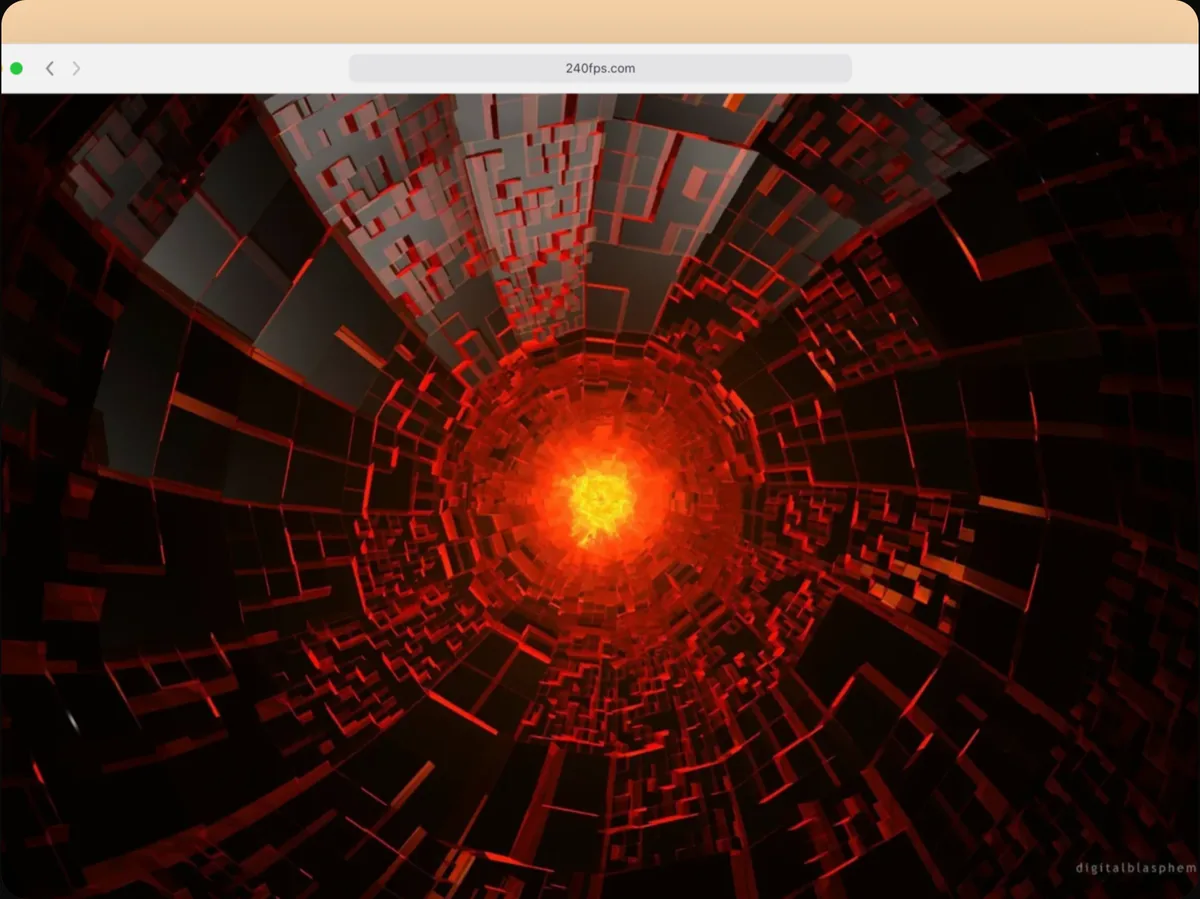
A website renders at 1728 × 1117, the default scaled resolution of this MacBook, so the page looks exactly as it does on the real laptop. Capture the full page and animate a scroll through it.
Websites are rendered by a real browser on our server, so pages with animations, lazy-loaded images and web fonts come out the way visitors see them. Adding a website needs a free account.
From still image to video
Switch the editor from Mockup to Videos and the MacBook Pro 16″ can move: zoom into a detail, tilt, glide, or cut between several screens. Add a headline, an animated cursor that clicks through your app, arrows and highlight boxes, and a soundtrack, then export an MP4 at up to 60 fps.
Mix it with other devices
Show the MacBook Pro 16″ next to MacBook Pro 14″, MacBook Air 13″, MacBook Air 15″ or any other device in the same scene: 240fps sizes them to their real proportions, so a phone beside a laptop looks right.
How to do it
- 1Open the editorOpen the editor with the MacBook Pro 16″ already selected.
- 2Add your screenPaste a screenshot (⌘V), drop an image or video on the canvas, or choose Website and paste a URL.
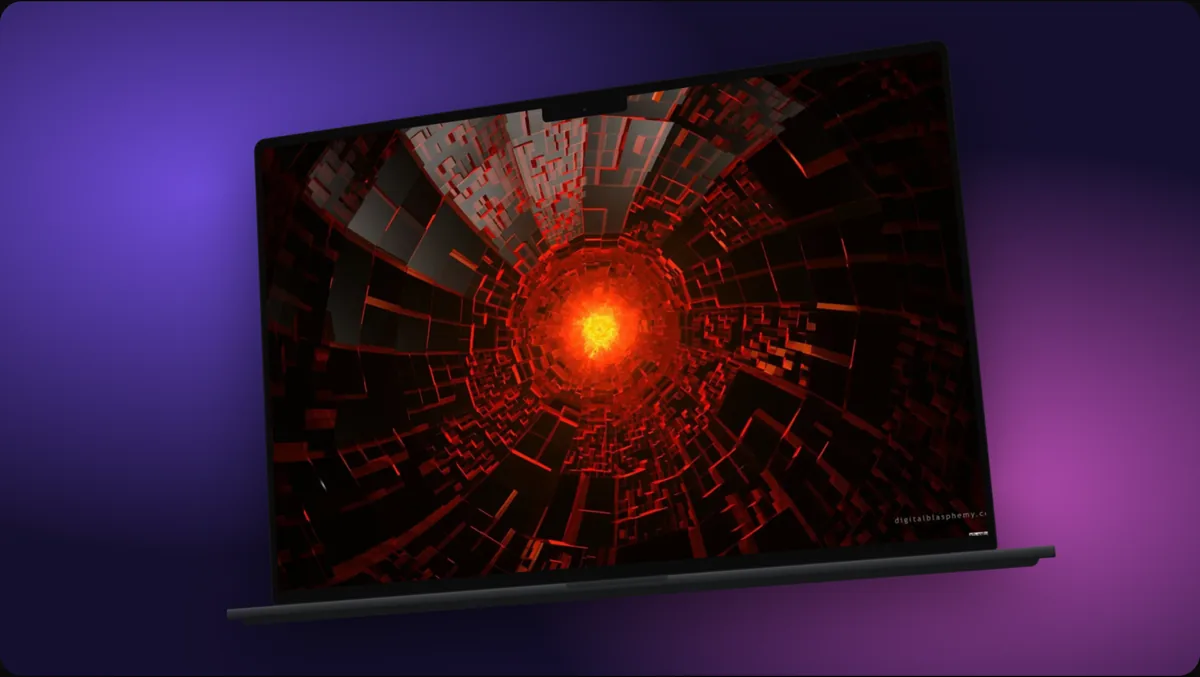
- 3Style the scenePick a layout and a background, or start from a template.
- 4ExportExport an image, or switch to Videos, add motion and export an MP4, WebM or GIF.
Questions
What size is the MacBook Pro 16″ screen in the mockup?
1728 × 1117 points, the same shape as the real screen. Your screenshot is fitted to it; a screenshot taken on a MacBook Pro 16″ fits exactly.
Can I use a video in the MacBook Pro 16″?
Yes. Drop an MP4, WebM or MOV screen recording on the screen and it plays inside the device, in the editor and in the exported video.
Is it free?
Designing is free: every device, finish, template and animation. Exporting images and videos comes with 240fps Monthly ($7 a month) or Lifetime ($39 once).
Is 240fps affiliated with Apple?
No. 240fps is independent; the product name only describes which device the frame shows.