Tool
App Preview video maker
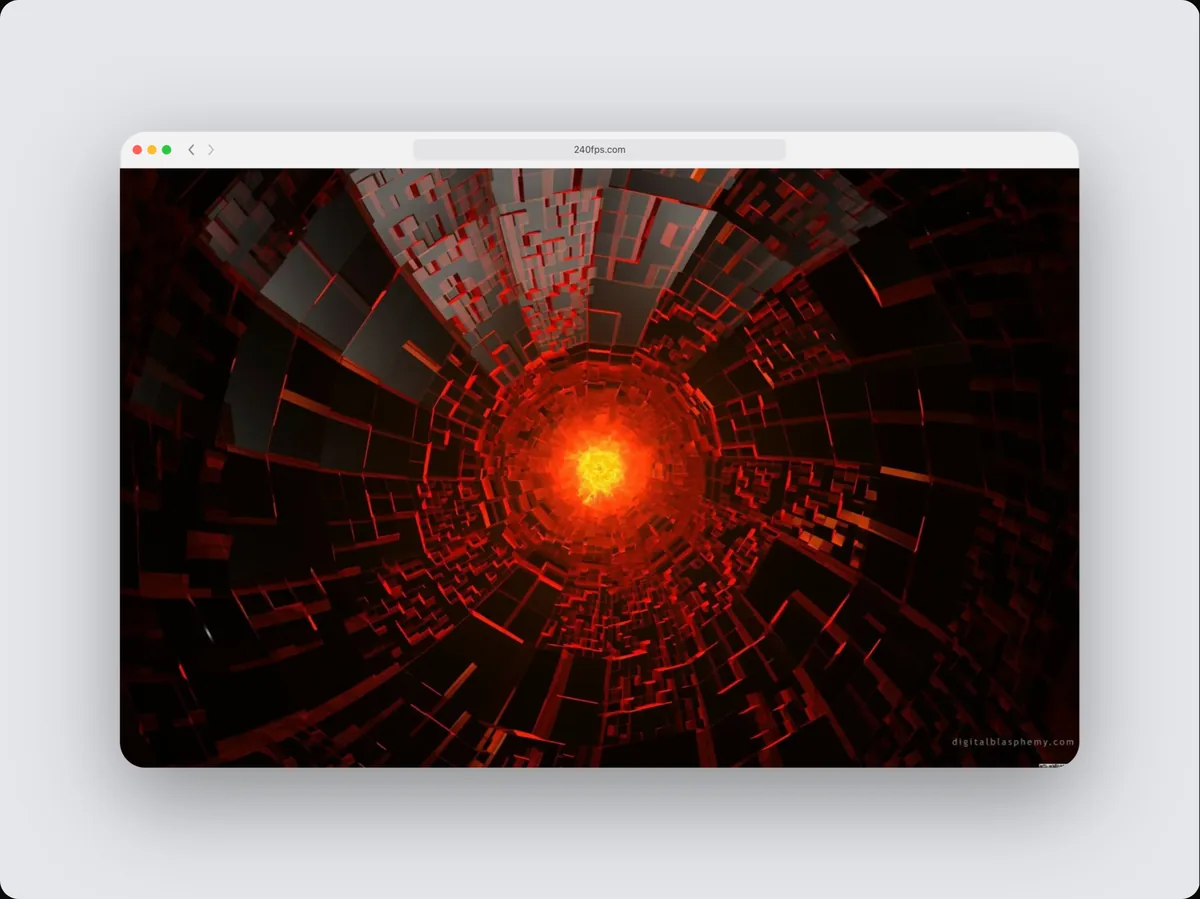
240fps builds App Store App Previews from your own screen recordings. Apple's rules say a preview shows the app itself, so there are no device frames or marketing slides: you trim and order clips, add music if you want, and export a 15 to 30 second H.264 video at 30 fps with a stereo AAC track (silent if you add no music), at 886 × 1920, 1920 × 886, 1200 × 1600 or 1600 × 1200. A checklist shows whether the preview meets each rule before you export or upload it.
What Apple allows
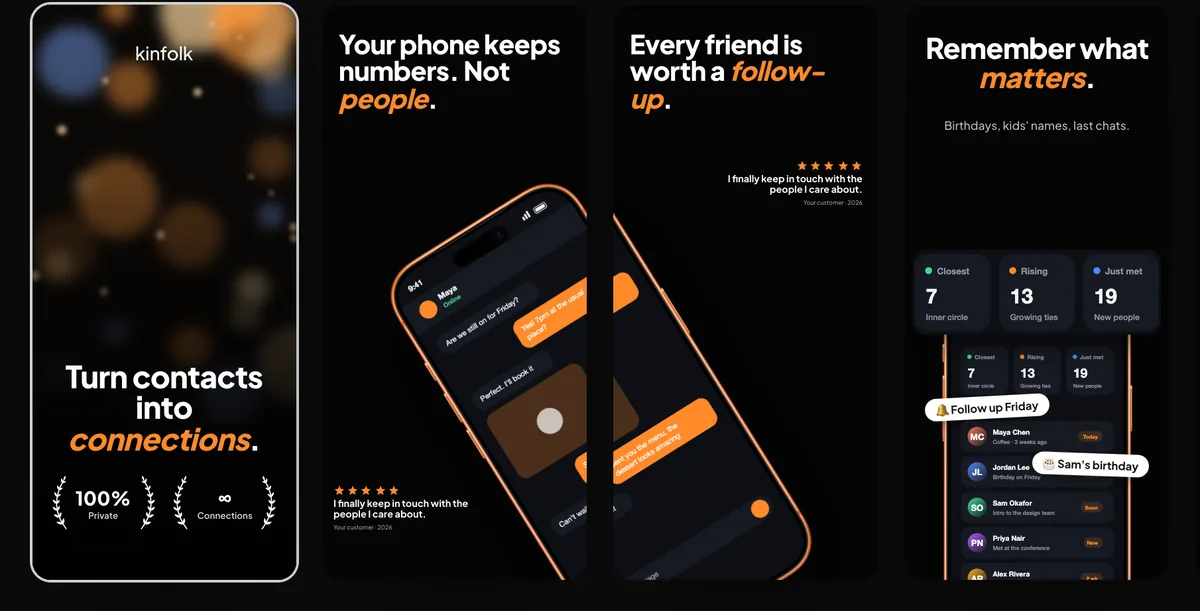
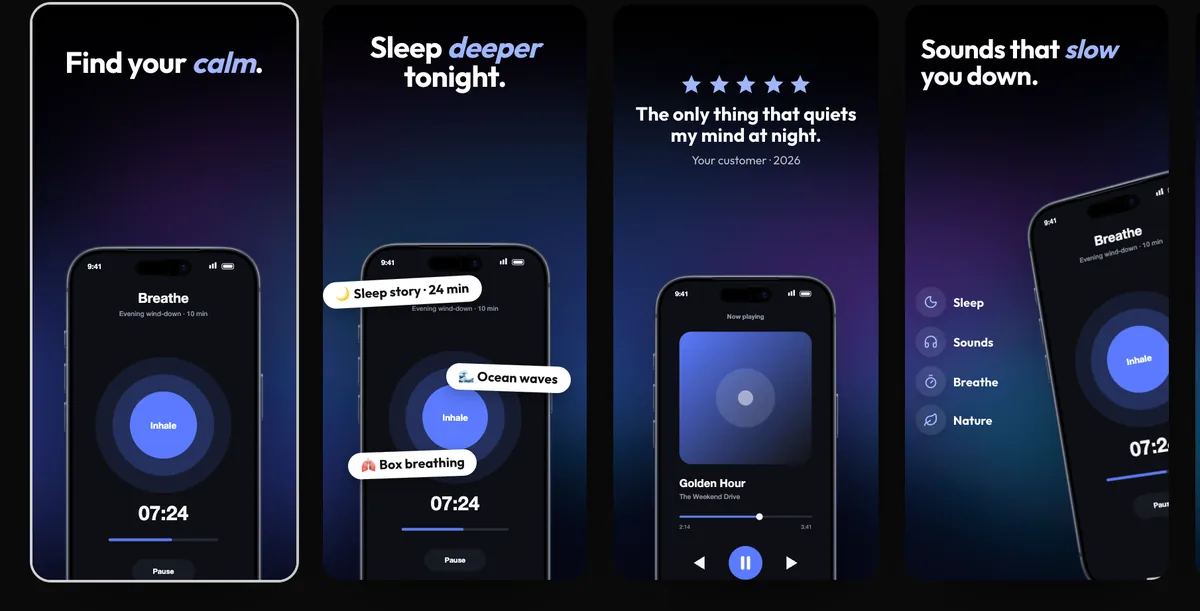
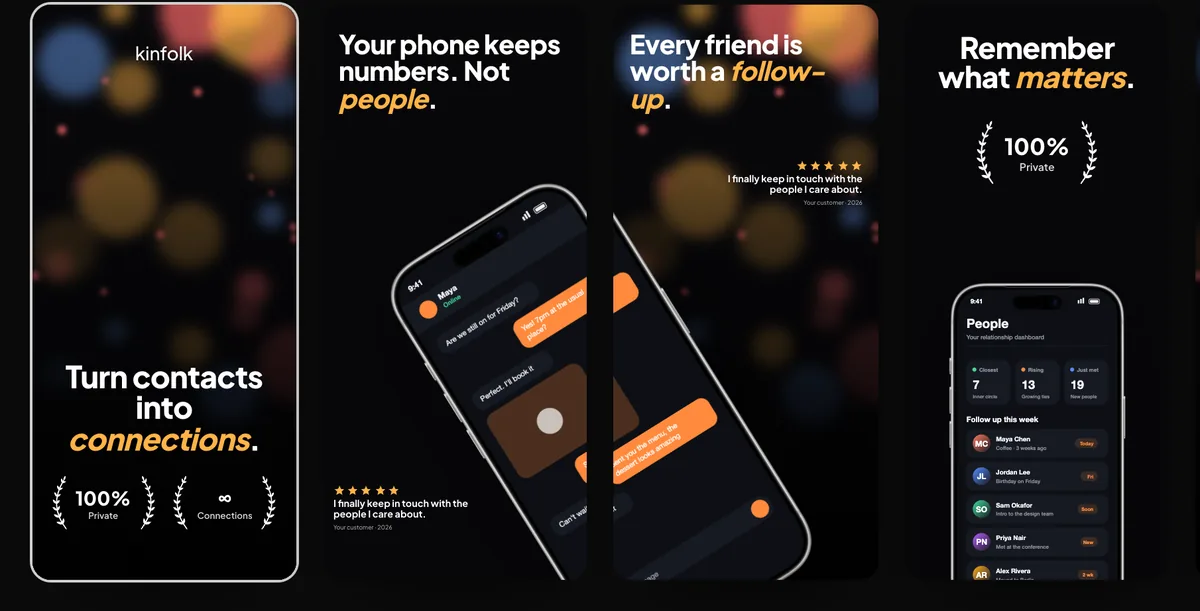
App Previews must show captured footage of the app. Frames around the device, hands and marketing slides belong in screenshots, not previews. 240fps keeps previews full-bleed so they pass review, and keeps the frames and headlines for your screenshots.
Checked before upload
Previews are rejected for small things: a missing audio track, a wrong size, a few frames too long. The checklist covers each one, and the export gets them right by default.
How to do it
- 1Record your appRecord the app on a device or in the simulator, or with the recorder in 240fps for Mac.
- 2Add the clipsIn the Screenshots studio, open App Preview and add your recordings.
- 3Trim and orderTrim each clip, set the order, pick the size and add music if you like.
- 4Export or uploadExport the MP4, or include it when you upload to App Store Connect.
Questions
Can I put the video in a phone frame?
Not in an App Preview: Apple wants the app's own footage full screen. Use a device mockup video for your website and social posts instead.
Is it free?
Building the preview is free; exporting comes with 240fps Monthly ($7 a month) or Lifetime ($39 once).