Tool
Figma frames in device mockups
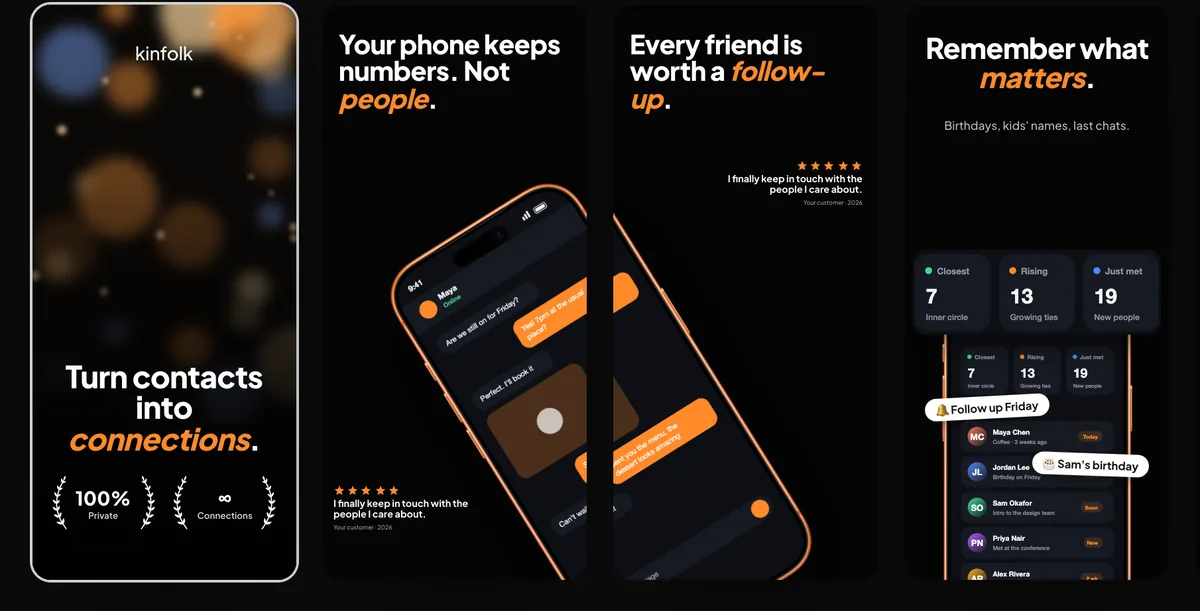
240fps imports Figma frames: in Figma, select a frame and copy its link, paste it into 240fps with your Figma personal access token, and the frame is rendered at 2× and placed in the device. Then style it, animate it or turn a set of frames into App Store screenshots. The token stays in your browser and is sent only to Figma.
From design to launch visual
Designs usually leave Figma as flat exports that someone then drops into a mockup by hand. Importing the frame directly skips the export step and keeps the image sharp.
Your token, your browser
Figma's API needs a personal access token. 240fps stores it in your browser only and sends it straight to Figma; it never reaches our servers. You can create a token with read-only access to file content and revoke it in Figma at any time.
How to do it
- 1Copy the frame linkIn Figma, select a frame, then right-click and choose Copy link to selection.
- 2Open Figma importIn the editor, under Media, choose Figma.
- 3Paste and importPaste the link and your personal access token, then press Import frame.
- 4Style and exportPick a device and background, or build a store screenshot set from several frames.
Questions
Where do I get a Figma personal access token?
In Figma, open Settings, then Security, then Personal access tokens, and create one with read access to file content.
Is my Figma token uploaded?
No. It's saved in your browser and sent only to Figma's API.
Is it free?
Designing is free. Exporting images and videos comes with 240fps Monthly ($7 a month) or Lifetime ($39 once).