Tool
Annotate screenshots
240fps annotates screenshots inside a device mockup: add highlight boxes, arrows, speech bubbles, a spotlight that dims everything else, and blur to hide private details. In an image they're drawn in place; in a video they draw, pop or fade in and out on cue.
Pinned to the screen
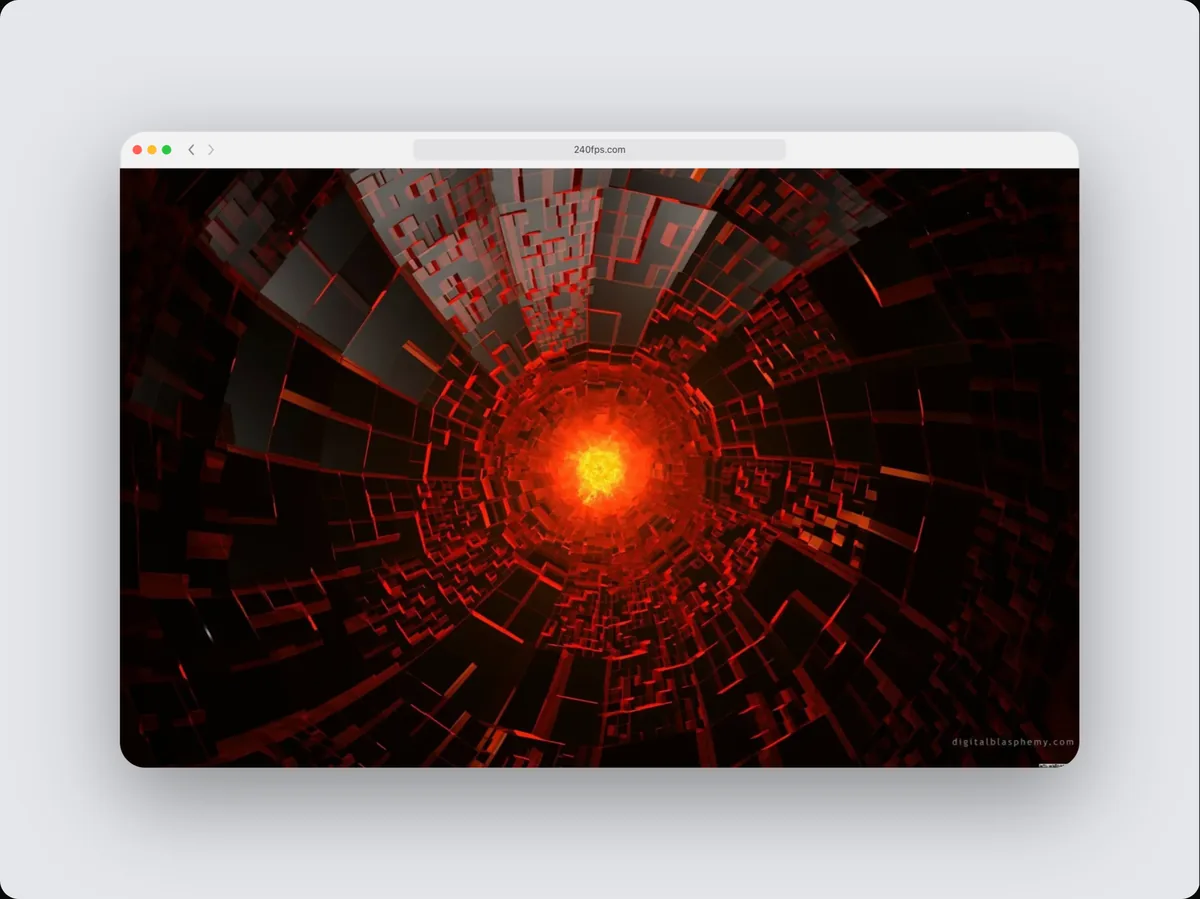
Callouts belong to the device's screen, so they stay on the button they point at when the device is tilted, zoomed or moved.
Good for
- Help-centre and documentation images
- Feature announcements
- Bug reports and design feedback
- Tutorials
How to do it
- 1Open the Annotate tabAdd your screenshot first.
- 2Add a calloutChoose Box, Arrow, Bubble, Blur or Focus.
- 3Place itDrag it on the screen; the white handle resizes or aims it.
- 4ExportExport an image, or time the callouts and export a video.
Questions
Can I add text to an arrow?
Yes. Boxes, arrows and spotlights can carry a label; bubbles are text.
Is it free?
Designing is free. Exporting images and videos comes with 240fps Monthly ($7 a month) or Lifetime ($39 once).