By Shaheer Malik · · 7 min read
How to Make an App Promo Video From Screenshots (Step by Step)
To make an app promo video, pick one idea to show, capture 3 to 5 clean screens or a short recording, put them in a device mockup, add camera moves that lead the eye, an animated cursor or taps, a short headline and music, and export a 15 to 30 second MP4. In 240fps you can do all of it in the browser, starting from an app launch template.
A good app promo video isn't a tour of every screen.
It's one idea, shown so clearly that someone scrolling past understands what your app does before they've decided whether to stop. That's harder than it sounds, because the temptation is always to show everything you built.
The good news is you don't need a video team, a studio or professional editing software. You need the screenshots you already have, a clear story, and a few deliberate movements that show people where to look.
In this guide, I'll walk you through the whole process, from the one sentence your video has to say to the export settings for each channel, with the mistakes to avoid along the way.
Step 1: Write One Sentence
Before you open any tool, write the one sentence the video has to get across. "Split a bill in three taps." "Your inbox, summarised every morning." "Track every habit in one glance."
If you can't say it in a sentence, the video will try to say five things and land none of them.
That sentence decides everything else: which screens you need, what the headline says, where the camera goes, and when the video is finished.
Test your sentence
A good promo sentence is:
- Specific: it names an outcome, not a category ("Budget without spreadsheets", not "A finance app").
- Short: it fits on a phone screen in large type.
- From the user's side: it's about what they get, not what you built.
Step 2: Capture the Right Screens
You need fewer screens than you think. Three to five is plenty for a 20-second video.
The screens that matter
- The hook: the screen that shows the result, not the setup. For a budgeting app, the chart, not the sign-up form.
- The action: one or two screens that show how you get there.
- The payoff: the moment the job is done.
Make them look their best
- Take screenshots on the device, or in the simulator at the largest size you can.
- Clean up the status bar: full battery, a round time.
- Use tidy, realistic sample data. No "Test User", no lorem ipsum.
- Turn off notifications.
If a flow matters more than a still (a swipe, a drag, an animation), record the screen instead. A short recording plays inside the device mockup just like an image.
Step 3: Put Them in a Device
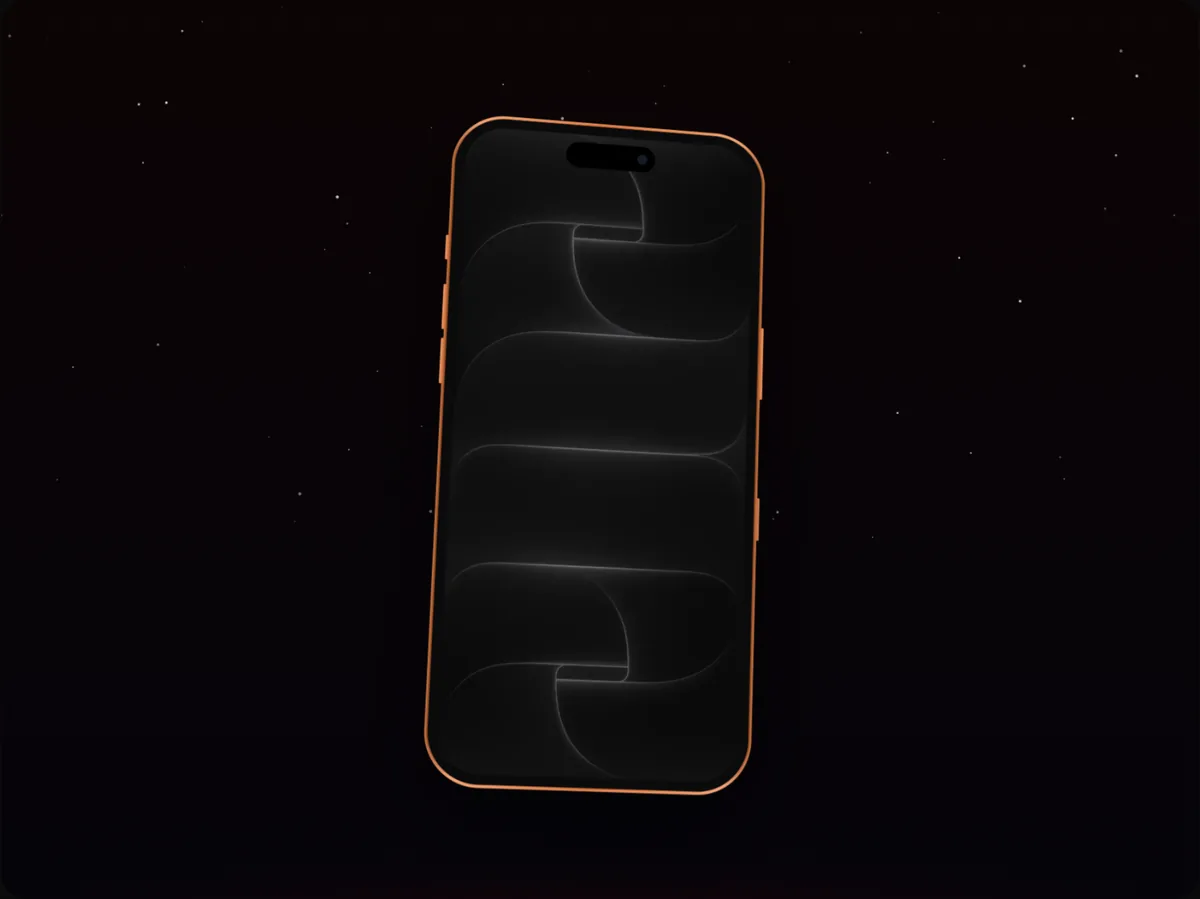
A bare screenshot looks like a work in progress; the same screen in a device looks like a product. Pick the device your audience uses. For an iPhone app, an iPhone 17 Pro mockup is a safe default; if you're on both platforms, show an Android phone beside it.
Background and layout
Keep the background quiet. A soft colour or gentle gradient from your brand keeps attention on the screen; busy wallpapers compete with it.
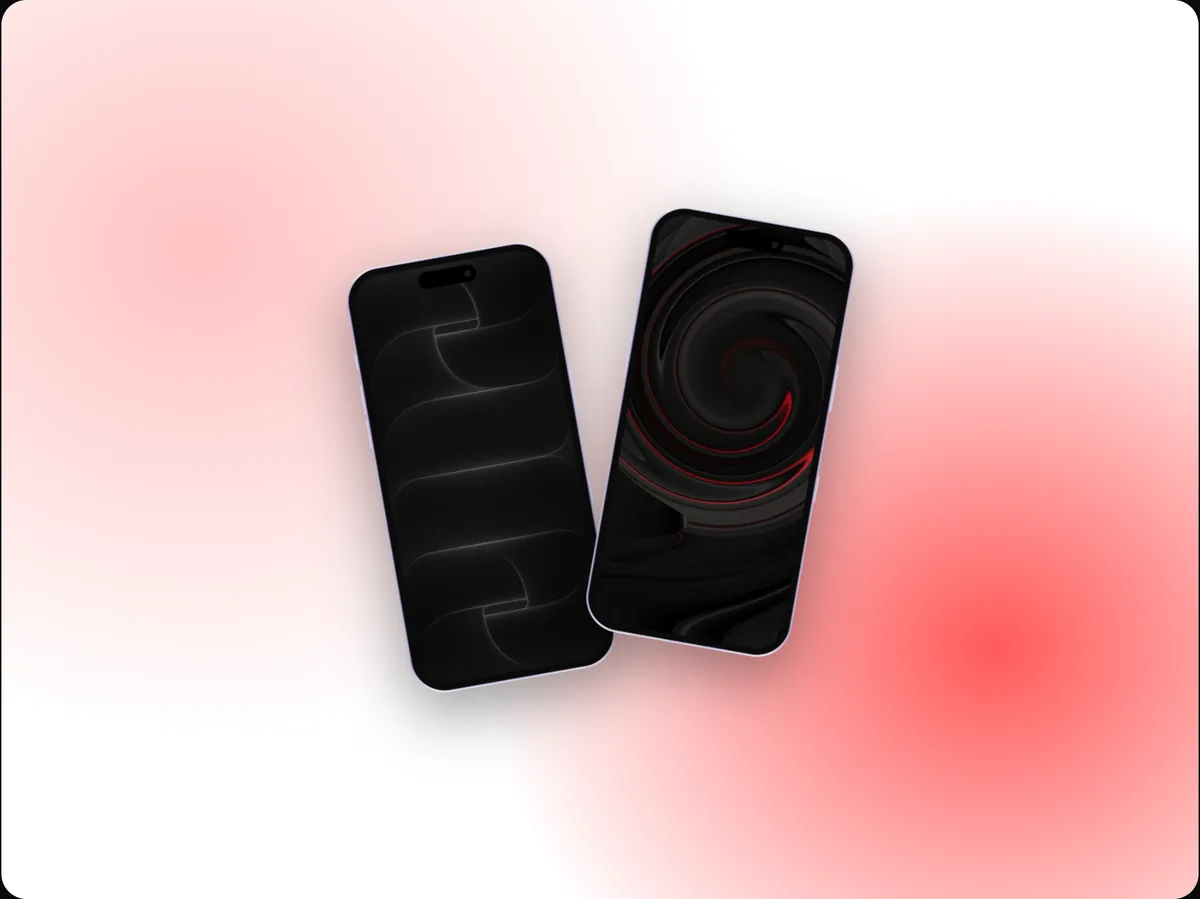
For the layout, one device centred works for most videos. Two devices side by side can show a before-and-after or two platforms at once.
Step 4: Move the Camera With Purpose
Motion is what makes it a video, but every move should point at something. A typical sequence:
- Open on the device arriving or the camera pulling in, so the first second has movement.
- Zoom into the detail that proves your sentence: the total, the summary, the button.
- Cut or slide to the next screen as the action happens.
- End wide and still for a moment, so the last frame works as a thumbnail.
In 240fps, these are camera moves on a timeline. The app launch templates set up a sensible sequence you can retime, and a zoom animation can be added into any spot with one click.
Pacing
Give each idea two to four seconds. Anything shorter goes by before people understand it; anything longer feels slow. Cut on the action (the tap, the swipe) so the video feels continuous.
Step 5: Show the Interaction
If your app is about doing something, show it being done. An animated cursor, or a touch dot for phones, that moves and taps through the screens tells the story without narration.
Callouts help too:
- A highlight box that draws around the result as it appears.
- An arrow pointing at the button that matters.
- A speech bubble with a short line of context.
Keep them brief: one callout on screen at a time.
Step 6: Add a Headline and Music
The headline
Most people watch with the sound off, so the headline carries the message. Use your one sentence, or a shorter version of it, big enough to read on a phone. Two lines at most.
Music
Music sets the pace. Pick something with a clear beat, start it at an energetic point rather than a slow intro, and fade it out at the end. Make sure you have the rights to use it.
Step 7: Export for Where It's Going
| Channel | Shape | Length |
|---|---|---|
| App Store app preview | Portrait, at the size Apple asks for your device | 15 to 30 s |
| Instagram Reels, TikTok, Stories | 9:16, 1080 × 1920 | 7 to 30 s |
| X and LinkedIn | 16:9 or square | 10 to 30 s |
| Product Hunt gallery | Wide | 20 to 40 s |
| Landing page hero | Seamless loop, MP4 or WebM | 6 to 15 s |
Export an MP4 at 30 fps for social and 60 fps if the motion is fast. If you need several shapes, save the project and make a copy for each.
Common Mistakes
Showing everything
Twelve features in thirty seconds means none of them registers. Pick the three that best prove your sentence.
Starting with a logo
The first seconds are the most valuable. Spend them on your app's best moment, not a logo animation.
Unreadable screens
A full phone screen at feed size is small. Zoom into the part that matters.
Relying on sound
Put the message on screen. Music and voice are a bonus.
Mixed styles
If your promo video, screenshots and social posts all look different, you lose the recognition that consistency builds.
A Quick Checklist
- One idea, stated in the first three seconds.
- Three to five screens, cleaned up.
- Every camera move points at something.
- A headline you can read on a phone with the sound off.
- The last frame works as a still.
- A version exported for each channel you'll post on.
Example: A 20-Second Promo, Second by Second
Here's how the steps come together for a fictional habit-tracking app:
| Time | What happens | Text |
|---|---|---|
| 0 to 2 s | Phone rises into frame, showing today's habits, most ticked | "Track every habit in one glance" |
| 2 to 7 s | Touch dot taps a habit; it fills with a satisfying check; camera zooms in | "One tap to check in" |
| 7 to 12 s | Slide to the weekly streak chart; camera pans across it | "See your streaks grow" |
| 12 to 16 s | Slide to a reminder notification screen | "Gentle reminders, never nagging" |
| 16 to 20 s | Pull back to the first screen; hold | App name |
It uses four screens, three camera moves, one touch interaction and four short lines of text. That's all a promo needs.
FAQs
How long should an app promo video be?
15 to 30 seconds for most uses. That's long enough to show the payoff and two or three features, and short enough that people watch to the end.
Can I make a promo video from screenshots only?
Yes. A sequence of clean screenshots with transitions, camera moves and a cursor often looks cleaner than a screen recording. Use recordings only where the motion itself matters.
Do I need video editing software?
No. Building the video from parts (screens, camera moves, cursor, text, music) on a timeline covers almost every promo video.
What should the first three seconds show?
Your app's most valuable moment, with your one sentence as a headline. Not a logo, a splash screen or onboarding.
Conclusion
An app promo video is a short argument for why your app deserves a download. Make it with one sentence, a few clean screens, a device that makes them look real, and motion that points at the payoff.
When you're ready, open an app launch template, drop in your screens and adjust from there.
What's the one sentence your promo video needs to say?