By Shaheer Malik · · 6 min read
How to Upload App Store Screenshots for Every Language at Once
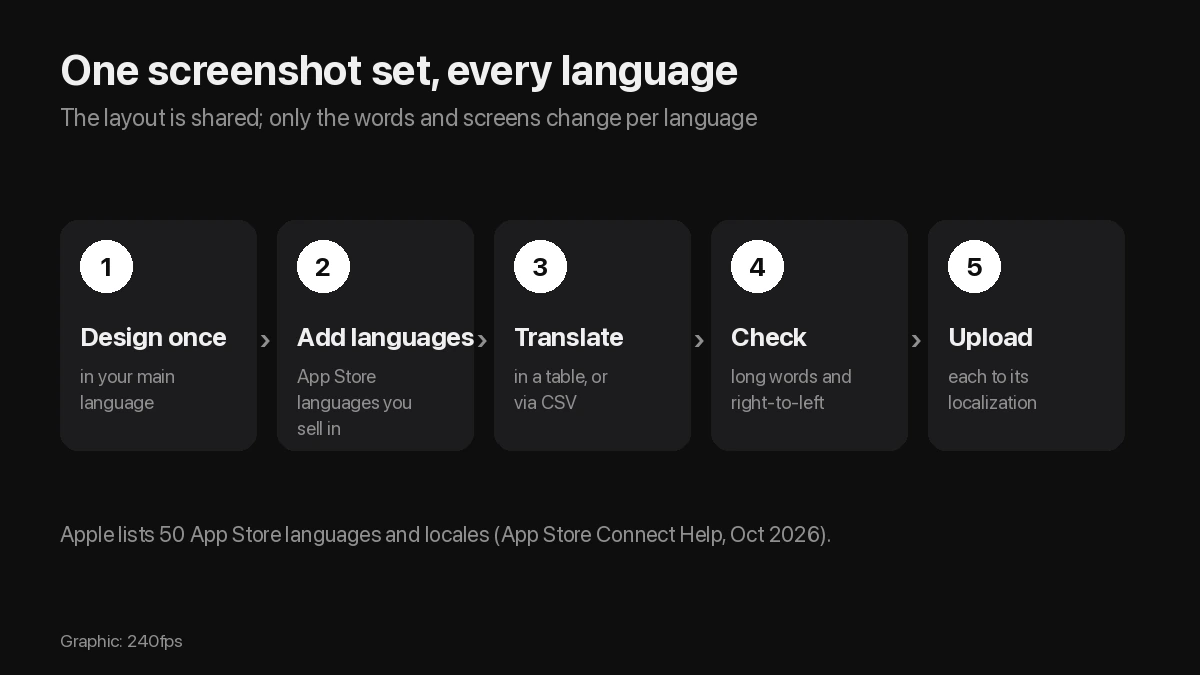
To upload App Store screenshots for every language at once, design one set in your main language, add the languages you sell in, translate the headlines in a table or CSV, and upload with the App Store Connect API rather than dragging files into each localization. Tools such as 240fps or fastlane deliver send every size and language in one pass. If your screenshots are the same in every language, Apple lets you upload only the largest size for one localization.
Localizing your App Store listing is one of the cheaper ways to reach new markets: the app stays the same, and the product page speaks the shopper's language. Screenshots are the part of that page people look at first, so they're where localization shows.
The hard part isn't the translation. It's the files. Ten screenshots across two or three sizes in ten languages is hundreds of images, and App Store Connect wants each one dropped into the right localization, in the right order. This guide covers what Apple requires, how to localize a set without it drifting apart, and how to upload everything in one pass.
Disclosure: I make 240fps, one of the tools below. Apple's rules come from its own App Store Connect Help pages, read on 1–2 October 2026, and I've included a free, open-source alternative.
How many languages does the App Store support?
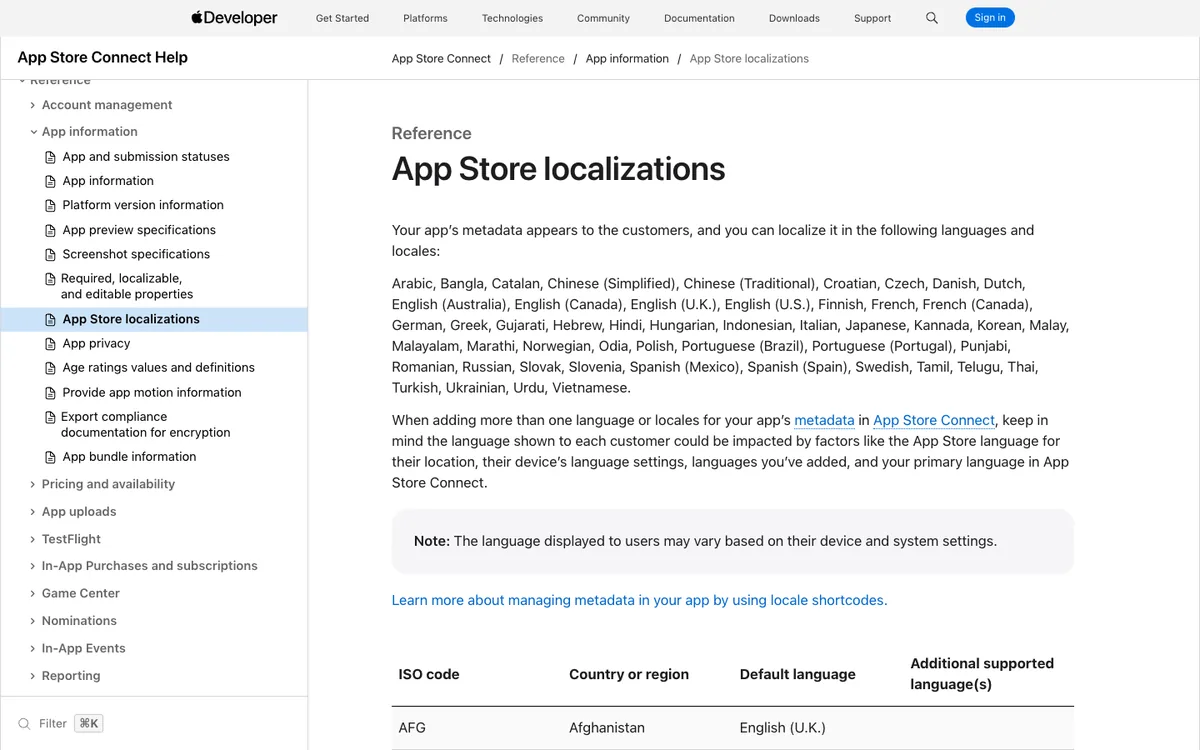
Apple's App Store localizations page lists 50 languages and locales for your app's metadata, from Arabic and Bangla to Urdu and Vietnamese. English alone has four (Australia, Canada, U.K. and U.S.), and Spanish, French, Portuguese and Chinese each have two.
You don't need all 50. Start with the languages of the storefronts where you already have downloads or the market you're targeting next.
Do you need different screenshots for every language?
No, but localized ones are more convincing. Apple's guide to uploading previews and screenshots says that if your app's interface is the same across device sizes and localizations, you can provide only the highest-resolution screenshots, and they scale down automatically. You can still add specific screenshots for other sizes and localizations in Media Manager.
App previews behave differently: Apple shows your preview in every storefront unless you add one for that localization, and otherwise falls back to the next best available language.
So the real choice is quality. Screenshots with headlines in the shopper's language, ideally over app screens in that language, look like an app made for them.
How do you localize a screenshot set without it falling apart?
Share the layout and localize only the words and screens. The common mistake is duplicating the whole design for each language. Then a phone moves in German, a colour changes in Japanese, and ten copies slowly drift apart.
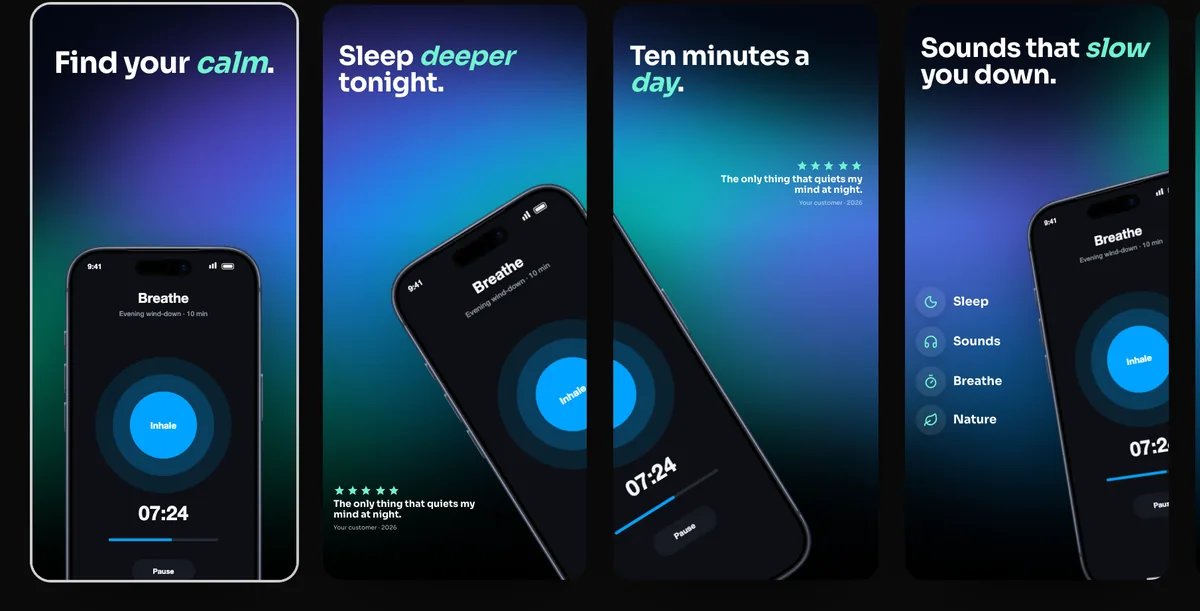
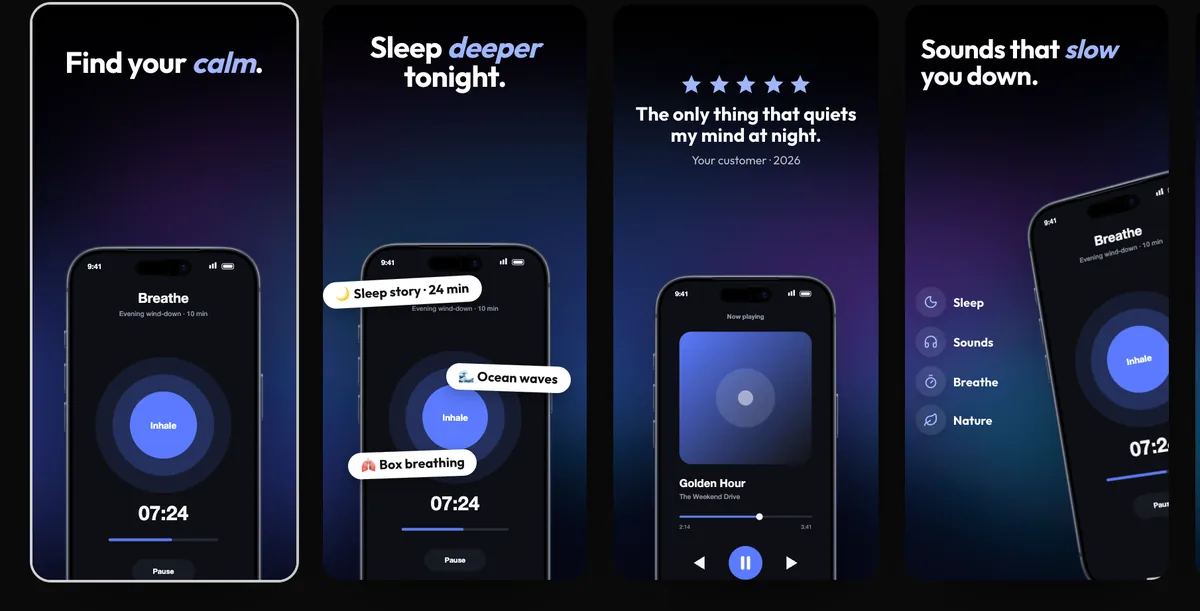
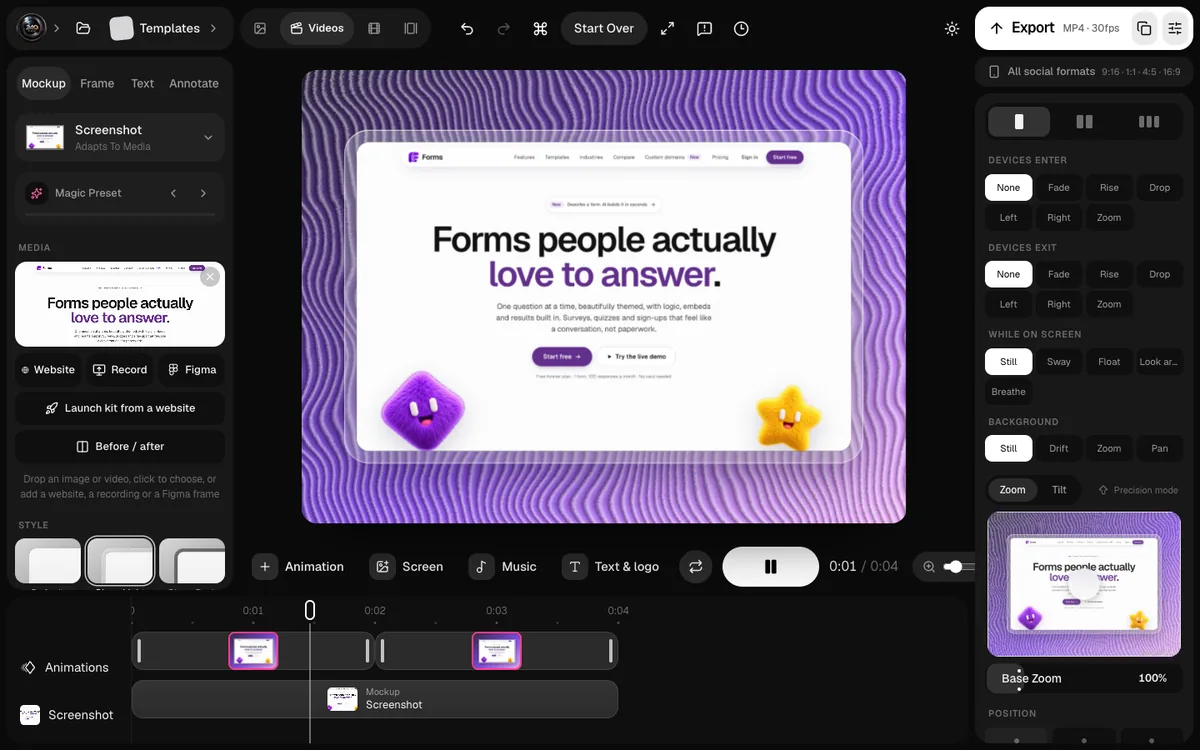
In the 240fps Screenshots studio, the layout belongs to the set, and each language keeps only its own headlines, badges, list items and, if you like, its own app screens. Move a phone once and it moves in every language.
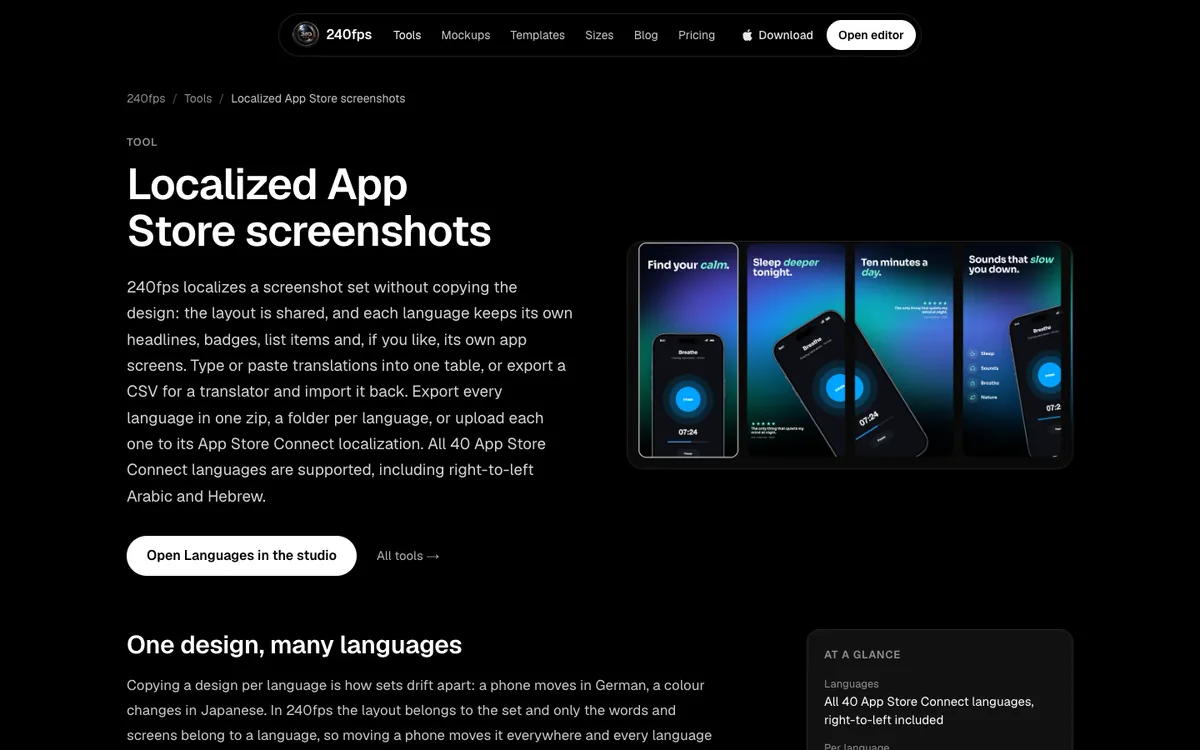
The steps:
- Design the set in your main language.
- Add languages in the Languages panel.
- Translate in one table: type, paste, or export a CSV for a translator and import it back.
- Add localized screens if you have them: drop a screen on a device while that language is shown, and it replaces the screen for that language only.
240fps supports 40 App Store Connect languages, including right-to-left Arabic and Hebrew. Apple's list has since grown to 50, so check that yours is covered before you plan a set around it.
What should you check before exporting?
Check every language at full size, not only your own.
- Long words. German and Finnish headlines often run much longer than English. Shorten the copy rather than shrinking the type below what's readable at thumbnail size.
- Right-to-left languages. Arabic, Hebrew and Urdu read right to left. Check that headlines align and that any arrows still point the right way.
- Line breaks. Chinese and Japanese don't use spaces, so automatic line breaks can split a phrase awkwardly.
- Numbers and prices. Leave prices out of screenshots entirely; they change, and Apple's guideline 2.3.7 warns against pricing information in metadata.
How do you upload screenshots for every language at once?
Use the App Store Connect API instead of the web uploader. Dragging files into each localization by hand is slow and easy to get wrong; the API takes them in one pass.
Option 1: 240fps
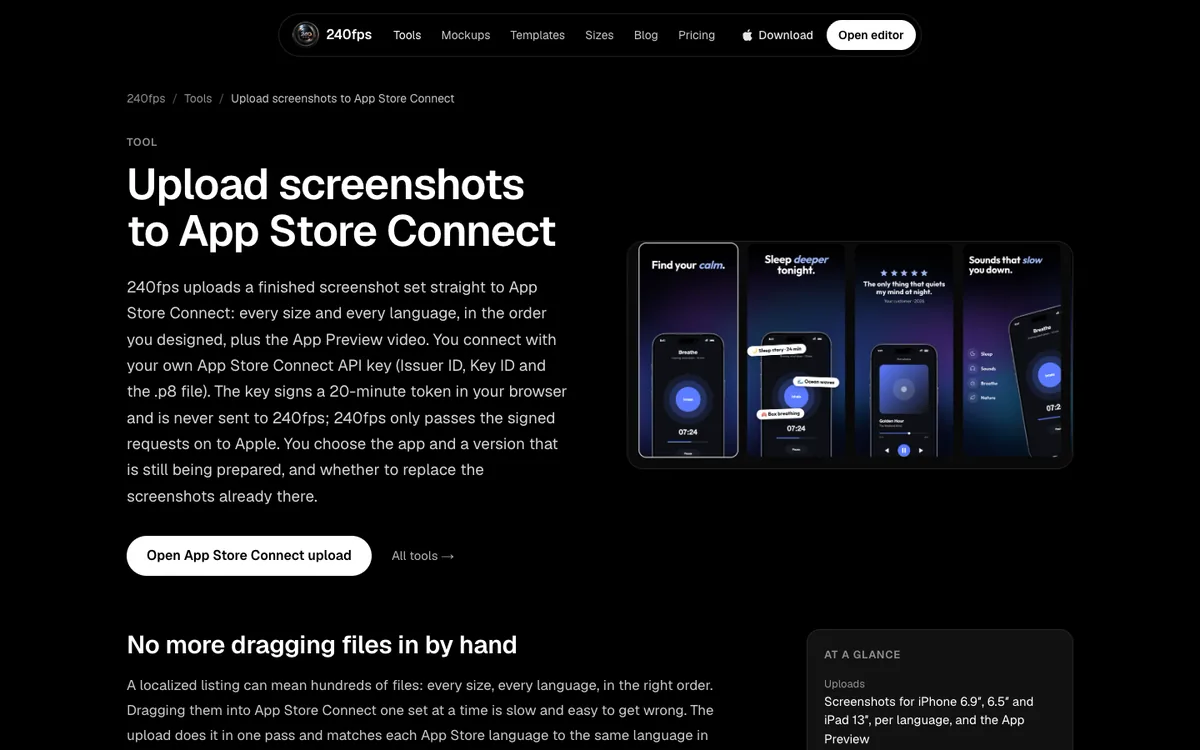
The App Store Connect upload sends a finished set straight to Apple: every size and every language, in the order you designed it, plus the App Preview video.
- Create an API key. In App Store Connect, open Users and Access, then Integrations, and generate a team key with the App Manager role. Download the .p8 file and copy the Issuer ID.
- Connect. In the Screenshots studio, choose Upload to App Store Connect and enter the Issuer ID, Key ID and .p8 file.
- Pick the version. Choose the app and a version that's still being prepared.
- Upload. Choose the sizes and whether to replace what's already there. Languages without a match in your set are skipped and listed.
The key signs a short-lived token in your browser and is never sent to 240fps; 240fps only passes the signed requests on to Apple. You can revoke the key in App Store Connect at any time.
Option 2: fastlane deliver
If you already use fastlane in your build pipeline, its deliver action uploads localized screenshots and metadata from a folder with a subfolder per language, and detects the device size from each image's resolution. It's free and open source, and it suits teams that automate releases. You still need to design the screenshots and export them into that folder structure.
240fps can also export every language as a zip with a folder per language, if you'd rather upload with fastlane.
How often should you update localized screenshots?
Whenever the screens change, and at least for each major release. A localized set that shows last year's interface undoes the point of localizing. Because the layout is shared, updating means swapping screens once and re-exporting every language.
FAQs
How many languages can an App Store listing have?
Apple's App Store Connect Help lists 50 languages and locales for app metadata, as of October 2026.
Do I have to upload screenshots for every language?
No. If your screenshots are the same in every language, upload them for one localization at the largest required size and they scale down. Add localized sets where you want headlines in the shopper's language.
How do I upload screenshots to App Store Connect in bulk?
Use the App Store Connect API, through a tool such as 240fps's App Store Connect upload or fastlane deliver, rather than dragging files into each localization.
Does 240fps support right-to-left languages?
Yes. 240fps supports 40 App Store Connect languages, including right-to-left Arabic and Hebrew.
Is my App Store Connect API key safe with 240fps?
The key signs a 20-minute token in your browser and is never sent to 240fps. Remembering it on your device is optional and off by default, and you can revoke it in App Store Connect at any time.
Last updated: 2 October 2026. Apple's details are from App Store Connect Help on 1–2 October 2026.