By Shaheer Malik · · 7 min read
App Store Preview Videos: What to Show in the First 3 Seconds
An App Store preview video should show your app's most valuable moment within the first three seconds, because previews autoplay muted and many people only see the start. Keep it between 15 and 30 seconds, use real footage of the app, put the key message in on-screen text, and make sure the poster frame works as a still. Plan it like a story: the payoff first, then two or three features that back it up, then an ending that invites the download.
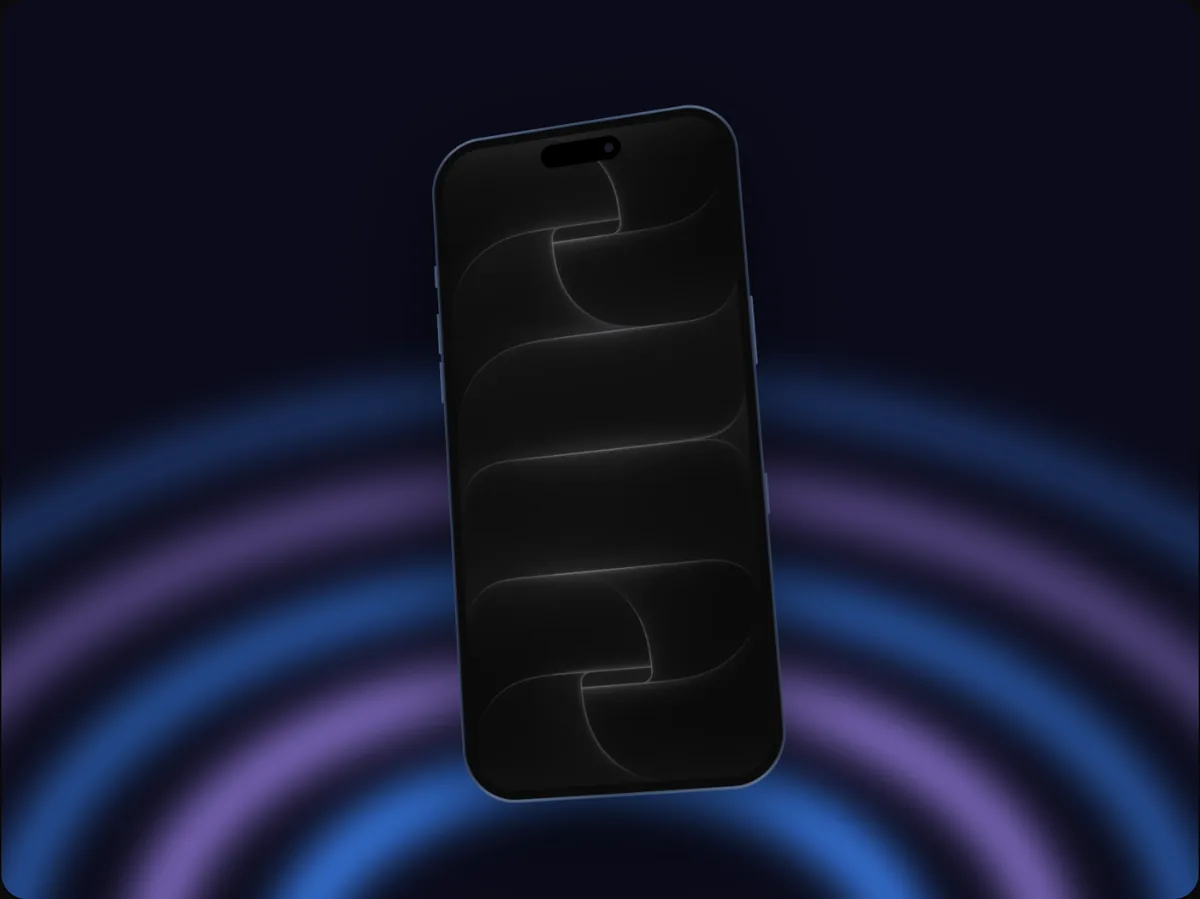
Your App Store preview video has a tough job.
It autoplays, muted, on your product page. Many people only see the first few seconds before they scroll to the screenshots or back to search. In that sliver of time, it has to show what your app does and why it's worth downloading.
That's why the best app previews aren't mini tutorials. They're short, fast, visual arguments that lead with the most compelling moment and never waste a second.
In this guide, I'll cover the rules you need to know, how to structure the 15 to 30 seconds you get, how to capture footage that looks sharp, and the mistakes that make previews get skipped.
The Rules You Need to Know
Apple has specific requirements for app previews. The ones that shape your planning most:
- Length: each preview is 15 to 30 seconds long.
- Number: up to three previews per device size and language.
- Content: previews should show the actual app in use. Apple's guidelines discourage content that isn't the app itself, such as people using the device or footage that misrepresents the app.
- Poster frame: you choose a frame that shows before playback, and it matters because it's what people see first.
Resolution and format requirements are specific to each device class. Check App Store Connect's app preview specifications before you export, since they change as new devices arrive.
Why the First Three Seconds Decide Everything
On the product page, your preview plays on its own without sound. People are deciding whether your app is worth a closer look, and they give it a few seconds at most.
If those seconds show a logo animation, a splash screen or a sign-up form, you've spent your most valuable time on the least persuasive part of your app.
Open on the payoff. Show the moment your app delivers value: the finished edit, the booked table, the progress chart, the translated sentence. Everything else comes after.
A Structure That Works
Think of your preview in three acts.
Act 1: The payoff (0 to 3 seconds)
The single most impressive thing your app does, visible immediately. Add a short on-screen line that names it: "Edit video in seconds" or "Every expense, sorted automatically."
Act 2: The proof (3 to 22 seconds)
Two or three features that back up the opening claim, each shown in action for a few seconds with its own short caption. Resist the urge to show everything; depth beats breadth.
Act 3: The invitation (last few seconds)
End on a strong, calm frame: the app's best screen, your name, maybe a line like "Plan your week in minutes." Hold it long enough to read.
| Time | What to show | On-screen text |
|---|---|---|
| 0 to 3 s | The main outcome | The main benefit, five words or fewer |
| 3 to 10 s | Feature one in action | One short benefit line |
| 10 to 17 s | Feature two in action | One short benefit line |
| 17 to 24 s | Feature three, or a key detail | One short benefit line |
| Last 3 to 6 s | Best screen, held | Name or closing line |
Capturing Footage That Looks Sharp
Prepare the app
- Use realistic, attractive sample data. Empty states and "Test User" kill credibility.
- Set a clean status bar: full battery, strong signal, a round time.
- Turn off notifications and anything that could pop up mid-recording.
Record deliberately
Record each feature as its own short clip rather than one long take. It's much easier to trim and reorder clips than to find good moments in a five-minute recording. Move slowly and deliberately; fast, jittery gestures look worse on video than they feel in your hand.
Use the right size
Record on the largest device you're targeting, or at its resolution in the simulator, so your footage is sharp at the size Apple asks for.
Editing: Pace, Text and Focus
Pace
Each shot should last as long as it takes to understand, and no longer. Two to four seconds per idea is a good starting point. Cut on the action (the tap, the swipe) so the video feels continuous.
Text
Because previews start muted, text carries your message. Keep lines short, place them where they don't cover the important part of the screen, and give each line enough time to read.
Focus
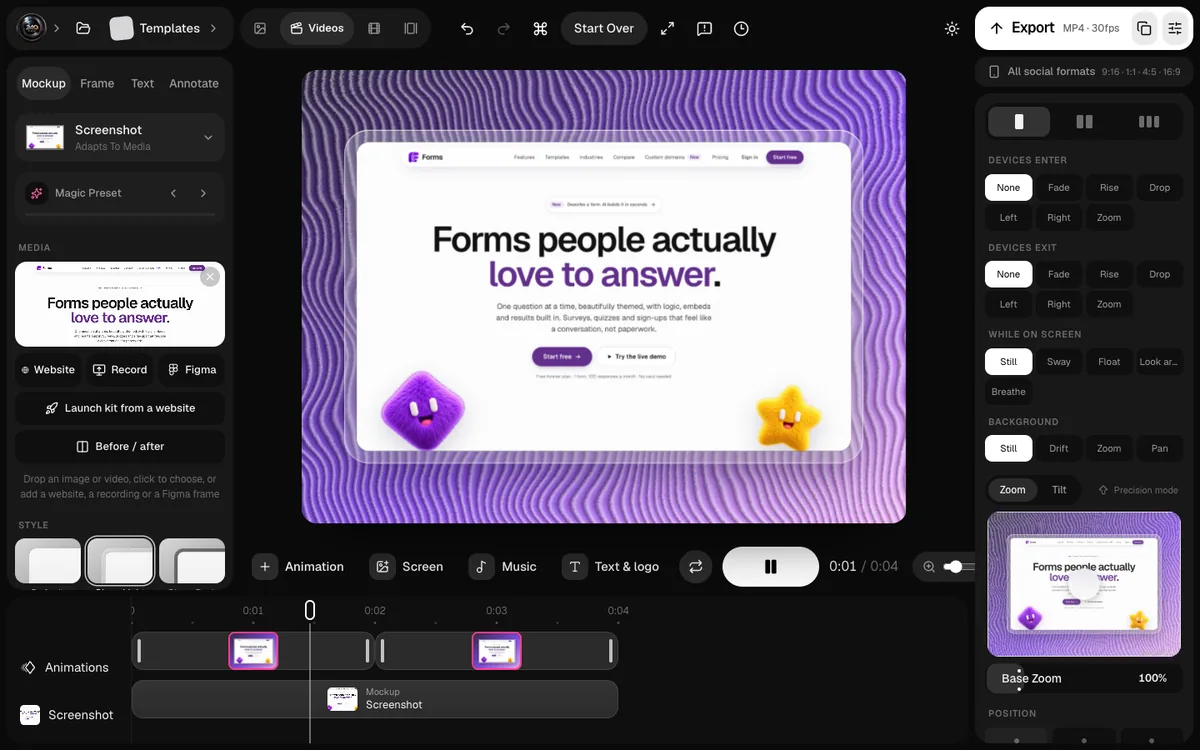
Small UI is hard to follow on a phone. Zooming into the part of the screen that matters, or highlighting a tap with a subtle cursor or ring, helps viewers follow the story. In a product video tool you can add a zoom that follows each tap, rather than cropping by hand.
The Poster Frame
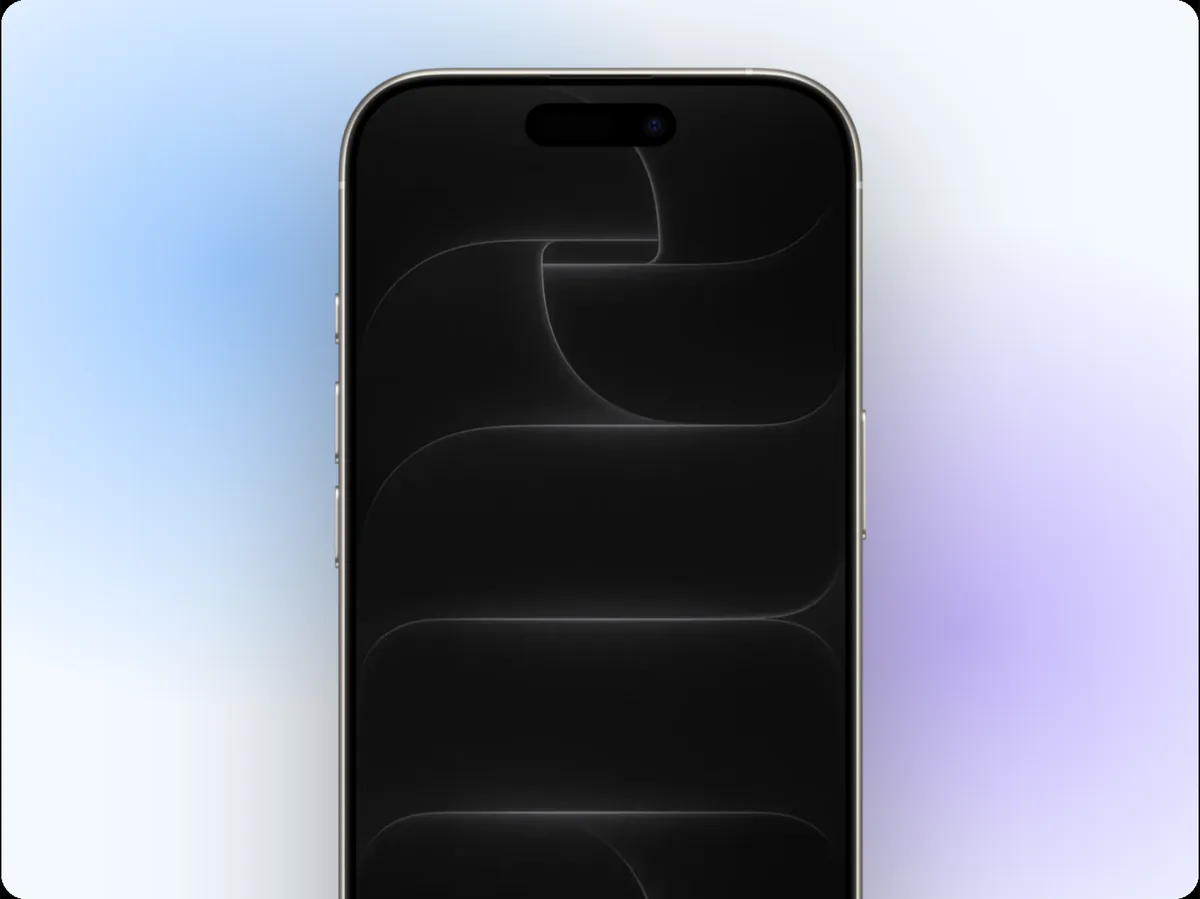
The poster frame is the still that shows before your preview plays, and in some places it's all people see. Choose a frame that:
- Shows your app's best screen, not a transition.
- Is readable at thumbnail size.
- Works alongside your first screenshots.
A good trick: design the poster frame first, as if it were a screenshot, then build the video so it opens on (or near) that frame.
Common Mistakes
Starting with branding
A logo animation is the most skipped few seconds of any preview. Your icon is already on the page.
Showing onboarding
Sign-up and permission screens are necessary, not persuasive. Skip them.
Too many features
Twelve features in 30 seconds means none of them registers. Pick three.
Unreadable text
Text that's too small, too fast or placed over busy UI goes unread. Big, short, and on screen long enough.
Relying on sound
Music helps when someone taps to unmute, but the preview has to work in silence first.
Beyond the App Store
The same footage works harder elsewhere:
- Cut a vertical version for Instagram Reels and TikTok.
- Use the payoff shot as a looping hero on your website.
- Turn stills from it into your App Store screenshots.
Plan the footage once, then reuse it everywhere.
An Example Storyboard
Here's a 25-second storyboard for a fictional budgeting app, to show how the structure translates into shots:
| Time | Shot | On-screen text |
|---|---|---|
| 0 to 3 s | The monthly overview chart, fully loaded | "See where your money goes" |
| 3 to 9 s | A receipt photo becoming a categorised expense | "Snap a receipt. Done." |
| 9 to 15 s | Dragging a budget slider, the chart updating live | "Set budgets that adjust themselves" |
| 15 to 21 s | A gentle alert: "You're on track this month" | "Stay on track without spreadsheets" |
| 21 to 25 s | The overview again, held | App name |
Notice what's missing: no onboarding, no settings, no permission screens, and no feature that doesn't support the opening claim.
Localising Your Preview
If you sell in several markets, you can upload previews per language. At minimum, translate the on-screen text. If your app itself is localised, capture footage in each language, since a preview in one language with text in another looks unfinished.
FAQs
How long should an App Store preview be?
Between 15 and 30 seconds. Shorter usually works better, as long as you show the payoff immediately and two or three features clearly.
Can I use a device frame in my preview?
Apple's guidelines focus on showing the app itself. Check the current App Store preview guidelines before adding frames or other elements around the footage, and when in doubt, show the app full-screen.
Do app previews need sound?
They autoplay muted, so they must work without sound. Music can add energy for people who unmute, but never rely on it to carry the message.
How many previews should I make?
Start with one great preview. Add more only if you have genuinely different stories to tell, such as distinct features for different audiences.
Conclusion
An App Store preview isn't a tour; it's an argument made in seconds. Open on the payoff, prove it with two or three features, and end on a calm, readable frame, all without needing a single sound.
Get the first three seconds right and the rest of your listing gets the attention it deserves.
What's the one moment in your app you'd open your preview with?